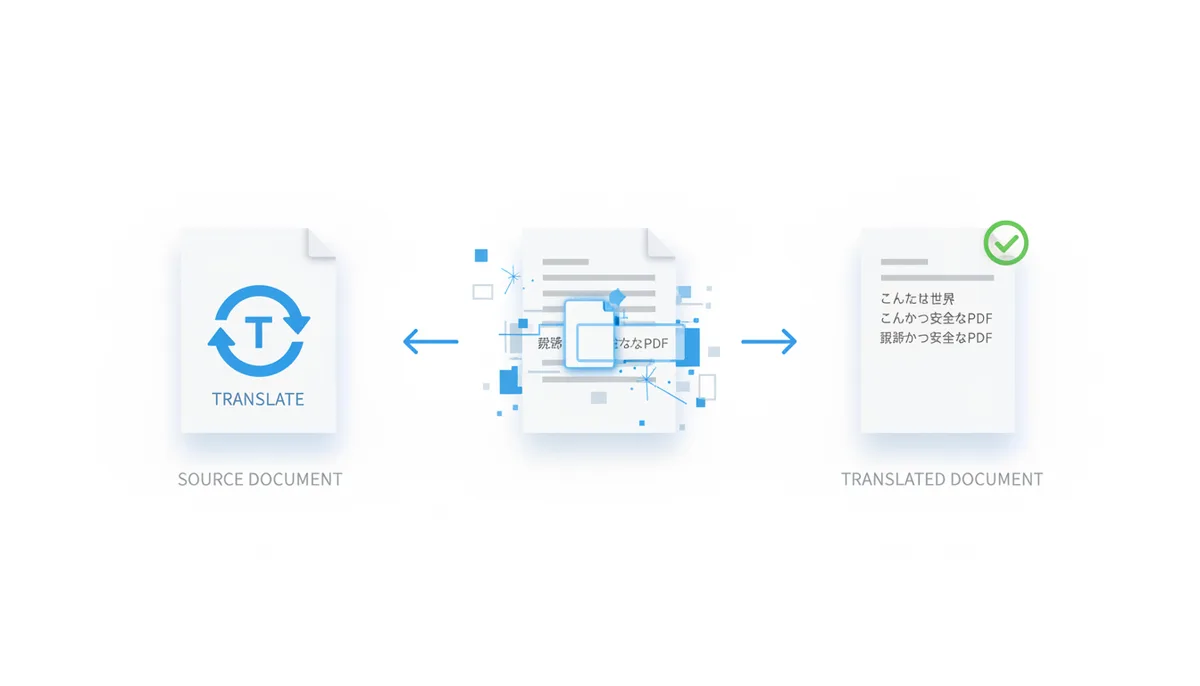
You've got a stack of documents in another language, and you need them in English yesterday. Manual translation would take forever, and hiring a professional could drain your budget. Enter PDFator, an AI-powered tool that can translate PDFs quickly and securely. Here’s how to use it effectively, from understanding the tech to refining the final output.
Why Use AI for PDF Translation?
Imagine you have a 50-page report due tomorrow. Using AI for translation can save you days compared to manual work. It’s not just about speed; AI translation services like PDFator are often cheaper too. But remember, AI isn’t perfect. While it handles standard text well, creative writing, technical jargon, and legal documents might need human oversight.
The biggest advantage of using PDFator is its ability to maintain the original document’s layout, formatting, and graphics. Simple copy-paste methods strip away all that, leaving you with a plain text file that lacks the original document’s structure and professionalism.
How PDFator's AI Engine Translates Your Document
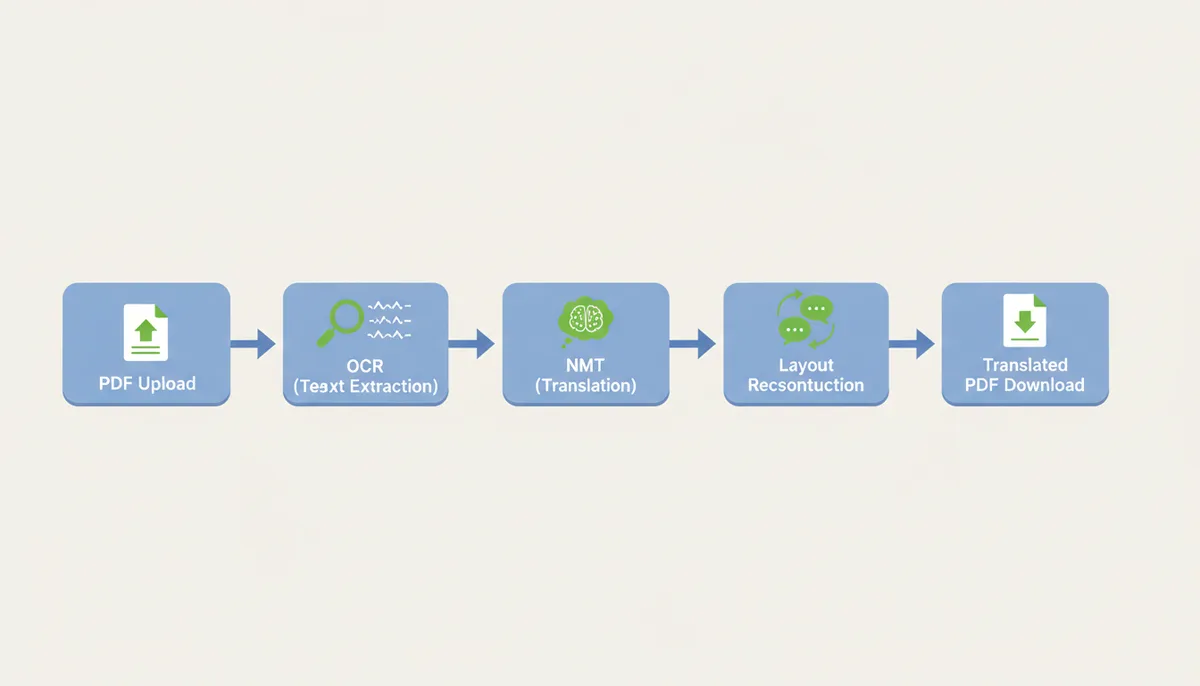
PDFator uses a three-step process to translate documents. First, OCR technology reads and extracts text, even from scanned images. Next, NLP models analyze the text for context and grammar. Finally, NMT engines generate the translation in your chosen target language. To preserve formatting, the tool breaks down the PDF into elements like text blocks, images, and tables, translates the text, and then reconstructs the document.
When it comes to security, PDFator encrypts your files during transfer and storage. Files are automatically deleted from their servers after a set period, ensuring your documents remain private. These measures comply with GDPR and other international data protection regulations.
Translating Your First PDF: A Step-by-Step Guide
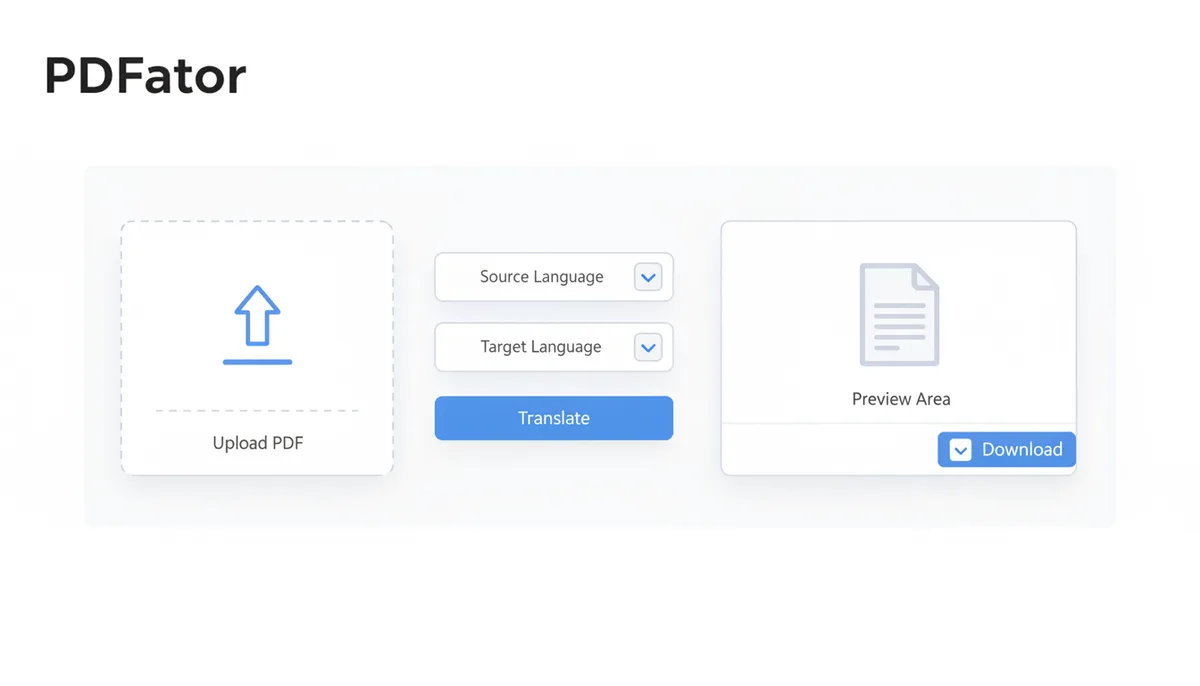
- Open the PDFator website and navigate to the Translate PDF tool.
- Sign in to your PDFator account if the tool requires authentication. Signing in allows you to access features like translation history and handle larger files.
- Upload your PDF by either dragging and dropping it into the designated area or selecting it from your computer.
- Choose the source language from the dropdown menu. Ensure that the language selected matches the language of your document.
- Select the target language from the dropdown menu. This is the language you want your document to be translated into.
- Click the ‘Translate’ button to start the translation process. Wait for the processing to complete.
- Once the translation is complete, you’ll see a preview of the translated document. Inspect the preview to ensure the translation meets your expectations.
- Click the ‘Download’ button to save the translated PDF to your computer.
- If the PDF is scanned or locked, you may encounter issues with text extraction. Use a tool like Adobe Acrobat to convert scanned images to editable text and remove any password protection before uploading the document.
- If text extraction fails, try improving the quality of your scans or manually correcting any issues in the document before uploading it again.
How to Prepare Your PDF for a Perfect Translation
The quality of your source document is crucial. True, text-based PDFs yield better results than image-based or scanned PDFs. Simplify complex layouts, convert text within images to actual text if possible, and flatten annotations or form fields. Check and remove any security settings that might prevent text extraction, such as restrictions on copying content.
Choosing the Right Translation Method
| Method | Formatting | Accuracy | Security | Best For |
|---|---|---|---|---|
| Manual Copy/Paste into Translator | Poor | High | Good | Critical Documents |
| Google Translate (Document Upload) | Poor | Medium | Good | Quick, Casual Use |
| PDFator AI Translate | Excellent | Medium-High | Excellent | Professional, Secure Use |
For users who prioritize layout preservation and security, PDFator stands out. While it may not match the accuracy of manual translation, it’s far superior to simple copy-paste methods or general-purpose tools.
Troubleshooting Common Translation Issues
If your translation contains gibberish or garbled text, it likely stems from low-resolution scans and poor OCR quality. Improve scan quality by using a higher resolution scanner or software. Formatting issues on complex documents can be resolved by splitting the PDF into simpler sections. For untranslated text in tables or charts, manual correction is necessary.
Beyond the Tool: Reviewing and Refining Your AI Translation
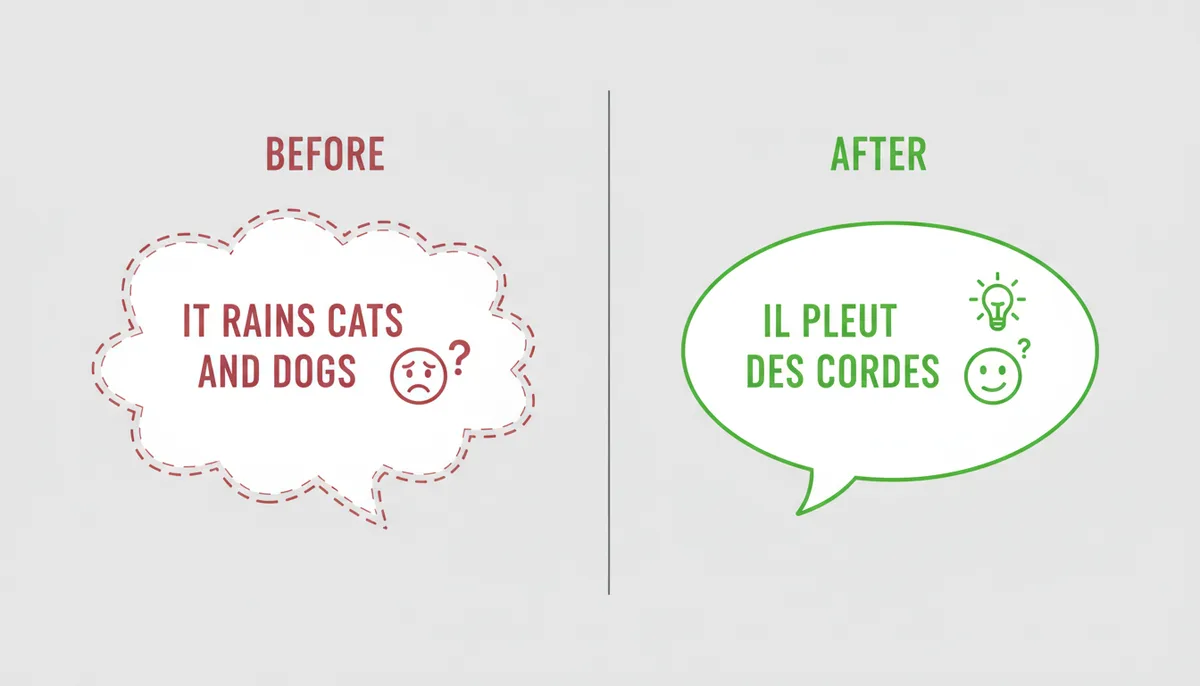
Think of AI translation as a powerful first draft. Human review is essential for critical documents. Look out for literally translated idioms, incorrect formality, mistranslated jargon, and gendered language mistakes. Use a PDF editor to annotate or edit the text directly in the translated file.
PDFator's Language Capabilities and Pro Features
PDFator supports a wide range of languages, though translation quality varies between high-resource languages like Spanish and low-resource languages. PDFator Pro offers batch processing, larger file size limits, and faster performance. The underlying AI models are continually updated to enhance accuracy and expand language support.
| Language | Region | Support Level |
|---|---|---|
| English | Global | Full |
| Spanish | Latin America, Europe | Full |
| French | Europe | Full |
| German | Europe | Full |
| Chinese | China | Full |
| Japanese | Japan | Full |
| Korean | Korea | Full |
| Russian | Russia | Full |
| Arabic | Middle East | Beta |
| Hindi | India | Beta |
Understanding the Inner Workings of PDFator's AI Translation
Behind the scenes, PDFator employs a sophisticated pipeline to ensure accurate and well-formatted translations. Let's delve into the technical aspects of how it achieves this.
The process begins with Optical Character Recognition (OCR), which is crucial for extracting text from scanned PDFs. OCR engines like Tesseract, used by PDFator, analyze pixel patterns to identify and transcribe text. This step is particularly important for image-based PDFs where the text is embedded as images rather than editable text. High-resolution scans and clean images improve OCR accuracy significantly.
Once the text is extracted, Natural Language Processing (NLP) models come into play. These models analyze the context, grammar, and semantics of the text to understand its meaning. NLP helps in disambiguating homonyms, understanding idiomatic expressions, and maintaining the tone and style of the original document. PDFator uses advanced NLP techniques to ensure that the translation captures the nuances of the source language.
The core of the translation process lies in Neural Machine Translation (NMT) engines. NMT uses deep learning algorithms to generate translations. Unlike traditional rule-based systems, NMT learns from vast amounts of parallel text data, allowing it to produce more fluent and contextually appropriate translations. PDFator's NMT models are trained on diverse datasets, including books, articles, and web content, ensuring they can handle a wide range of topics and styles.
Preserving the original document's layout and formatting is achieved through a combination of techniques. PDFator deconstructs the PDF into its constituent elements, such as text blocks, images, tables, and headers. Each element is processed separately, with text being translated and other elements being preserved as-is. After translation, the elements are reconstructed into a new PDF, maintaining the original structure and appearance. This approach ensures that the translated document looks professional and retains the visual appeal of the original.
Security and privacy are paramount in this process. PDFator uses end-to-end encryption to protect files during upload and storage. Data is encrypted both in transit and at rest, ensuring that sensitive information remains confidential. Files are automatically deleted from the server after a short period, minimizing the risk of unauthorized access. These measures comply with GDPR and other international data protection regulations, providing peace of mind to users.
A Real-World Example: Translating a Technical Manual
Let's walk through a practical example to illustrate how PDFator can be used to translate a technical manual from German to English. This example will highlight the strengths and potential challenges of using the tool for complex documents.
Step 1: Preparing the Document
Start with a high-quality, text-based PDF of a German technical manual. Ensure that the document is free of any security restrictions that might prevent text extraction. If the PDF contains scanned images of text, use a tool like Adobe Acrobat to convert these images to editable text. This step is crucial for improving OCR accuracy and ensuring that the translation process is smooth.
Step 2: Uploading the Document
Navigate to the PDFator website and sign in to your account. Go to the Translate tool and upload the prepared PDF. You can do this by dragging and dropping the file into the designated area or by selecting it from your computer. Once the file is uploaded, select German as the source language and English as the target language.
Step 3: Initiating the Translation
Click the ‘Translate’ button to start the translation process. PDFator will begin by extracting text using OCR technology. The NLP models will then analyze the text for context and grammar, and the NMT engines will generate the translation. You can monitor the progress of the translation on the screen. Once completed, you’ll see a preview of the translated document.
Step 4: Reviewing and Refining the Translation
While PDFator does a great job of preserving the original layout and formatting, some manual refinement may be necessary. Look for any mistranslations, especially in technical terms and jargon. Use a PDF editor like Adobe Acrobat to make corrections directly in the translated file. Pay special attention to tables, charts, and diagrams to ensure they are accurately translated and formatted.
Step 5: Finalizing the Document
After reviewing and refining the translation, download the final PDF. Ensure that all changes have been saved and that the document looks professional and accurate. You can now distribute the translated manual to your team or clients.
This example demonstrates how PDFator can be used effectively to translate complex technical documents. By preparing the document properly and reviewing the translation carefully, you can achieve high-quality results that meet your needs.
Common Pitfalls and How to Avoid Them
Using AI for PDF translation can be incredibly efficient, but it’s not without its pitfalls. Understanding these common issues and how to avoid them can help you achieve better results with PDFator.
Low-Quality Scans
One of the most common problems arises from low-resolution scans. Poor OCR quality can lead to misread text, which in turn affects the accuracy of the translation. To avoid this, use a high-resolution scanner or software to improve the quality of your scans. Ensure that the images are clear and free of noise, and consider using OCR tools to preprocess the images before uploading them to PDFator.
Image-Based PDFs
Image-based PDFs, where text is embedded as images rather than editable text, pose a significant challenge for OCR. To address this, use tools like Adobe Acrobat to convert the images to editable text. This step improves OCR accuracy and ensures that the translation process is smoother. If converting the images is not feasible, consider manually correcting any mistranslations that arise from poor OCR quality.
Complex Layouts
Documents with complex layouts, such as magazines or brochures, can be difficult to translate accurately. The AI may struggle to preserve the original structure and formatting, leading to broken or misplaced text. To mitigate this issue, split the PDF into simpler sections before uploading it to PDFator. Translate each section individually and then reassemble the document to maintain the original layout.
Technical Jargon and Idioms
AI translation can sometimes struggle with technical jargon and idiomatic expressions, producing literal translations that don’t make sense in the target language. To address this, review the translated document carefully and make corrections where necessary. Use a PDF editor to annotate or edit the text directly in the translated file. Pay special attention to technical terms and idiomatic expressions to ensure they are accurately translated.
Password-Protected PDFs
Password-protected PDFs pose a security risk and can prevent text extraction. To avoid this issue, remove the password protection from the document before uploading it to PDFator. You can use tools like Adobe Acrobat to remove password protection. Ensure that the document is free of any security restrictions that might prevent text extraction.
By anticipating these common pitfalls and taking proactive steps to avoid them, you can achieve better results with PDFator and minimize the need for manual corrections.
Comparing PDFator with Other Translation Tools
When it comes to translating PDFs, PDFator is just one of several options available. Each tool has its strengths and weaknesses, and the best choice depends on your specific needs. Let's compare PDFator with some popular alternatives to help you make an informed decision.
Google Translate
Google Translate is a widely used tool for translating text, documents, and websites. It offers a simple interface and supports a wide range of languages. While Google Translate can translate documents, it does not provide a direct PDF upload feature. Users must manually copy and paste text into the tool, which can be time-consuming and may result in formatting issues. Google Translate may not preserve the original layout and graphics, leaving you with a plain text file.
DeepL
DeepL is another popular translation tool known for its high-quality translations. It uses advanced neural networks to produce fluent and contextually appropriate translations. Similar to Google Translate, DeepL requires users to manually copy and paste text into the tool. This process can be cumbersome, especially for long documents. DeepL may not preserve the original layout and graphics, leaving you with a plain text file.
Adobe Acrobat
Adobe Acrobat is a comprehensive PDF management tool that includes translation capabilities. It supports a wide range of languages and preserves the original layout and graphics. However, Adobe Acrobat is a paid tool, and its translation features are limited to basic text extraction and translation. It may not handle complex layouts or technical jargon as well as dedicated translation tools like PDFator.
PDFator
PDFator stands out as a strong choice for users who value layout preservation and security. It offers a seamless translation process that preserves the original document's layout, formatting, and graphics. PDFator supports a wide range of languages and provides advanced features like batch processing and larger file size limits. Its end-to-end encryption and automatic file deletion ensure that your documents remain private and secure.
| Tool | Supported File Upload | Layout Preservation | Language Quality | Privacy Policy Visibility | Cost | Best For |
|---|---|---|---|---|---|---|
| Google Translate | No Direct PDF Upload | Poor | High | Visible | Free | Quick, Casual Use |
| DeepL | No Direct PDF Upload | Poor | High | Visible | Paid | High-Quality Translations |
| Adobe Acrobat | Yes | Excellent | Basic | Visible | Paid | Comprehensive PDF Management |
| PDFator | Yes | Excellent | High | Visible | Free/Pro | Professional, Secure Use |
In summary, while Google Translate and DeepL offer high-quality translations, they lack direct PDF upload and layout preservation features. Adobe Acrobat provides excellent layout preservation but is a paid tool with limited translation features. PDFator combines the best of both worlds, offering high-quality translations while preserving the original layout and graphics. Its security features and advanced capabilities make it a strong choice for professional use.
FAQ
Are my documents and their translations stored on your servers? For your security and privacy, uploaded files are encrypted and automatically deleted from our servers after a short period. Signed-in users may have the option to save their translation history.
Can I translate just one page from a 100-page PDF? Yes. For best results, first use our 'Split PDF' tool to extract the specific page you need, and then upload that single-page PDF to the translation tool.
What if the translation quality for my language seems poor? Translation quality can vary based on the complexity of your document and the language. For best results, ensure your source PDF is high-quality and text-based. Our AI models are constantly improving, and we appreciate feedback on specific cases.
Will PDFator translate a password-protected PDF? No. For security reasons, you must first remove the password protection that restricts content copying before uploading the document to our translation tool.
How is the free translation different from the Pro version? Our free version is perfect for casual use. PDFator Pro typically offers higher file size limits, the ability to translate more documents per day, batch processing, and faster performance.
Can the AI handle a PDF that contains multiple languages? For the highest accuracy, a document should contain only one source language. If your document has multiple languages, the AI will attempt to translate from the selected source language, which may produce unpredictable results for the other text.
Sources
- International Organization for Standardization (ISO) — The claim that PDF is an open standard, specifically ISO 32000, which is why tools like PDFator can reliably interact with them.
- Adobe — Information on the fundamental nature of the PDF format, backing claims about the difference between text-based and image-based (scanned) PDFs.
- Stanford Natural Language Processing Group — General principles of how Natural Language Processing (NLP) and Neural Machine Translation (NMT) work, which underpins the 'How it Works' section.
- General Data Protection Regulation (GDPR) — The principles of data security and privacy by design, reinforcing the importance of the security measures mentioned in the article for handling user documents.