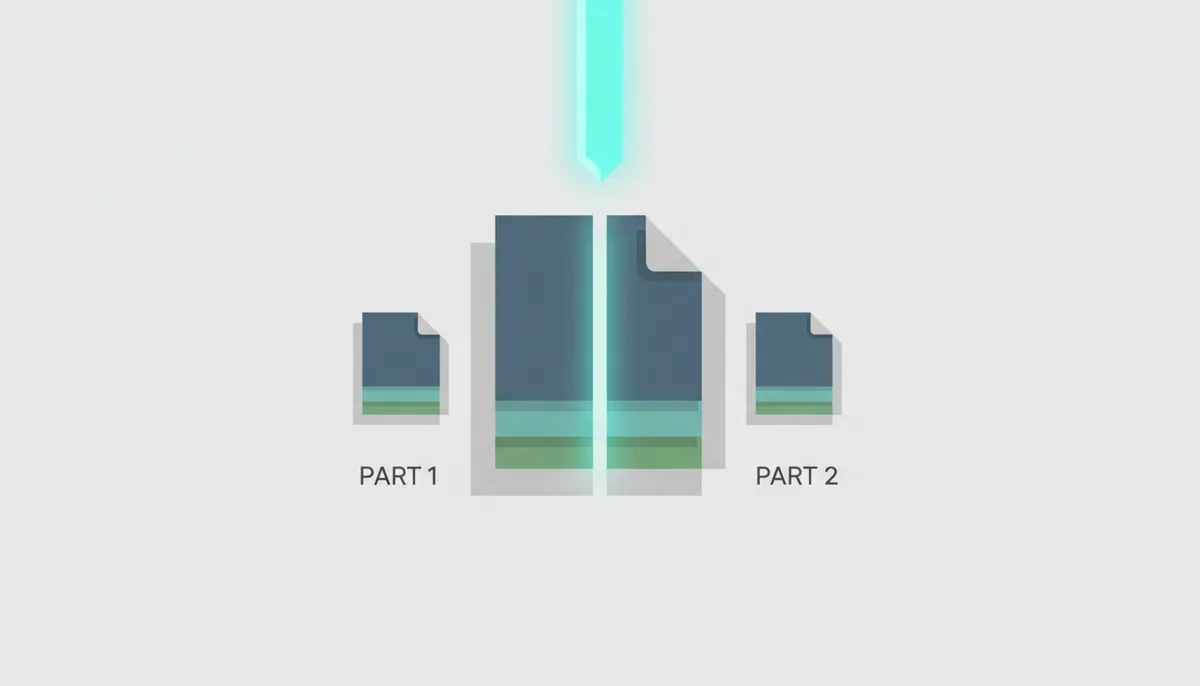
You've got a 200-page contract sitting on your desktop, and your counterparty needs exactly two pages from it — the signature page and the exhibits index. Emailing the whole thing is sloppy. It's 14 megabytes, half of it confidential, and nobody wants to scroll through 198 irrelevant pages to find the two that matter. What you actually need is to split that PDF by page range: pull out the pages you want, save them as a new file, and leave the original untouched.
That's a two-minute job once you know the mechanics. This guide walks through the whole thing: when splitting by range is the right move, what the software is actually doing to your file under the hood, the exact steps in PDFator, the syntax for complicated selections, and the handful of problems that trip people up — password-protected files, scanned documents, dead bookmarks. By the end you'll be able to extract pages from a PDF of any size with confidence, and you'll know when a different tool is the better call.
When Do You Need to Split a PDF by Page Range?
Splitting by page range means extracting one continuous block of pages — say, pages 15 through 25 — and saving them as a standalone PDF. It sounds like a niche operation until you notice how often it comes up in ordinary work.
A few scenarios where this is the exact right tool:
- Studying from a digital textbook. You only need chapter 7 this week. Pulling it out as its own file means faster loading on a tablet, easier annotation, and no accidental scrolling into chapters you've already finished.
- Sending signature pages from a contract. Legal and finance teams do this constantly. The full agreement stays in the records system; only the execution pages go to the counterparty or the notary.
- Isolating one article from a journal issue. Academic publishers often deliver an entire monthly issue as a single PDF. If you only cite one paper, extract it and file that instead of a 300-page issue you'll never reopen.
- Pulling a single invoice out of a batch scan. Accounts payable departments frequently receive one PDF containing fifty invoices. Splitting lets each one get routed, approved, and archived separately.
- Sharing one floor plan from an architectural set. The electrician doesn't need the structural drawings. Send the two sheets they asked for.
There's also a brutally practical reason: file size limits. Many email providers cap attachments, government and court portals often impose strict upload ceilings, and corporate systems frequently reject anything above a threshold set by an IT policy you never see. A scanned 80-page document can easily blow past all of these, because scans are essentially photographs of pages and each one carries real weight in megabytes. Splitting the PDF by page range and sending only the ten relevant pages can shrink the attachment to a fraction of its original size — often the difference between "message delivered" and "message bounced."
The third reason is the one people underestimate: privacy. Documents leak information sideways. A board pack contains next quarter's budget on pages you didn't mean to share. A medical PDF includes another patient's referral letter because the clinic scanned the whole folder at once. A proposal bundle reveals your pricing to a vendor who was only supposed to see the scope of work. When you save specific pages of a PDF instead of forwarding the whole file, you're practicing data minimization — sharing the least information necessary for the task. That's not paranoia; in many industries it's a compliance expectation. The simplest way to avoid an oversharing mistake is to make the extra pages physically absent from the file you send.
How PDF Splitting Actually Works (Without Damaging Your File)
The single most important thing to understand: splitting is non-destructive. Nothing happens to your original document. The tool reads it, builds a brand-new file containing only the pages you selected, and leaves the source exactly where it was, byte for byte. If the split goes wrong somehow, you still have everything.
Here's what's going on inside the file while that happens. A PDF isn't a stream of text like a Word document. Under the PDF specification (published as ISO 32000), a file is a structured collection of objects — chunks of data describing text, embedded fonts, images, vector drawings, and annotations — plus a directory that tells a viewer where each object lives. That directory is called the cross-reference table, or XREF table, and it's essentially the file's index: object number in, byte offset out.
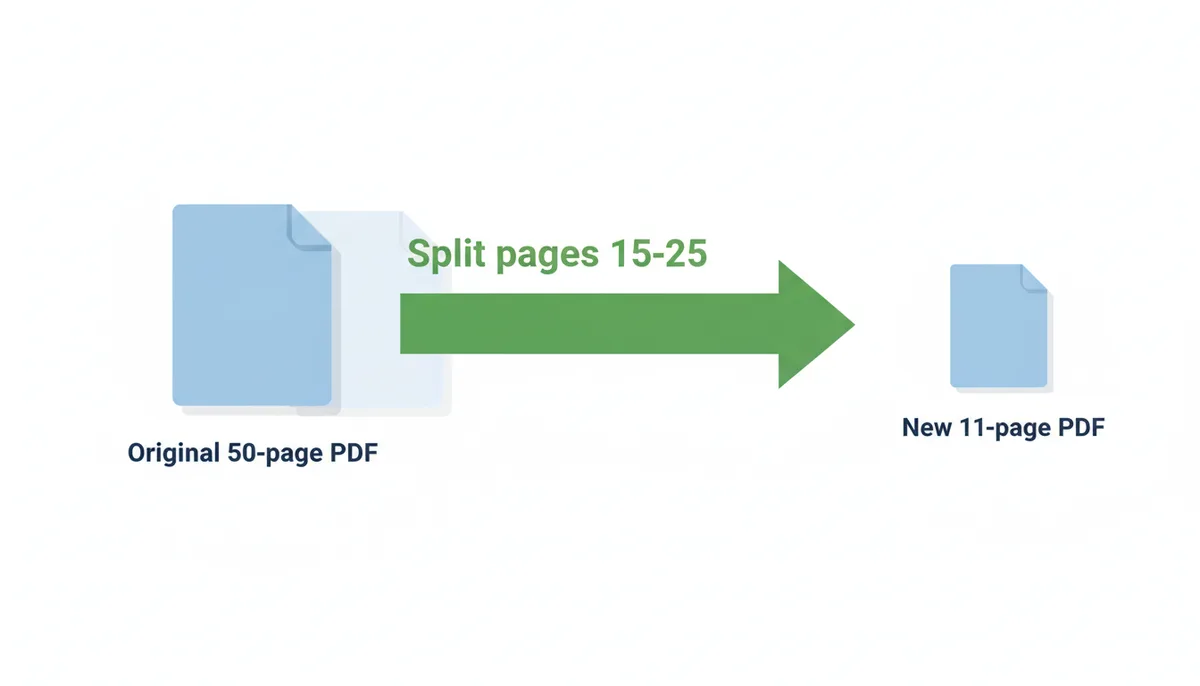
When you split pages 15–25 out of a 50-page PDF, the tool does roughly this:
- It parses the original file and figures out which objects the selected pages actually reference — the fonts used on those pages, the images displayed there, the drawing instructions for any charts or logos.
- It copies only those objects into a fresh file structure. Objects used exclusively by pages 1–14 and 26–50 are left behind, which is exactly why the output is smaller.
- It writes a new XREF table for the new file, mapping the copied objects to their new positions.
- It saves the result as an independent PDF that opens in any viewer, with no connection to the original.
Because the page content is copied, not re-created, a proper splitting tool preserves everything that matters: original image resolution, embedded fonts, vector graphics (which stay infinitely sharp because they're stored as math, not pixels), layout, and color profiles. Page 15 of the output is bit-identical in appearance to page 15 of the source.
Contrast that with the two "DIY" approaches people reach for when they don't know splitting exists. Screenshotting pages turns crisp vector text into a flat image at whatever resolution your screen happened to be — try zooming in afterward and it blurs. Re-printing to PDF from a viewer routes the pages through a print driver, which can substitute fonts, recompress images, flatten transparency, and strip out interactive elements like form fields. Both methods degrade the file. Splitting doesn't, because it never re-renders anything.
How to Split a PDF by Page Range Using PDFator: A Step-by-Step Guide
This is the practical core of the article. The whole process takes well under a minute for a typical document, and it works the same on a laptop, a tablet, or a phone — no installation, no account wall for the basic task. Here's the exact sequence.
Step 1: Open the Split PDF tool
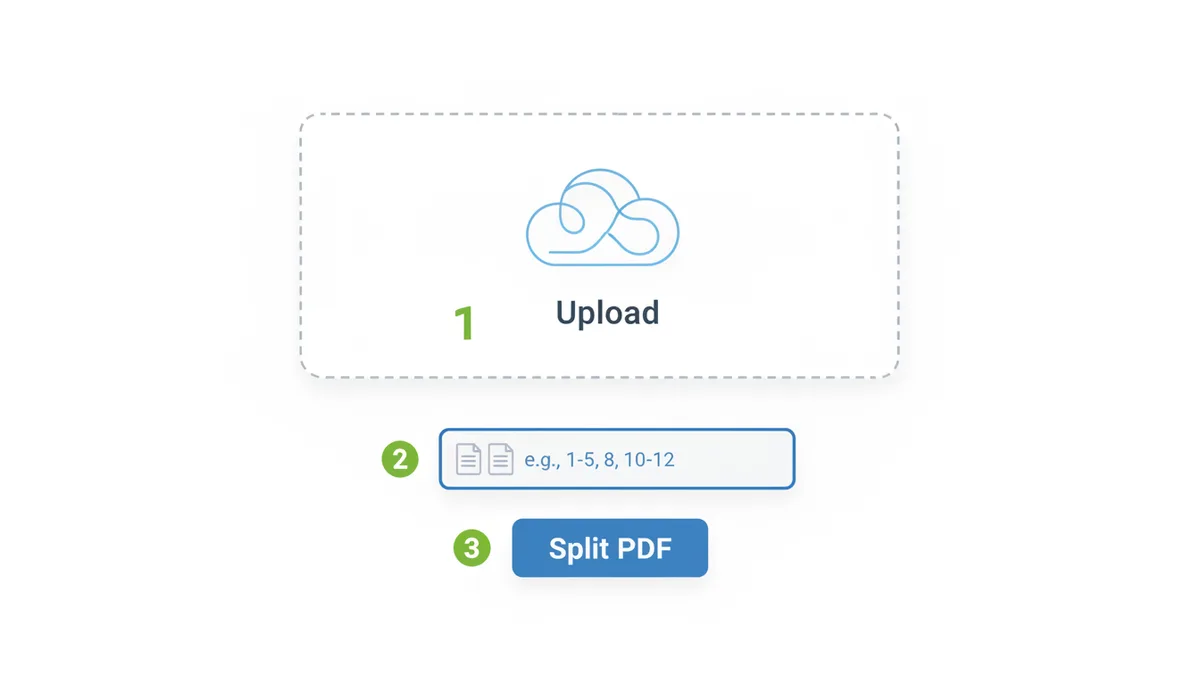
Go to PDFator and find the Split PDF tool — it's listed under the site's PDF tools and also reachable from the homepage. The tool runs entirely in your browser tab, so there's nothing to download or update.
Step 2: Upload your file
You have two options. Either drag and drop the PDF from a folder window straight onto the upload area, or click the file-selection button and browse to it. Drag and drop is faster if the file is already visible on your desktop; the picker is easier if it's buried in a downloads folder or a cloud-synced directory.
The upload transfers the file over an encrypted HTTPS connection. For a large scanned document — the kind that runs to tens of megabytes — expect the upload to take a few seconds on a decent connection. Text-based PDFs upload almost instantly because they're small.
Step 3: Select your page range
Once the file loads, the tool shows you preview thumbnails of the pages. Use these. The most common splitting mistake isn't a software failure — it's someone typing "15-25" when the content they want actually starts on page 16 because the PDF has an unnumbered cover page that shifts everything by one. Thumbnails let you eyeball the first and last page of your selection before committing.
Enter your range in the input field using the selection syntax (covered in detail in the next section). For a simple continuous block, that's just the start and end page with a hyphen: 15-25.
Step 4: Run the split
Click the Split PDF button. The tool builds your new file — usually a matter of seconds, even for a large document, since it's copying objects rather than re-rendering pages.
Step 5: Download the result
When processing finishes, download the new PDF to your device. Open it immediately and do a ten-second sanity check: confirm the first page is what you expected, the last page is what you expected, and the page count matches your range (pages 15–25 should give you exactly 11 pages — it's inclusive on both ends, a detail that catches people doing the mental math quickly).
Then rename the file something meaningful. contract.pdf becoming contract-split.pdf tells future-you nothing. contract-signature-pages.pdf does.
Mastering Page Selection: From Simple Ranges to Complex Sets
The range field is more powerful than a single hyphen. Once you know the syntax, you can isolate pages in PDF files with surprisingly surgical precision — in one pass, without splitting the same document three times.
Continuous ranges: the hyphen
The basic pattern is start-end. Typing 5-12 selects pages 5, 6, 7 … through 12, inclusive, and saves them as one eight-page PDF. This covers the majority of real jobs: a chapter, a section of a report, the appendix of a filing.
Non-continuous pages: the comma
When the pages you want are scattered, list them individually with commas: 3, 8, 15 extracts exactly those three pages. This is how you pull the three pages of a contract that need initials, or the handful of charts from a 90-page deck.
Combining both: complex sets
The genuinely useful trick is mixing the two: 1-4, 9, 21-25. That single instruction extracts the introduction (pages 1–4), one specific data table (page 9), and the conclusion (pages 21–25), assembled in that order as a single new PDF. You've essentially created a new document from existing pages — an executive digest of a long report — with one line of text.
A few rules that save frustration:
- Ranges are inclusive. "10-15" gives you six pages, not five. If your output has one more page than expected, this is why.
- Watch for offset pages. If the PDF has a cover page, inside title page, or roman-numeral front matter, the PDF's internal page numbering won't match the printed page numbers on the document. Printed "page 15" might be PDF page 17. Use the thumbnails to confirm.
- Whitespace doesn't matter in most tools — "1-4,9" and "1-4, 9" behave identically — but stick to digits, hyphens, and commas. Words like "to" or "and" aren't part of the syntax.
- Check the last page number. If a document has 60 pages and you type "55-70," behavior varies by tool; some reject it, some silently stop at 60. Know your document's length before typing.
| Your Input | What It Selects | Common Use Case |
|---|---|---|
| 10-15 | Pages 10, 11, 12, 13, 14, 15 (6 pages total) | Extracting one chapter from a textbook |
| 4, 8, 12 | Exactly three separate pages in that order | Pulling signature and initial pages from a contract |
| 1-5, 30-32 | Pages 1–5 followed by pages 30–32 (8 pages) | Introduction plus financial tables from an annual report |
| 2, 7-9, 44 | Page 2, pages 7–9, and page 44 (5 pages) | Executive summary, methodology section, and conclusions |
| 150-200 | A 51-page continuous block | Separating an appendix from a long filing for a smaller upload |
If your end goal is one separate file per page — every page as its own PDF — a range selection is the wrong tool for the job. That requires a dedicated "split into individual pages" function, which PDFator offers as a separate option alongside range splitting. The FAQ at the end of this article covers the distinction.
Troubleshooting Common PDF Splitting Issues
Splitting is reliable, but three problems account for nearly every failure people hit. Here's what causes each and how to get past it.
"This file is password-protected"
This isn't a bug — it's encryption doing its job. A password-protected PDF has its contents scrambled using AES encryption, and the password is the only key. No splitting tool, online or desktop, can peek inside without it; a tool that claimed otherwise would be claiming to break the encryption, which it can't.
If you know the password, enter it when prompted and the split proceeds normally. If the file came from a bank, employer, or government portal and you don't have the password, it usually arrives in a separate channel — an email, an SMS — or follows a documented pattern such as a date of birth or account number. Check the message the file arrived with.
One subtlety worth knowing: some PDFs have an owner password rather than an open password. These files open fine in any viewer but restrict operations like printing, copying, or page extraction. If a tool refuses to split a file that opens without any password prompt, that's likely what you're dealing with — and the restriction is telling you the document's creator didn't want it disassembled.
The output has formatting errors or missing fonts
This is rare, and when it happens, the cause is almost always a badly constructed source PDF rather than the splitting tool. Some PDFs are generated by broken export routines: fonts referenced but never embedded, corrupt XREF tables that viewers quietly repair on the fly, objects shared across pages in ways the spec doesn't anticipate. When such a file is split, the new document can inherit or expose those flaws — a font falls back to a generic substitute, or a page renders with shifted elements.
If your split output looks wrong, test the diagnosis: open the original file in a different viewer and look closely at the same pages. If they display oddly there too, the source file is the problem. Using a well-built splitter like PDFator minimizes risk because it parses the file structure properly rather than taking shortcuts, but no tool can fully compensate for a malformed input. When you're the one generating the PDFs (say, exporting from Word or InDesign), embed all fonts at export time — it prevents this entire category of failure downstream.
The file is too big for the tool
Many free online splitters quietly cap uploads — sometimes at sizes a single scanned archive exceeds in the first ten pages. The frustrating part is that these limits often aren't stated until your upload fails at 90%.
If you're working with a genuinely large PDF — a scanned case file, an architectural drawing set, a full-year records export — check the limit before uploading. PDFator's split tool is built to handle large files, and the pricing page lays out what the free tier includes versus what Pro adds, so you can pick based on your actual workload instead of discovering a wall mid-task. For a one-off job with an enormous file on a metered connection, also consider whether you even need to upload the whole thing: if the source is a scan, the size comes from image data, and there's no shortcut around transferring it — but at least you only do it once, since the split itself is seconds.
How to Choose the Right Splitting Tool for Your Needs
You have three realistic routes for splitting a PDF, and each has an honest trade-off. The right answer depends on how often you do this, how sensitive the documents are, and whether you're willing to install software.
Online tools (like PDFator)
Upload, select, download. Nothing to install, works identically on Windows, Mac, a Chromebook, or a phone, and the basic function is free. The legitimate question with any online tool is what happens to your file on the server — which is why the service's data handling matters more than its feature list. PDFator transfers files over encrypted HTTPS connections and removes them from its servers after processing rather than retaining them, which is the baseline behavior you should demand from any online PDF page extractor. If a service doesn't state its retention behavior plainly, that's your answer.
Desktop software (Adobe Acrobat Pro and alternatives)
Acrobat Pro is the heavyweight option: everything processes locally, so your document never leaves the machine, and it offers batch operations, scripted workflows, and deep control over output. The trade-off is cost — it's a paid subscription — and weight: it's a large install for a task you might perform twice a month. It makes sense if you process sensitive PDFs daily, work offline, or need to split dozens of files against a naming scheme in one batch. For everyone else, it's buying a truck to carry groceries.
Browser and OS tricks (Print to PDF, macOS Preview)
Google Chrome, Microsoft Edge, and Windows' Microsoft Print to PDF let you "print" a page range into a new PDF. macOS Preview can delete or export selected pages. These are free, already on your machine, and fully local — fine in a pinch for a simple, non-sensitive document. The catch is quality and fidelity: printing re-renders the document through a print pipeline, which can substitute fonts, recompress images, strip hyperlinks and form fields, and bloat or distort files with complex graphics. You're re-creating the document, not extracting from it. For a contract with fillable fields or a design-heavy report, that's a real loss.
| Criteria | Online Tool (PDFator) | Desktop Software (Acrobat Pro) | Browser/OS Print Function |
|---|---|---|---|
| Cost | Free for core tools; Pro plans for heavier use | Paid subscription | Free, already installed |
| Security & privacy | HTTPS transfer; files removed after processing | Fully local — file never leaves your machine | Fully local |
| Accessibility | Any device with a browser, no install | Only on machines where it's installed and licensed | Built into Chrome, Edge, Windows, macOS |
| Output fidelity | Copies original page objects — quality preserved | Copies original page objects — quality preserved | Re-renders through print pipeline — can degrade fonts, links, forms |
| Advanced features | Range and per-page splitting, plus merge, compress, convert and AI tools | Batch processing, scripting, preflight, full editing | Basic page-range selection only |
My recommendation for most people: use an online tool like PDFator for the everyday case — quick, free, no install, and the output is a faithful copy of the original pages. Move to desktop software only when local processing is a hard requirement (some regulated environments mandate it) or when you need batch automation. Treat the print-to-PDF trick as the emergency option when nothing else is available, and avoid it for documents with forms, links, or precise typography.
Splitting Special PDFs: Scanned Documents, Forms, and Annotations
Not all PDFs are built the same way, and the differences matter most at exactly the moment you split them. Three cases deserve a heads-up before you extract pages.
Scanned (raster) PDFs
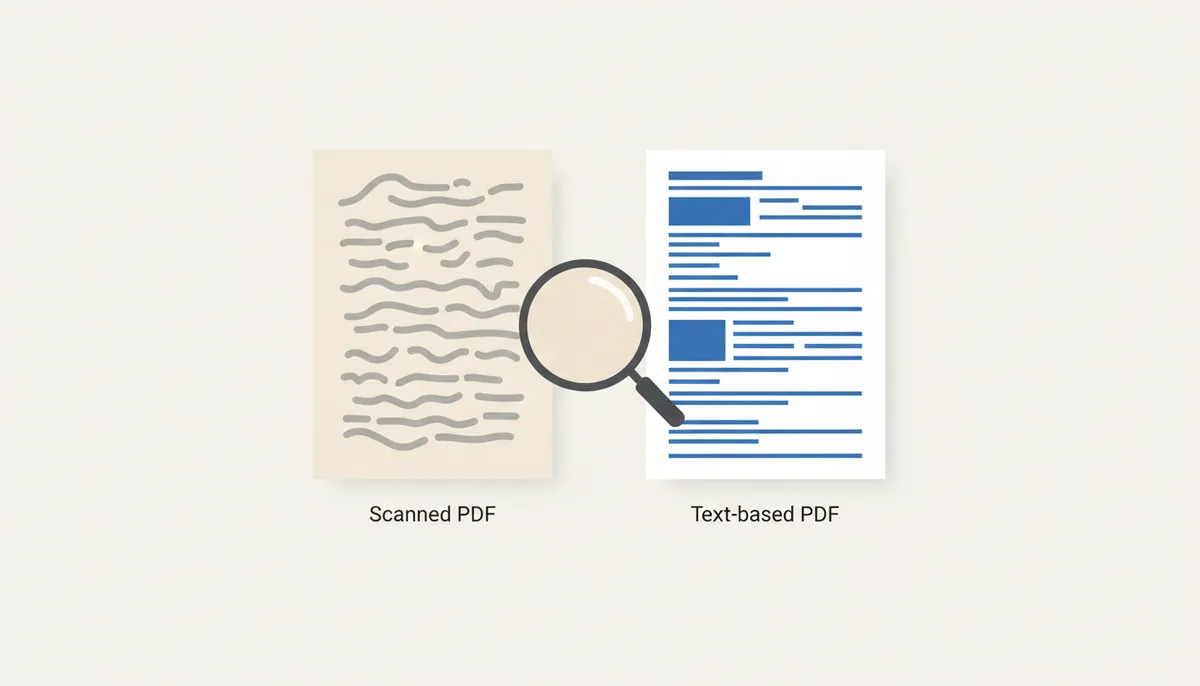
A scanned PDF is a stack of photographs — each page is one image, usually a scan of paper, wrapped in PDF packaging. There's no real text inside unless someone has run OCR (Optical Character Recognition) over it, the process that recognizes letter shapes in the image and layers invisible, selectable text on top.
The splitting process itself is identical — page 30 is page 30 whether it's a photo or born-digital text — but two practical things change. First, file size: scanned pages are heavy, so your extracted range will still be a chunky file, and splitting a large PDF file of scans is often specifically about getting under an upload limit. Second, behavior after the split: without OCR you can't search, highlight, or copy text from the extracted pages, because there's no text to find — just pixels. If searchability matters, run OCR first, then split.
Forms and annotations
A capable splitter preserves interactive elements that fall inside your selected range: fillable form fields stay fillable, comments and highlights stay attached to their pages, and digital signature fields survive the trip. This is where the print-to-PDF trick fails badly — printing flattens everything into dead paint.
One caveat from experience: if you extract form pages, fill them in, and send them back, verify the recipient sees what you filled. Rarely, fields with identical internal names across a merged document can behave oddly after multiple rounds of processing. A quick open-and-check before sending eliminates the risk.
Bookmarks and hyperlinks: the one real casualty
Here's the warning that saves you a confused email later. Bookmarks (the clickable outline in the sidebar) and internal hyperlinks point to destinations — specific pages in the document. When you extract pages 15–25, any bookmark or link that pointed to page 40 now points to a page that doesn't exist in the new file. Those links become dead ends.
Links and bookmarks whose destinations are inside your range generally keep working. So if you're extracting a self-contained chapter whose cross-references all stay within the chapter, you're fine. If you're pulling a section riddled with "see Appendix C on page 88" references, know that those jumps will go nowhere in the split file — and either include the referenced pages in your selection or accept that the extract is a standalone read.
Frequently Asked Questions
Will splitting the PDF reduce its visual quality?
No. A proper splitting tool like PDFator builds the new file by copying the original page objects — the actual image data, embedded fonts, and vector instructions — not by re-rendering or recompressing anything. The selected pages are visually identical to the source, down to the pixel and the print-ready resolution. Quality loss only enters when you use screenshot or print-based workarounds, which re-create the pages instead of extracting them.
Does splitting a PDF delete or modify the original file?
No. The process is non-destructive by design. The tool reads your original document and writes a brand-new, separate file containing only your selected pages. The original stays exactly where it was, unchanged. You can split the same source document a dozen different ways — chapter by chapter, for instance — and it will still be intact at the end.
Can I split a PDF that is password-protected?
Yes, provided you know the password. Password protection encrypts the file's contents with AES encryption, and the password is the only way in — for you and for any tool. Enter it when prompted and the split works normally. No legitimate tool can or should bypass the protection; if you've genuinely lost the password to your own file, that's a recovery problem, not a splitting problem.
Is it safe to upload a sensitive document to an online PDF splitter?
It depends entirely on the service's data handling, so judge that before you judge the interface. The baseline you should require: encrypted HTTPS transfer for the upload and download, and automatic deletion of your files from the server after processing rather than indefinite retention. PDFator operates on exactly those terms. If a tool's privacy stance is vague or unstated, don't upload anything you wouldn't email to a stranger — and for documents under strict regulatory handling rules, a local desktop tool may be the mandated choice regardless.
How do I split a PDF into a separate file for every single page?
That's a different operation from range splitting. Extracting a page range produces one new file containing your selected block of pages. Splitting every page into its own file — 60 pages in, 60 one-page PDFs out — uses a dedicated per-page splitting function. PDFator offers both: use the range selection when you want a specific group of pages as a single document, and the individual-pages option when you need each page separated, such as splitting a batch scan of invoices for individual processing.
What happens to the page numbering in the new split file?
The new document starts fresh at page 1. If you extract pages 50–60 from a book, the original page 50 becomes page 1 of your new PDF, page 51 becomes page 2, and so on — eleven pages numbered 1 through 11. Two things follow from this. First, any printed page numbers on the document itself (the numbers in the footer) will no longer match the PDF's internal page count, so navigate by thumbnails rather than by typing page numbers. Second, if you're extracting a section for citation purposes, keep citing the original document's page numbers, since that's what a reader with the full file will look up.
Wrapping Up
Splitting a PDF by page range is one of those tasks that's trivial once you've done it and mysteriously stressful the first time. The core skill is small — open the PDFator Split PDF tool, upload, type a range like 15-25 or a set like 1-4, 9, 21-25, download the result — but the judgment around it is what this guide is really for: confirming pages against the thumbnails instead of trusting printed page numbers, remembering that ranges are inclusive, expecting dead bookmarks when links point outside your selection, and knowing that a scanned page and a text page behave differently after the split even though the split itself is identical.
Get those details right and extracting pages from a PDF becomes a thirty-second task instead of a workaround involving screenshots and hope. Your original file stays intact, the output matches it exactly in quality, and the person on the receiving end gets precisely the pages they need — nothing more, nothing missing.
Sources
- ISO (International Organization for Standardization) — Claims about the fundamental structure of a PDF file, such as the existence of objects and cross-reference tables (XREF), as defined in the PDF standard, ISO 32000.
- Adobe Help Center — Information regarding core PDF features created by Adobe, such as interactive form fields, annotations, bookmarks, and password-based encryption.
- PDF Association — Technical best practices and explanations for how PDF technology works, supporting claims about preserving quality and the difference between raster and vector content.
- Cornell University IT — General best practices for handling and sharing digital documents in a professional or academic setting, reinforcing the 'why' behind splitting PDFs for security and file size management.