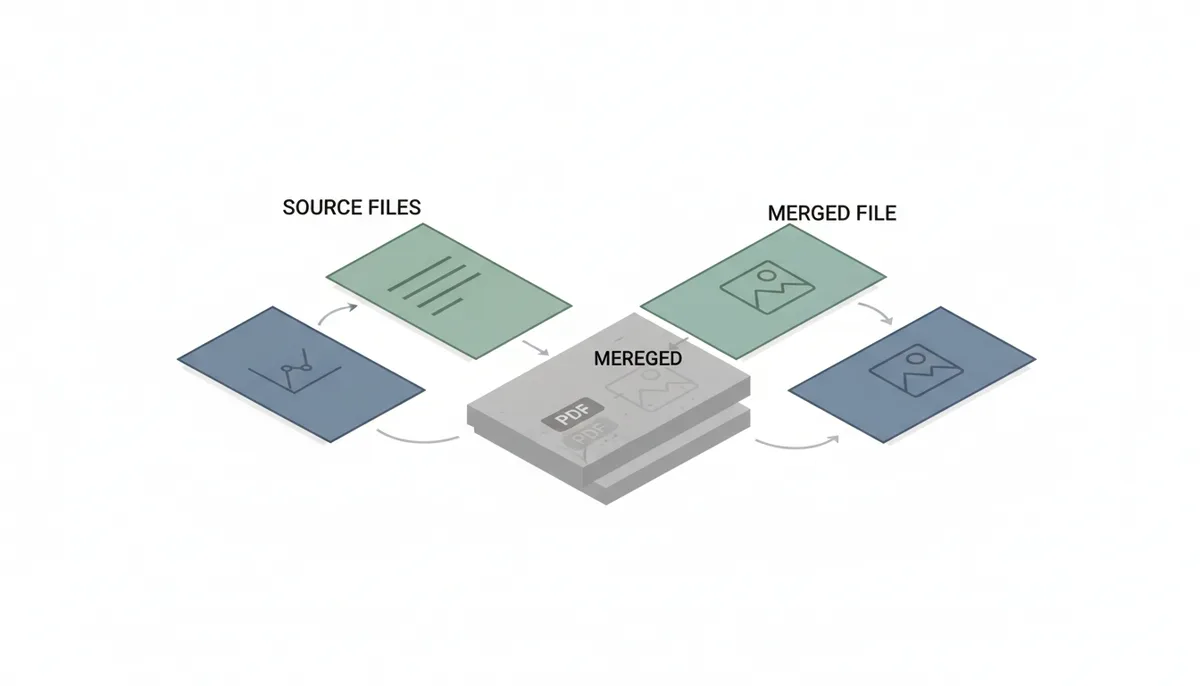
Last week, my accountant sent me fifteen separate PDF receipts for tax season. I needed them in one document for filing, not a folder full of individual files. You've probably been there — contract pages from different departments, monthly reports that need combining, or research papers scattered across your downloads folder. The solution seems simple: merge them online. But what actually happens to your files when you click that merge button?
Why Do People Merge PDFs in the First Place?
The primary goal is creating a single, organized document from multiple sources. Instead of attaching eight files to an email, you attach one. Instead of printing from five different documents, you print once. Instead of uploading multiple files to a government portal that accepts only one, you're done in a single upload.
Common scenarios include combining chapters of a report where different team members wrote different sections, creating a portfolio from project files spread across months, or archiving related documents like all January invoices and receipts together. The merged file becomes easier to share via email (one attachment under the size limit instead of many), simpler to print (one print job with consistent page numbering), and more practical to archive (one file to back up and find later).
The benefits extend beyond convenience. A single PDF maintains the logical flow of information. Page numbers run sequentially. You can search across the entire content at once. Recipients don't miss attachments or open files in the wrong order.
What's Actually Inside a PDF File?
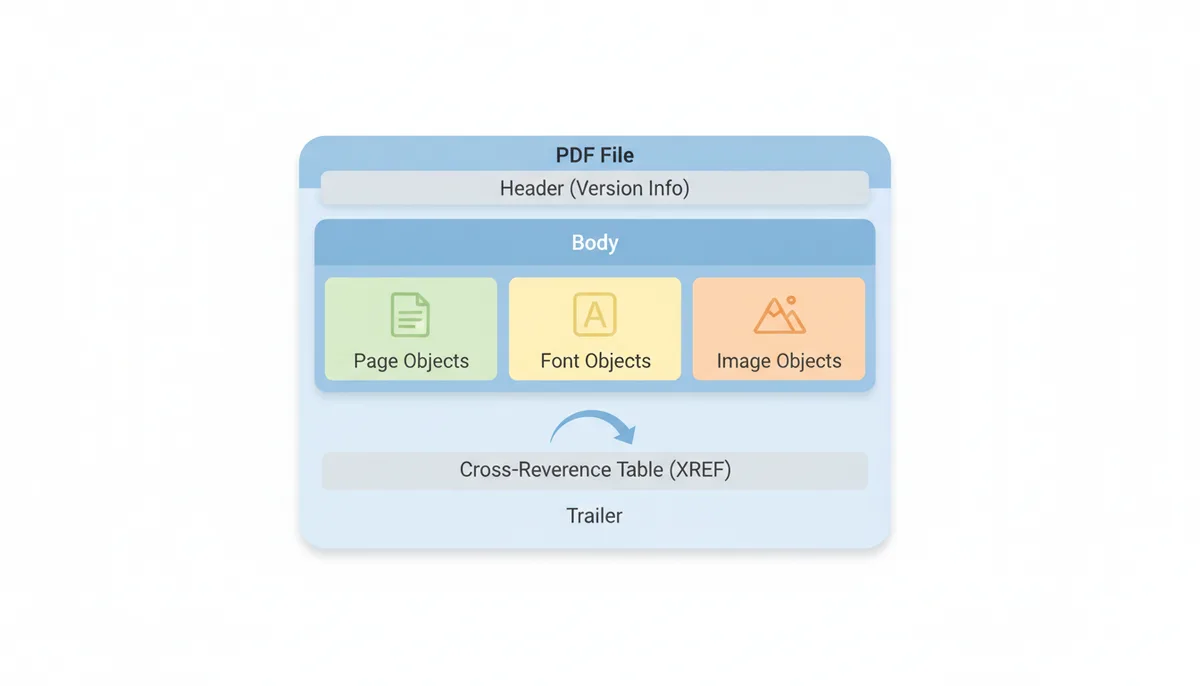
A PDF isn't a flat image or a simple text file. It's a structured container holding multiple types of objects: text strings with their exact positioning, vector graphics that scale without pixelation, raster images like photos and scanned pages, and font information that ensures text displays correctly.
Think of it like a filing cabinet. The main body contains all these objects — each paragraph of text, each embedded logo, each font definition. At the end sits a cross-reference table (XREF) that works like the cabinet's index cards, telling software exactly where to find each object. This table might say "Page 1 starts at byte position 1024" or "The company logo image begins at byte 5847."
This object-based structure explains why merge tools can combine PDFs cleanly. They're not pasting pictures together or copying text into a new document. They're transferring intact objects from multiple filing cabinets into a new, larger cabinet, updating the index to reflect where everything now lives.
How Does an Online Tool Receive and Handle Your Files?
Your merge journey starts with upload. When you select files and click upload, your browser doesn't just fling them across the internet. It establishes an HTTPS connection — that padlock icon in your address bar signals this encrypted tunnel between your computer and the server.
SSL/TLS encryption scrambles your file data during transit. If someone intercepts the transmission, they see meaningless garbled data, not your readable PDF content. The encryption uses keys that only your browser and the destination server share, created fresh for each session.
Once the encrypted data reaches the server, it's decrypted and stored temporarily in a secure location. Good services isolate each user's files in separate directories with unique identifiers. The files wait here for processing, typically on servers with restricted access, firewalls, and monitoring systems.
The quality of these protections varies dramatically between providers — free tools might run on shared hosting, while professional services use dedicated infrastructure with stricter security protocols.
The Server-Side Merge: How Are the Files Combined?
The server-side application begins by parsing each uploaded PDF. It reads the XREF table to map out all objects: pages, fonts, images, and their relationships. For a five-page document using two fonts and containing three images, the software builds a complete inventory of these eight distinct objects plus their dependencies.
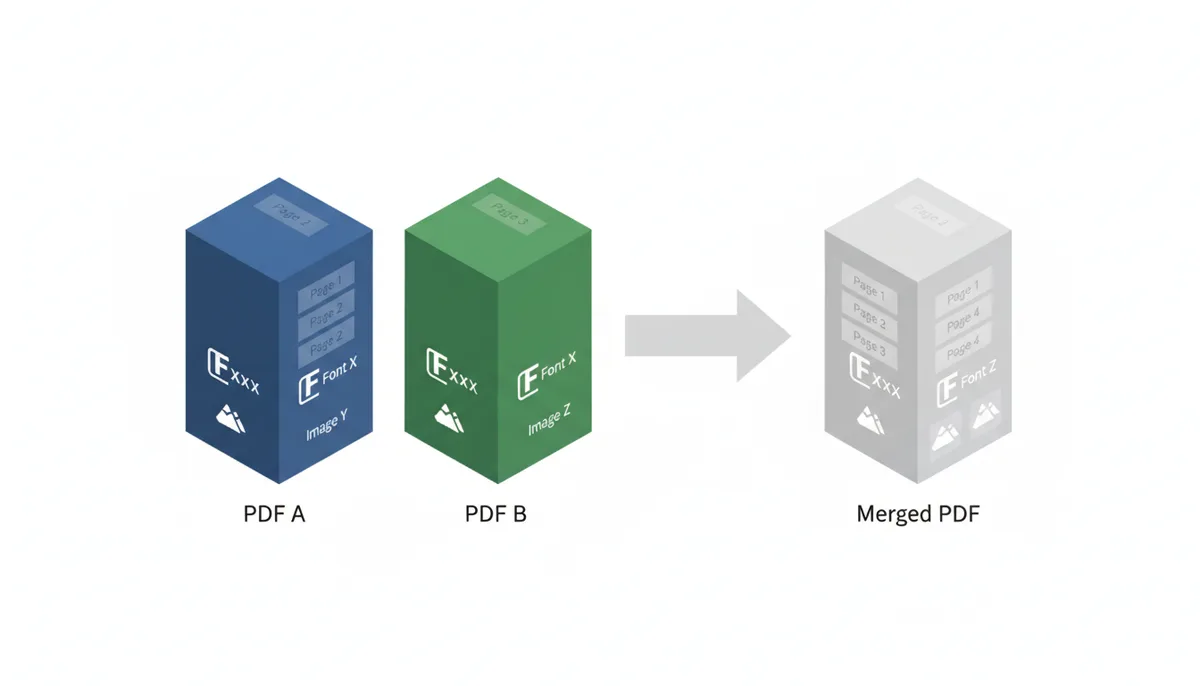
Next, it creates a new, empty PDF structure — essentially a blank filing cabinet. The application must copy page objects from your source files into this new structure in your specified order. If you're merging a 3-page invoice with a 2-page receipt, it copies all three page objects from the invoice, followed by both page objects from the receipt.
Here's where quality varies between tools: better merge applications identify and de-duplicate shared resources. If both your invoice and receipt use Arial font, an optimized merger includes the Arial font data only once, not twice. Same for company logos, watermarks, or any other repeated elements. The new XREF table points all pages needing Arial to that single font object. However, basic tools might simply copy everything, including duplicate fonts and images, resulting in unnecessarily large files.
What Happens to Formatting, Bookmarks, and Links?
Page-level formatting survives the merge intact because entire page objects transfer over. Your carefully aligned tables, precisely positioned headers, and embedded charts remain exactly where you placed them. The merge process doesn't reflow text or adjust layouts — it preserves each page as originally designed.
Document-level features face a more complex fate. Quality merge tools combine bookmark hierarchies intelligently. If your first document has bookmarks for "Chapter 1" and "Chapter 2," and your second has "Appendix A" and "Appendix B," the merged file ideally shows all four bookmarks in sequence. Basic tools might keep only the first document's bookmarks or discard them entirely.
Hyperlinks typically maintain their functionality when they point to external websites. Internal links (jumping to another page within the same PDF) often break because page numbers change in the merged document. Form fields usually transfer successfully but might need unique field names to prevent conflicts. Annotations like comments and highlights generally preserve their positions relative to their original pages.
Does Merging PDFs Affect File Size or Quality?
File size rarely equals the simple sum of source files. De-duplication plays a major role. Ten 1MB documents sharing the same embedded fonts and letterhead might merge into a 7MB file, not 10MB, because shared resources appear only once.
Text and vector graphics maintain perfect quality through merging. These elements use mathematical descriptions ("draw a line from point A to point B") rather than pixel data, so they transfer without degradation. Your sharp text stays sharp, your clean logos stay clean.
Raster images tell a different story. Most merge tools preserve original image quality by default, copying the image data unchanged. However, some tools offer (or force) compression to reduce file size. Lossless compression like Flate squeezes file size without affecting quality, like a perfectly reversible ZIP file. Lossy compression like JPEG trades quality for size, potentially introducing artifacts around text or sharp edges.
| Scenario | PDF A Size | PDF B Size | Expected Combined | Actual Merged | Reason |
|---|---|---|---|---|---|
| No Shared Resources | 5 MB | 5 MB | 10 MB | 10 MB | All objects unique |
| Shared Fonts & Logos | 5 MB | 5 MB | 10 MB | 7 MB | 3 MB of duplicates removed |
| Tool Applies Compression | 5 MB | 5 MB | 10 MB | 4 MB | Images recompressed, quality reduced |
What Happens to Your Data After the Merge?
This question determines whether you should trust a service with sensitive documents. Reputable providers state their data retention policy explicitly — look for a privacy policy or data handling page that specifies exactly when files are deleted. This automatic deletion should happen whether you download your merged file or abandon the process midway.
Services without clear policies present unknown risks. Your documents might remain on their servers for days, months, or indefinitely. When evaluating a service, check for: a stated deletion timeframe (hours or days, not vague terms), whether deletion is automatic or requires user action, what happens to files if you don't download the result, and whether the policy covers both uploaded files and processed outputs.
GDPR grants European users the right to request deletion of their personal data and to receive confirmation that deletion occurred. This regulation requires companies to be transparent about data retention and to honor deletion requests. For users everywhere, automatic deletion policies matter because they limit the window during which your data could be compromised or misused.
Client-Side vs. Server-Side Merging: Which Is More Secure?
Server-side merging uploads your files to the company's servers for processing. The server's powerful hardware handles the work, then sends back the merged result. Your files travel across the internet twice, and you trust the provider's security and privacy practices.
Client-side merging keeps everything local. JavaScript and WebAssembly code runs directly in your browser, processing files without uploading them anywhere. Your documents never leave your computer, eliminating transmission risks and server storage concerns. The downside: your computer's processing power and browser memory limit what you can merge. A 500-page document might overwhelm a modest laptop that would handle it fine if processed server-side.
| Aspect | Server-Side Merging | Client-Side Merging |
|---|---|---|
| Data Privacy | Files uploaded to third-party servers | Files never leave your computer |
| Performance | Fast processing on powerful servers | Limited by your device capabilities |
| Maximum File Size | Often 100MB+ depending on service | Usually under 50MB due to browser limits |
| Internet Required | Yes, for upload and download | Only to load the tool initially |
| Best For | Large files, complex merges, convenience | Sensitive documents, privacy-conscious users |
When Merging Goes Wrong: Common Errors and Fixes
Corrupted output files usually trace back to problematic source PDFs. One malformed document can derail the entire merge. Files created by non-standard software, PDFs with embedded multimedia, or documents from very old PDF versions commonly cause issues. The fix: open each source file in a robust PDF reader like Adobe Acrobat Reader, then save a fresh copy. This process often corrects structural problems.
Lost interactivity frustrates users expecting form fields and comments to work in merged documents. Basic merge tools strip these features to avoid complexity. Your fillable tax form becomes a static document. Your annotated research paper loses its margin notes. The solution: use a more advanced tool that explicitly preserves interactive elements, or accept that you'll need to recreate them.
Password-protected files stop merging cold. Tools cannot process encrypted PDFs without the password — the encryption prevents reading the file structure needed for merging. You must unlock each protected file first, save an unprotected version, then merge those versions. Some tools offer password fields during upload, handling this automatically.
What About Merging Encrypted or Digitally Signed PDFs?
PDFs use two types of passwords with different implications for merging. User passwords prevent opening the document entirely. Without the password, merging software cannot read the file structure, making merging impossible unless you provide the password.
Owner passwords restrict actions like printing or copying while allowing viewing. Some merge tools can process these files, but the restrictions typically disappear in the merged document. Your "no printing allowed" invoice becomes printable once merged.
Digital signatures present a fundamental incompatibility with merging. A signature certifies that a specific document remains unchanged since signing. Merging creates a new document with different content, invalidating any signatures from the source files. Think of it like a sealed envelope — you can't put two sealed letters into a new envelope while maintaining the original seals. For legally signed documents, keep the originals separate and create an unsigned compilation for reference.
The Real Cost of Free vs. Paid PDF Merging Services
Free online PDF merge tools make money somehow. Understanding their business models helps you evaluate the true cost of "free" merging. Common revenue models include: displaying advertisements during use, limiting features like file size or number of documents per merge, adding watermarks to outputs, priority queuing that makes free users wait, and premium subscriptions that remove these restrictions.
More concerning practices may exist with some services. Watch for tools that don't clearly state their data handling practices or that require extensive permissions or registration for basic features. Some services may analyze usage patterns for market research, though reputable ones anonymize this data and don't access document contents.
Paid services typically operate on subscription models. Professional PDF software often bundles merging with dozens of other features, while specialized online services focus on document processing tools. Individual subscriptions generally range from a few dollars monthly for basic features to higher tiers for power users. These paid tiers commonly remove restrictions like file size limits, concurrent processing limits, and watermarks.
Calculate your break-even point based on your usage patterns. If you merge PDFs occasionally, free tools with minor limitations work well. Regular business use often justifies paid services through time savings and reliability. Consider a freelance designer combining client feedback, mockups, and contracts — frequent merging with consistent quality requirements makes subscription services valuable. The time saved from faster processing, batch operations, and reliable output can quickly offset the monthly cost.
Enterprise considerations differ entirely. Companies need features free tools rarely offer: audit trails for compliance, API access for workflow automation, service level agreements for uptime, and security certifications. Enterprise PDF services include dedicated support, custom data retention policies, and integration capabilities with existing document systems. These advanced features come at significantly higher costs but provide necessary controls for business-critical operations.
Hidden costs emerge in edge cases. Some free tools may use aggressive compression to reduce server load, potentially degrading image quality. Others might inject metadata identifying their service. Lack of batch processing means repetitive manual work for multiple documents. Evaluate these factors against your specific needs when choosing between free and paid options.
Troubleshooting Specific PDF Merge Failures
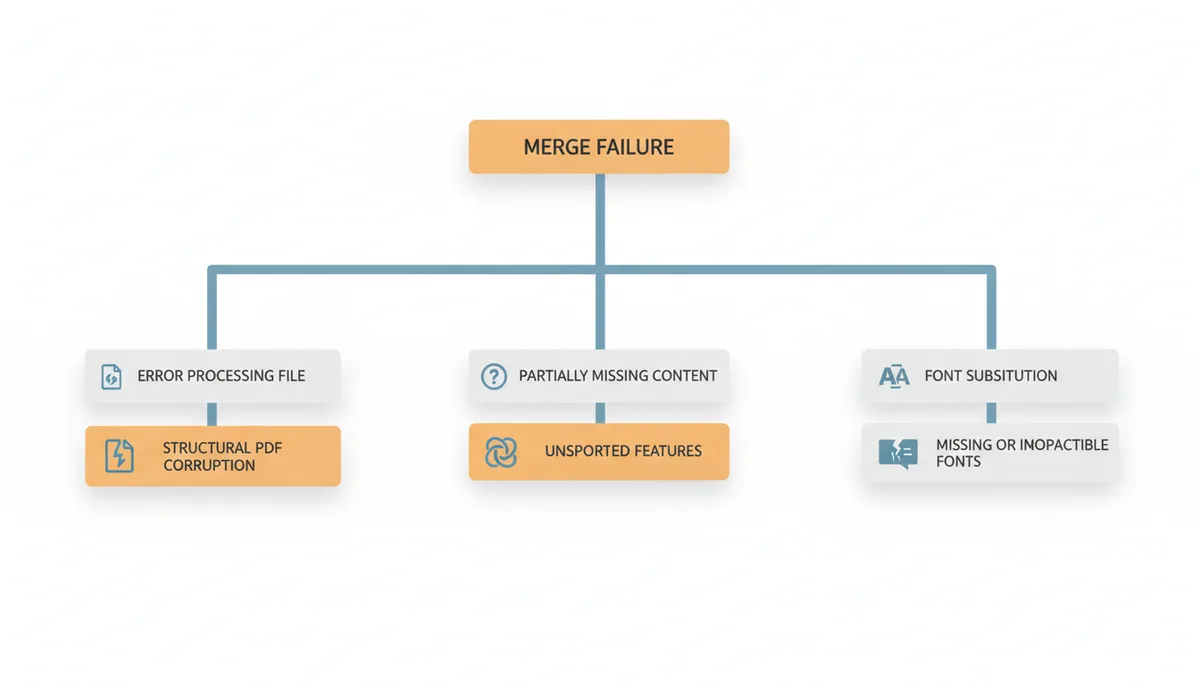
When PDFs refuse to merge or produce corrupted outputs, specific symptoms point to specific causes. A completely failed merge that shows "Error processing file" typically means structural PDF corruption. Open the suspected problem file in Adobe Reader and look for the warning "This file is damaged but is being repaired." That's your culprit.
Partially missing content has different causes. If page 7 of your 10-page document shows blank after merging, that page likely contains an unsupported feature. Common culprits include embedded Flash content (obsolete but still found in old PDFs), certain CAD drawings exported as PDF, or pages using rare color spaces like spot colors for professional printing.
Font substitution creates subtle but annoying issues. Your carefully formatted document using Calibri might display in Times New Roman after merging. This happens when the merge tool doesn't properly embed font subsets. Professional fonts with licensing restrictions cause particular problems — the tool might legally cannot include the font data in the merged file.
Performance degradation after merging points to optimization failures. A 10MB file becoming 100MB after merging suggests the tool didn't compress images or duplicated resources instead of sharing them. Opening the bloated file in Adobe Acrobat and saving with "Reduce File Size" often fixes this, confirming the merge tool's inefficiency.
JavaScript-dependent PDFs cause unique failures. Some forms use JavaScript for calculations or validation. Basic merge tools strip JavaScript for security, breaking these features. Your invoice that automatically calculates totals becomes a static form requiring manual math.
The fix for most issues follows a pattern: identify the problem file by merging documents individually until failure occurs, repair or recreate that file using professional PDF software, then attempt the merge again. For persistent problems, the nuclear option works: print each PDF to a new PDF using your system's PDF printer. This creates clean, simple PDFs without problematic features, though you lose interactivity and potentially some quality.
Advanced Merge Strategies for Complex Documents
Power users need techniques beyond basic merging. Consider a 200-page technical manual assembled from 20 source documents. Smart preparation prevents problems: standardize page sizes first. Mixed Letter and A4 pages create awkward merged documents with inconsistent margins. Use Adobe Acrobat's Preflight tool or similar to resize all pages to your target dimension before merging.
Page range selection transforms merging efficiency. Instead of merging complete documents then deleting unwanted pages, specify ranges upfront. Modern tools accept syntax like "1-5,8,10-12" to grab specific pages. Building a presentation from multiple reports? Extract just the executive summaries and key charts, ignoring verbose methodology sections.
Bookmark strategy determines document navigability. Create a bookmark hierarchy plan before merging. First-level bookmarks for major sections, second-level for subsections. Some tools let you import bookmark structures from text files, enabling consistent navigation across regularly merged documents like monthly reports.
Batch renaming before merging establishes logical order without manual reordering. Prefix filenames with numbers: "01_Executive_Summary.pdf", "02_Financial_Overview.pdf". Most merge tools respect alphabetical order, making this simple technique powerful for maintaining sequence across dozens of files.
Color space consistency prevents printing surprises. RGB PDFs merged with CMYK PDFs create documents that print unpredictably. Professional workflows require converting all source PDFs to consistent color spaces before merging. Tools like Adobe Acrobat Pro's Color Conversion feature handle this in bulk.
Compression strategies vary by content type. Text-heavy documents benefit from aggressive compression settings. Image-heavy documents need careful balance — over-compression creates visibly degraded photos. Mixed documents work best with selective compression: high compression for text pages, minimal compression for image pages. Some advanced tools allow page-by-page compression settings.
Version control for merged documents prevents confusion. Include version numbers in filenames and document properties. Add a final page listing source documents and merge date. For regulated industries, maintain a merge log documenting who combined which documents when and why.
FAQ
Can I un-merge a PDF file?
No, merging is a one-way process. The original files combine into a new structure that doesn't remember its origins. To separate pages later, use a PDF splitter tool to extract specific page ranges into new files. You'll need to remember which pages came from which original document.
Will merging PDFs remove existing passwords?
When you provide passwords to unlock source files for merging, the resulting merged document typically has no password protection. The merge process creates a new, unprotected file. To password-protect the merged result, you'll need to apply new encryption using a separate PDF security tool after merging.
Does the order I upload my files matter?
Yes, file order directly determines page sequence in the merged document. Most tools combine PDFs in the exact order shown in their interface. If you upload Report.pdf, Summary.pdf, and Appendix.pdf in that order, the merged file contains all Report pages, then all Summary pages, then all Appendix pages. Always verify the sequence before clicking merge.
Can I merge a PDF with a Word document or an image file?
PDF merge tools work exclusively with PDF inputs. To include a Word document or image, first convert it to PDF format. Most online converters handle Word to PDF and image to PDF conversions. Once everything is in PDF format, then you can merge them together. This two-step process maintains formatting better than all-in-one tools that try to handle multiple formats.
Is it better to use an online tool or desktop software like Adobe Acrobat?
Online tools excel at quick, occasional merging tasks. They require no installation, work from any device, and handle most common scenarios well. Desktop software offers more control over the merge process, works offline, keeps sensitive documents completely local, and includes advanced features like selective page merging or preservation of all interactive elements. Desktop software typically costs money (Adobe Acrobat runs about $20 monthly), while many online tools offer free basic merging. Choose based on your frequency of use, document sensitivity, and feature needs.
Will my document metadata be preserved?
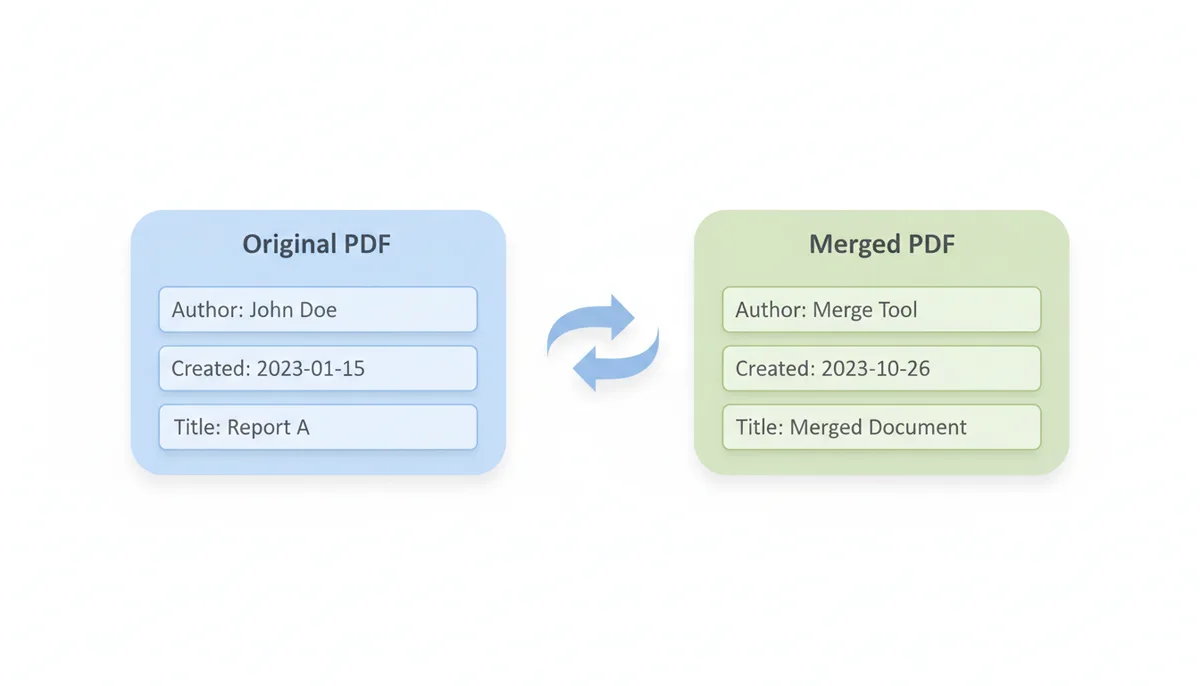
The merged PDF gets new metadata. Creation date becomes today, not the original creation dates. Author information either goes blank or pulls from the tool's settings. Title and subject fields reset. Some advanced tools attempt to combine metadata (listing multiple authors or preserving the earliest creation date), but most create fresh metadata for the new document. If metadata matters for your records, document it separately before merging.
Understanding what happens during PDF merging helps you make informed choices about which tool to use and when to trust online services. For routine documents, the convenience of online merging outweighs minor risks. For sensitive materials, client-side tools or desktop software provide better control. Either way, you now know what's happening behind that simple "merge" button — your files aren't just glued together, but carefully reconstructed into a new, unified document.
Sources
- ISO (International Organization for Standardization) — The claim that PDF (ISO 32000) is an open standard with a defined, object-based structure, which is what makes programmatic manipulation like merging possible.
- Adobe — Technical details on PDF structure, encryption, and security features like digital signatures, confirming that merging invalidates them.
- GDPR (Consolidated Text) — The principles of data minimization and storage limitation, which are the foundation for claims about secure data retention and deletion policies.
- Cloudflare Learning Center — The explanation of how HTTPS and SSL/TLS work to encrypt data in transit between a user's browser and the service's server.
- WebAssembly — The explanation of client-side processing, confirming that Wasm enables high-performance applications to run directly in the browser, making private, in-browser PDF manipulation possible.