
You had fifteen perfectly named files. Chapter 1 through Chapter 15. You uploaded them to merge, clicked the button, and now Chapter 10 sits between Chapter 1 and Chapter 2. Your appendices landed somewhere in the middle. The whole document reads like someone threw your pages down a staircase.
This isn't user error. You didn't click wrong. The problem stems from three technical realities: how computers interpret your filenames, what happens during the upload process, and which sorting method your PDF tool uses. Most people discover these issues after their 300-page dissertation comes out scrambled, but you can prevent the chaos entirely.
The fix requires understanding why computers see "Chapter 10" as coming before "Chapter 2" — and knowing exactly which preventive measures work for your specific merging scenario. Master these three factors, and you'll merge documents in perfect order every time, whether you're combining two files or two hundred.
The Real Reason: How Computers Sort Your Files
When you see a list of chapters numbered 1 through 15, your brain automatically knows the correct sequence. Computers don't share this intuition. They sort character by character, left to right, using what programmers call alphanumeric or lexicographic sorting.
Here's what happens: The computer compares the first character of each filename. If they match, it moves to the second character. When comparing "Chapter 10" to "Chapter 2", it sees:
- First characters: Both start with "C" — tie
- Second through eighth characters: "hapter " — still tied
- Ninth character: "1" versus "2"
Since "1" comes before "2" in the character sequence, "Chapter 10" wins. The computer never considers that "10" represents ten. It simply sees two separate characters.
This creates the classic sorting disaster:
- File 1.pdf
- File 10.pdf
- File 11.pdf
- File 12.pdf
- File 2.pdf
- File 3.pdf
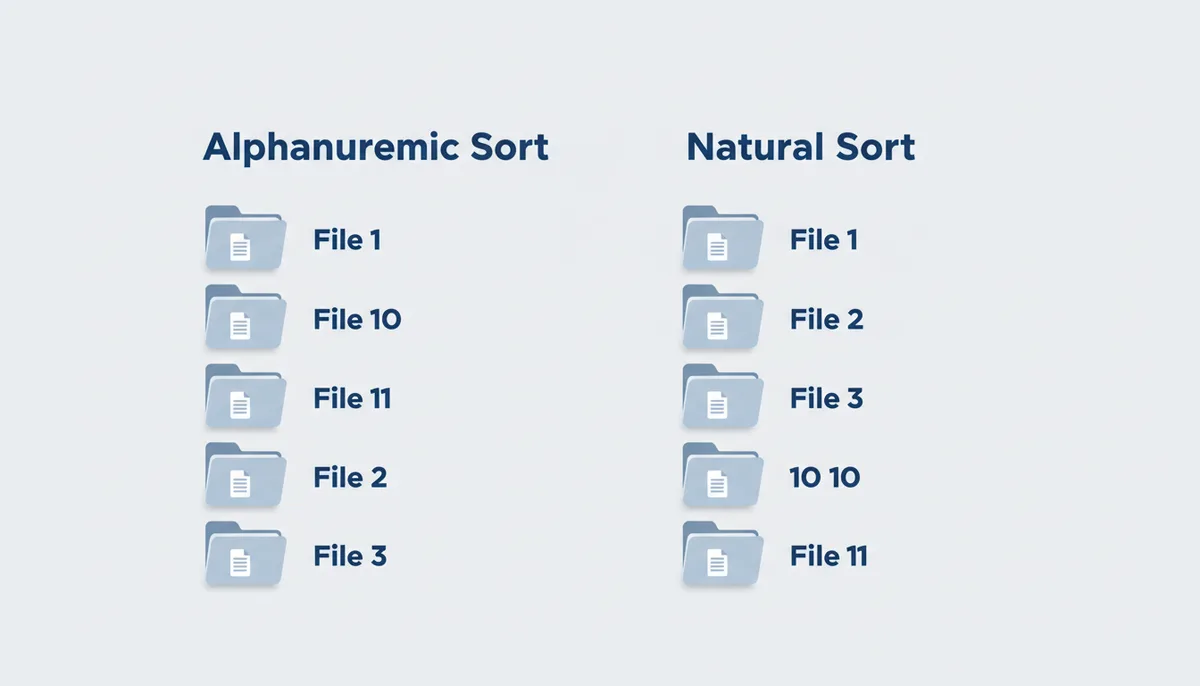
Some modern software uses "natural sort order" — an algorithm that recognizes numeric sequences within text. Natural sorting would correctly place "File 2.pdf" before "File 10.pdf". But here's the catch: you can't assume your PDF merger uses natural sorting. Many tools, especially free online ones, stick with basic alphanumeric sorting because it's computationally simpler.
Special characters complicate things further. Spaces, hyphens, underscores, and periods all have specific positions in the ASCII/Unicode character tables. A space character (ASCII 32) comes before numbers (ASCII 48–57), which come before uppercase letters (ASCII 65–90), which come before lowercase letters (ASCII 97–122). This means "File 2.pdf" sorts differently from "File_2.pdf" or "File-2.pdf".
Consider these seemingly similar filenames:
- "Report 2023.pdf" (space before number)
- "Report-2023.pdf" (hyphen, ASCII 45)
- "Report_2023.pdf" (underscore, ASCII 95)
- "Report2023.pdf" (no separator)
Each sorts to a different position. Mix these naming styles across your files, and you've guaranteed an unpredictable merge order.
The Pre-Merge Checklist: How to Guarantee Perfect Order
Prevention beats correction. Before uploading a single file, establish a naming convention that works with any sorting algorithm. The most reliable method: leading zero padding.
Instead of numbering your files 1, 2, 3... 10, 11, use 01, 02, 03... 10, 11. Better yet, if you might exceed 99 files, start with 001, 002, 003. This forces even the most basic alphanumeric sorter to maintain your intended sequence.
Here's the complete pre-merge checklist:
1. Count your total files first. Got 8 files? You need one leading zero (01–08). Got 150 files? You need two (001–150). This prevents the nightmare of renaming everything when you realize you have more files than expected.
2. Use consistent separators. Pick one: hyphen, underscore, or no separator. Stick with it throughout the entire project. Mixing "Chapter-01" with "Chapter_02" invites sorting chaos.
3. Put numbers first, descriptions second. "01-Introduction.pdf" sorts more reliably than "Introduction-01.pdf". When numbers lead, even crude sorting algorithms get it right.
4. Avoid spaces entirely. Replace them with hyphens or underscores. "Chapter 1.pdf" and "Chapter1.pdf" sort differently, and some web-based tools struggle with spaces in filenames.
5. Keep special characters out. No colons, semicolons, slashes, question marks, or asterisks. These cause problems during upload and can trigger security filters.
| Naming Scheme | Example Files | Resulting Sort Order | Reliability |
|---|---|---|---|
| Simple numbers | 1.pdf, 2.pdf, 10.pdf, 20.pdf | 1, 10, 2, 20 | Low |
| Padded numbers | 01.pdf, 02.pdf, 10.pdf, 20.pdf | 01, 02, 10, 20 | High |
| Numbers last (unpadded) | Chapter-1.pdf, Chapter-2.pdf, Chapter-10.pdf | Chapter-1, Chapter-10, Chapter-2 | Low |
| Numbers last (padded) | Chapter-01.pdf, Chapter-02.pdf, Chapter-10.pdf | Chapter-01, Chapter-02, Chapter-10 | High |
| Text first | Introduction.pdf, Chapter1.pdf | Chapter1, Introduction | Medium |
| Mixed separators | Doc_1.pdf, Doc-2.pdf, Doc 3.pdf | Doc 3, Doc-2, Doc_1 | Low |
Batch renaming makes this process manageable for large file sets. In Windows 10 or 11, select all your files in File Explorer, right-click the first one, choose Rename, and type your new naming pattern. Windows automatically numbers subsequent files. For "Chapter-" as your base name, it produces Chapter- (1), Chapter- (2), and so on. This lacks zero padding, so Chapter- (10) will sort before Chapter- (2).
For proper zero padding in Windows, use PowerShell instead. Select your PDF folder in File Explorer, then File → Open Windows PowerShell. Run:
$i = 1; Get-ChildItem *.pdf | ForEach-Object { Rename-Item $_ -NewName ("Chapter-{0:D2}.pdf" -f $i++) }
This creates Chapter-01.pdf, Chapter-02.pdf through Chapter-10.pdf and beyond, maintaining correct sort order.
macOS offers more control. Select all files in Finder, right-click, and choose "Rename." The dialog lets you add text, replace text, or apply a format. Choose "Format" then "Name and Index". Set the format to include leading zeros by choosing the number format carefully. However, Finder's rename dialog doesn't always provide explicit zero-padding options.
For guaranteed zero padding on Mac, use Terminal. Navigate to your folder and run:
n=1; for file in *.pdf; do mv "$file" "$(printf "Chapter-%02d.pdf" $n)"; ((n++)); done
For ultimate precision, use dedicated batch renaming software like Name Mangler (Mac) or Bulk Rename Utility (Windows). These tools let you preview changes before applying them and explicitly control padding. But for most PDF merging tasks, the command-line approaches above provide the zero padding essential for correct sorting.
Choosing Your Tool: Not All PDF Mergers Are Created Equal
Your file naming strategy only works if your PDF merger respects it. Tools fall into two categories: those that blindly follow filename order and those that give you manual control.
The blindest tools simply merge files in whatever order they receive them. This might be upload order (dangerous with parallel uploads), filename sort (usually alphanumeric), or even random order on overloaded servers. You upload, you pray, you get what you get.
Smart tools show you exactly what they plan to do. After upload, they display thumbnails of each PDF's first page. You see the order before committing to the merge. More importantly, you can drag and drop these thumbnails to rearrange them. Made a naming mistake? Fix it right there in the interface instead of starting over.
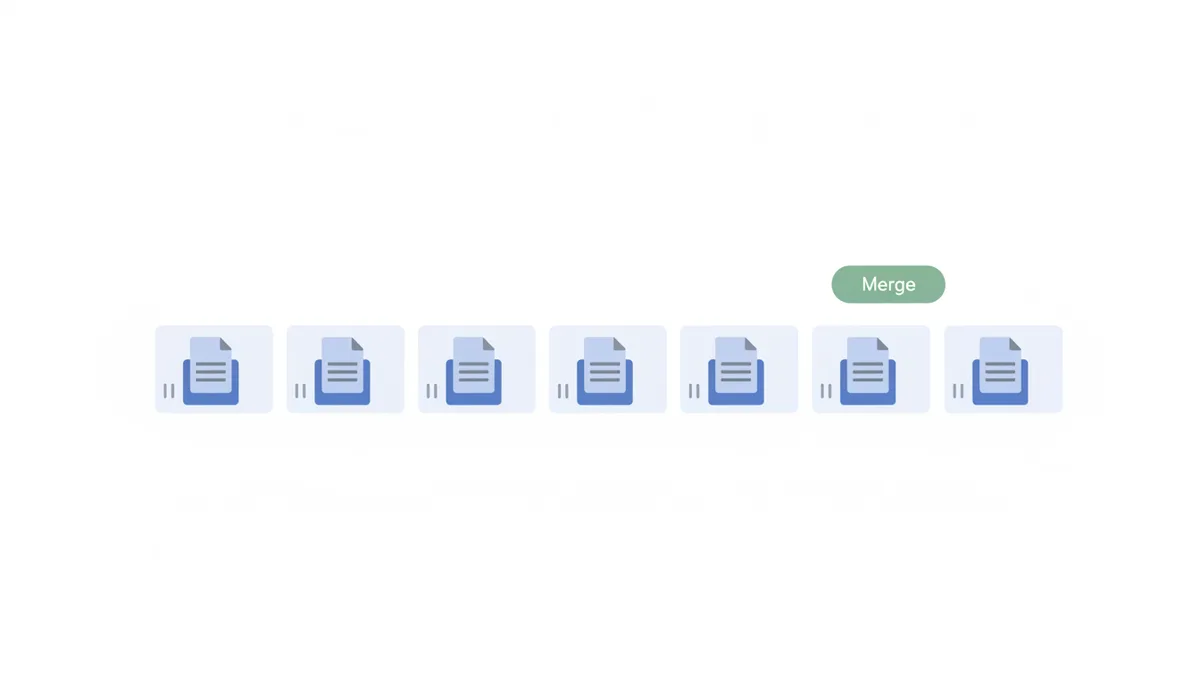
Look for these specific features when choosing a merger:
Thumbnail previews: You need to see what you're merging. A filename might be wrong, but a thumbnail of the actual page content never lies.
Drag-and-drop reordering: Click and drag thumbnails to perfect your sequence. This saves you when file naming goes wrong or when you need a custom order that defies any naming convention.
Add more files after initial upload: Forgot a file? Add it and position it exactly where it belongs instead of uploading everything again.
Page range selection: Sometimes you don't want entire PDFs, just specific pages. Tools that let you specify page ranges (like "pages 3–7 from Document A") give you surgical precision.
PDFator includes these visual controls in its free tier. You upload, you see thumbnails, you drag to reorder if needed, then merge. This visual confirmation step catches ordering problems before they become permanent.
Desktop software like Adobe Acrobat offers similar features with additional power. You can merge files from different folders, apply complex sorting rules, and even merge based on bookmarks or form fields. The trade-off: cost and complexity.
Command-line tools like pdftk give maximum control to technical users. You explicitly specify the order in your command: pdftk A=doc1.pdf B=doc2.pdf C=doc3.pdf cat A B C output merged.pdf. No ambiguity, no surprises, but also no visual preview.
The Merge Is Done and It's Wrong: How to Fix It
You merged 50 documents. Page 37 should be page 12. Chapters 4 and 5 are swapped. Starting over feels like defeat, but you have a better option: reorganize the already-merged PDF.
PDF manipulation tools (often called PDF organizers or PDF page arrangers) work with existing PDFs. You upload your scrambled merged file, and the tool extracts each page as a moveable unit. Think of it as unmixing the concrete before it fully sets.
The workflow runs like this:
Upload your merged PDF. The tool processes it and shows every page as a thumbnail. A 100-page merged document displays as 100 individual thumbnails you can manipulate.
Identify problem pages. Scroll through the thumbnails to spot pages in wrong positions. The visual preview makes this faster than clicking through the PDF page by page.
Drag pages to correct positions. Most tools let you select multiple pages at once. Grab pages 34–39 and drag them after page 11. Select non-consecutive pages by holding Ctrl (Windows) or Cmd (Mac) while clicking.
Use page operations for complex fixes. Beyond simple reordering, you can: - Delete redundant pages - Rotate pages that uploaded sideways - Extract specific sections to separate files - Insert pages from other PDFs at exact positions
Save your corrected version. The tool generates a new PDF with your specified page order. Your original merged file remains unchanged — useful if you make a mistake during reorganization.
This approach beats re-merging for several reasons. You keep any optimization the first merge applied. You don't need the original separate files (maybe a colleague sent you the merged version). Most importantly, you can make surgical corrections instead of rebuilding from scratch.
Some PDF readers include basic page manipulation. Adobe Acrobat Reader's paid version lets you organize pages. Even some free readers like PDF-XChange Editor offer page reordering. But dedicated online tools often provide cleaner interfaces specifically designed for this task.
When Naming Fails: Troubleshooting Advanced Sorting Issues
Perfect file naming sometimes isn't enough. Understanding these edge cases helps you diagnose persistent ordering problems.
The upload order trap: Some basic tools merge files in the exact sequence they finish uploading. With modern browsers making parallel connections, your carefully numbered files might upload as: file-03.pdf (small, uploads fast), file-01.pdf (larger, uploads second), file-02.pdf (largest, uploads last). The merged PDF follows this random upload order, ignoring filenames entirely.
The fix: Use tools that show you the planned merge order before processing. If you're stuck with a basic tool, upload files one at a time, waiting for each to complete. Tedious but reliable.
Hidden system files: Mac users know the frustration. You have ten PDFs in a folder. The merger shows eleven files. The extra one? .DS_Store, macOS's hidden folder settings file. Some web uploaders grab everything in a folder, including invisible system files. These files can't be merged (they're not PDFs) but they disrupt the count and sometimes the sort order.
The fix: Upload files individually rather than entire folders. Or use Terminal to remove .DS_Store files before uploading: find . -name '.DS_Store' -type f -delete
Character encoding chaos: You named a file "Résumé.pdf" or "Año-2024.pdf". The accent marks look fine on your computer, but the web uploader sees mojibake — garbled characters from encoding mismatches. UTF-8 versus ISO-8859-1 versus Windows-1252 creates sorting nightmares.
The fix: Stick to basic ASCII characters in filenames: A–Z, a–z, 0–9, hyphens, underscores. Save the fancy characters for inside the document, not the filename.
Cloud sync delays: You rename files in Dropbox, then immediately upload from the Dropbox folder. But Dropbox hasn't synced your new names to the cloud yet. The merger pulls the old filenames from Dropbox's servers.
The fix: Wait for sync confirmation (green checkmarks in Dropbox) or download files locally before merging.
Metadata confusion: PDF files carry internal metadata: title, author, creation date. These fields are part of the PDF specification but are often empty or inconsistent. Some users expect tools to sort by these properties. "I set the creation dates in order, why isn't it working?" Because essentially no PDF mergers sort by metadata. They use filenames or manual order, nothing else.
Why? Metadata is unreliable. Opening and saving a PDF might update its modification date. The "Title" metadata field might be empty or contain the original filename from three renames ago. Sorting by metadata would produce unpredictable results, so tools don't offer it.
Merging at Scale: Strategies for Hundreds of Files
Merging five chapters? Manual drag-and-drop works fine. Merging 500 research papers? You need industrial-strength strategies.
Browser-based tools hit limits around 100–200 files. The browser runs out of memory tracking all those thumbnails. Upload times stretch to hours. The web server might timeout before processing completes. Even when it works, dragging file #387 to position #12 through a scrolling interface tests anyone's patience.
Your first defense remains rock-solid file naming. With hundreds of files, use four-digit padding: 0001, 0002... 0999. This handles up to 9,999 files while maintaining sort order. Include category prefixes for easier management: "A0001-Introduction.pdf", "B0001-Chapter1.pdf", "C0001-Appendix1.pdf". The letter groups related content while numbers maintain order within groups.
Batch renaming becomes essential. Command-line tools handle this efficiently. On Windows PowerShell:
$counter = 1; Get-ChildItem *.pdf | ForEach-Object { Rename-Item $_ -NewName ("A{0:D4}-{1}" -f $counter++, $_.Name) }
This renames all PDFs with "A" prefix and four-digit padding. Similar one-liners exist for Mac/Linux using bash.
| Method | Best for (File Count) | Required Skill Level | Speed | Ordering Control Method | Cost |
|---|---|---|---|---|---|
| Online Visual Tool (PDFator) | 1-50 files | Beginner | Fast | Drag-and-drop | Free |
| Desktop Software (Adobe Acrobat) | 1-500 files | Intermediate | Medium | Dialog box + presets | $150+/year |
| Command-Line Tool (pdftk) | 1-10,000+ files | Advanced | Very fast | Explicit file list | Free |
For true high-volume merging, command-line tools dominate. pdftk (PDF Toolkit) handles thousands of files without breaking a sweat. You generate a text file listing your PDFs in order, then feed it to pdftk:
pdftk $(cat filelist.txt) cat output merged.pdf
The trade-off is zero visual confirmation. You trust your file naming and your list. But for merging 3,000 journal articles into a single reference PDF, no GUI tool matches this efficiency.
To create a safe workflow with pdftk, always verify your file list before merging. First, generate the list:
ls *.pdf | sort -V > filelist.txt
The -V flag enables version sort, which handles numbers intelligently. Open filelist.txt in a text editor to verify the order. Each line should show one PDF filename in your intended sequence. Spot-check critical transitions: does Chapter-09.pdf come before Chapter-10.pdf? Does A0999.pdf precede B0001.pdf?
For extra safety, generate a preview of first pages:
for file in $(head -20 filelist.txt); do echo $file; pdftotext "$file" - | head -3; echo "---"; done
This shows the filename and first three lines of text from your first 20 PDFs. You'll spot wrong files immediately — that appendix mixed into your chapters, the bibliography appearing too early.
Only after verifying the list do you run the actual merge. If something goes wrong, you still have your original files and can adjust the list without re-processing everything.
Professional environments often combine approaches. Use scripts to rename and organize files, merge them with command-line tools, then spot-check the results with a visual PDF reader. If problems appear, extract and fix problem sections with GUI tools rather than reprocessing everything.
Consider splitting massive merge jobs. Instead of one 5,000-page PDF, create fifty 100-page PDFs, then merge those. This staged approach makes errors easier to locate and fix. It also keeps individual files at manageable sizes for sharing and viewing.
Your PDF Merge Order FAQ
Is there a limit to how many PDFs I can merge at once?
This depends on the tool. Online tools may have limits on file count or total size for free tiers, while desktop software is generally limited only by your computer's memory. For hundreds of files, a robust naming strategy is essential.
Can I reorder the pages inside a PDF after it's already been merged?
Yes. You don't need to re-merge. Use a 'Split PDF' or 'Organize PDF' tool, which allows you to upload the single PDF and then drag and drop its pages into the correct sequence before saving.
What's the fastest way to rename 100 files to get them in order?
Use your operating system's built-in batch renaming feature. In Windows, select all files, right-click the first one, and rename. In macOS, select all files, right-click, and choose 'Rename'. Both allow you to apply a sequential numbering format.
Does it matter if I'm on a Mac or a Windows PC?
The underlying reason for incorrect sorting (alphanumeric vs. natural) is the same on both. The steps to batch rename files are slightly different, but the principle of using leading zeros in your filenames works universally.
Why don't PDF tools just sort files by date created?
File metadata like 'date created' can be unreliable and easily changed. More importantly, the date a file was created often doesn't match the logical order a user wants for the final document (e.g., Chapter 2 might be edited after Chapter 5).
Will merging PDFs reduce their quality?
No, merging PDFs is a lossless process. The tool simply combines the existing pages from multiple documents into one file without re-rendering or compressing the content, so the quality of text and images remains identical.
Inside the Upload: What Actually Happens to Your Files
You click "Select Files" and choose ten PDFs. What happens next determines whether your merge succeeds or fails, yet most users never see this process. Understanding the upload pipeline reveals why identical files can produce different merge orders on different days.
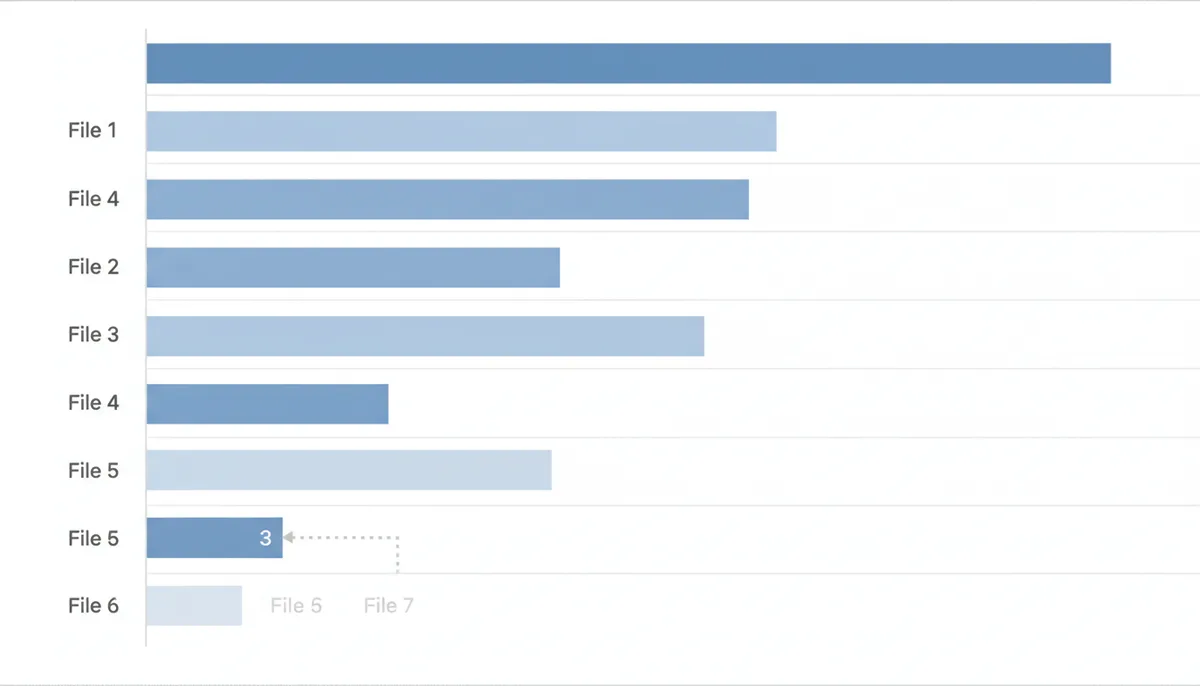
When you select multiple files, your browser creates an upload queue. Modern browsers use parallel connections — typically six simultaneous uploads to the same server. Your ten files don't upload in sequence. Files 1, 2, 3, 4, 5, and 6 start uploading simultaneously. When file 3 (small, 200KB) finishes first, file 7 starts. When file 1 (large, 15MB) finally completes, file 8 begins.
The server receives files in completion order, not selection order. If the PDF merger processes files immediately upon receipt, your careful selection order vanishes. File 3 becomes page 1 of your merged PDF simply because it arrived first.
Network conditions compound this chaos. Your 15MB file might upload at 5 Mbps initially, then drop to 500 Kbps when your roommate starts streaming video. Meanwhile, the small files race through. Upload order becomes essentially random.
Server-side processing adds another layer. Budget hosting services often use load balancers that distribute uploads across multiple servers. Your files might land on different machines, get processed at different speeds, then get assembled in whatever order they finish processing. The merger sees: File 7 (from server A), File 2 (from server C), File 9 (from server B).
Quality PDF mergers defend against this chaos by maintaining client-side order. They track which file you selected first, second, third, regardless of upload completion. After all files arrive, they sort by original selection order, filename, or manual arrangement — never by upload timestamp.
You can test your merger's behavior. Create three PDFs of drastically different sizes: tiny.pdf (50KB), medium.pdf (5MB), huge.pdf (50MB). Name them to sort alphabetically in reverse size order. Select them in alphabetical order and upload. If your merged PDF starts with medium.pdf or huge.pdf instead of tiny.pdf, you've found a tool that merges by upload order — avoid it for important projects.
Browser choice matters too. Chrome's aggressive parallel uploading can scramble file order more than Firefox's slightly more conservative approach. Safari on slow connections sometimes falls back to sequential uploads, accidentally preserving order. Mobile browsers add cellular network variability — your phone might switch from WiFi to 4G mid-upload, completely disrupting the sequence.
The solution? Never rely on upload order. Always use tools that show you the pending merge order and let you fix it before processing. Treat the upload phase as inherently chaotic and plan accordingly.
Real Scenario: Merging a Multi-Author Research Paper
Dr. Sarah Chen coordinates a 15-person research team. Each researcher writes one chapter, saving it with their own naming convention. The deadline hits, emails pour in: "Chapter_Lee.pdf", "2_Methods_FINAL.pdf", "Johnson_Results_v3.pdf", "04_Discussion_Ahmed.pdf", "Intro_Draft4.pdf".
Sarah's first attempt uses a basic online merger. She uploads all 15 files at once. The result: Johnson's results appear first (filename starts with "J"), followed by the discussion ("0" in "04"), then Lee's chapter ("C" in "Chapter"). The introduction lands on page 47. The methods section, despite being chapter 2, sits at the end because "2" sorts after every letter in the alphabet.
Here's how Sarah fixes it, step by step:
Step 1: Download and organize locally. She creates a folder called "Chapters_Original" and saves all submitted files there untouched. Then she creates "Chapters_Renamed" for her working copies.
Step 2: Decode the intended order. She opens each PDF to determine its actual chapter number: - "Intro_Draft4.pdf" → Chapter 1 - "2_Methods_FINAL.pdf" → Chapter 2 - "Johnson_Results_v3.pdf" → Chapter 3 - "04_Discussion_Ahmed.pdf" → Chapter 4
Step 3: Apply systematic renaming. Using her file manager's batch rename function, she names every file with the pattern "Ch##_AuthorName.pdf": - Ch01_Smith.pdf (Introduction) - Ch02_Lee.pdf (Methods) - Ch03_Johnson.pdf (Results) - Ch04_Ahmed.pdf (Discussion)
Step 4: Handle the appendices problem. Five researchers submitted appendices with names like "Appendix_Statistics.pdf" and "SuppMaterial_Graphs.pdf". These need to appear after all chapters but in a specific order. She prefixes them with "Ch20_" through "Ch24_" ensuring they sort after chapter 15 but maintain their own sequence.
Step 5: Use a visual merger for verification. She uploads to PDFator, which shows thumbnails of each first page. Immediately she spots a problem: Ch08_Williams.pdf shows a graph, not the expected text. Williams submitted his figures PDF with the wrong name. The thumbnail preview caught an error that would have been missed by filename alone.
Step 6: Final adjustments. She drags Ch08_Williams.pdf to the appendix section and uploads the correct Ch08 file. The visual interface confirms all 20 documents appear in the right sequence before she clicks merge.
The 300-page merged document comes out perfectly ordered. Sarah learned to never trust varied naming conventions from multiple authors. Her systematic approach — download, decode, rename, verify visually — works whether merging 5 files or 50.
Performance and File Size: When Merging Gets Slow
Your PDF merger worked perfectly for those five 2-page contracts. Now you're merging 50 scanned textbook chapters, each 40MB, and the process crawls. Understanding PDF file structure explains why some merges take seconds while others take hours.
PDFs store content in objects: text, images, fonts, metadata. A text-heavy academic paper might be 200KB despite running 30 pages. A single scanned page saved as an image could be 5MB. When merging, tools must parse every object in every PDF, build a new document structure, and write the combined result.
Text-based PDFs merge almost instantly. The merger reads character streams, combines document trees, and outputs clean text. A 100-page text document processes faster than a single high-resolution scanned page. If your PDFs contain actual text (you can select and copy words), expect rapid merging even for hundreds of files.
Scanned PDFs — essentially images wrapped in PDF formatting — create bottlenecks. Each page might contain a 4000×3000 pixel color image. That's 36MB uncompressed data per page. Multiply by 50 pages and the merger must juggle 1.8GB of image data. Consumer laptops with 8GB RAM start swapping to disk, slowing everything dramatically.
Optimization settings compound the issue. Some scanners save PDFs with minimal compression to preserve quality. Others apply aggressive JPEG compression. When merging mixed sources, the tool must decode various compression schemes, potentially recompressing for consistency. This CPU-intensive process makes your laptop fan scream.
Browser limitations hit hard with large files. Most browsers can't handle uploads over 100–200MB reliably. The connection times out, the page refreshes, or the browser crashes. Even if upload succeeds, server-side processing might hit time limits. Free online tools often cap processing at 60 seconds — enough for text PDFs, insufficient for scanned monsters.
| PDF Type | Typical Size | Merge Speed | RAM Usage | Best Tool Type |
|---|---|---|---|---|
| Text document | 50-500KB | Instant | Minimal | Any online tool |
| Mixed text/images | 1-5MB | Fast | Moderate | Online or desktop |
| Scanned pages | 5-50MB | Slow | Heavy | Desktop required |
| High-res scans | 50MB+ | Very slow | Extreme | Command-line tools |
Desktop software handles large files better by processing locally. Adobe Acrobat uses your full CPU and RAM without network bottlenecks. But even desktop tools struggle with hundreds of massive scanned files. The solution often involves preprocessing: compress scanned PDFs before merging. Tools like Adobe Acrobat's "Reduce File Size" or open-source alternatives like Ghostscript can shrink 50MB scans to 5MB without visible quality loss.
For massive merges, consider your actual needs. Will anyone read all 5,000 pages sequentially? Often it's better to merge logical sections (chapters 1–5, chapters 6–10) creating multiple manageable files instead of one unwieldy monster. You maintain organization while keeping individual files under the size where tools start choking.
Conclusion
Merged PDFs end up jumbled because computers sort filenames differently than humans read them. The computer sees "Chapter 10" as coming before "Chapter 2" because it compares character by character, not by numeric value. This fundamental mismatch between human and computer logic causes most PDF ordering problems.
Prevention starts with smart file naming. Leading zeros (01, 02... 10) force proper sorting in any system. Consistent separators and putting numbers first make your intentions clear to even the most basic sorting algorithm. When you move beyond simple merges, choosing tools with visual preview and drag-and-drop reordering gives you a safety net.
For files already merged wrong, PDF organizer tools let you fix the order without starting over. Upload the scrambled PDF, drag pages where they belong, and save the corrected version. This beats re-merging, especially when you no longer have the original separate files.
Scale brings new challenges. Hundreds of files overwhelm browser-based tools and make manual reordering impractical. Here, bulletproof naming conventions and command-line tools provide the throughput you need. The same principles apply whether you're merging three files or three thousand: understand how your tool sorts, name accordingly, and verify before finalizing.
Master these concepts, and you'll never distribute another scrambled PDF. Your readers will appreciate the difference.
Sources
- ISO (International Organization for Standardization) — The PDF standard (ISO 32000) and file-format details that explain why PDF metadata and file structure do not inherently dictate a merge order between separate files.
- Adobe — Guidance on combining files and reordering thumbnails in Adobe Acrobat, which supports the recommendations to verify and rearrange files visually before merging.
- Microsoft Support — Instructions for selecting and batch renaming files in Windows File Explorer, which back the Windows-specific steps in the Pre-Merge Checklist.
- Apple Support — Documentation for Finder's batch rename feature on macOS, supporting the macOS-specific steps in the Pre-Merge Checklist.
- PDF Association — Technical articles and white papers on PDF behavior, metadata, and version differences that underpin the article's claims about metadata reliability and PDF internals.