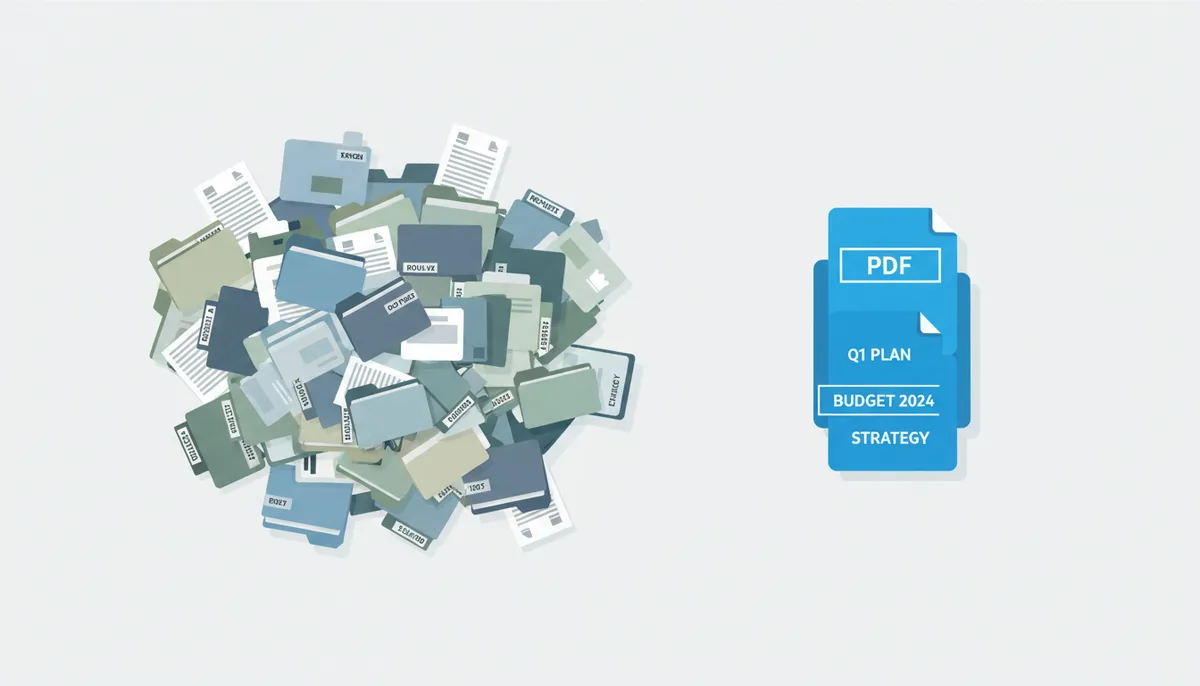
Is Your 'PDF Pile' Working For or Against You?
You open your project folder and face 47 PDFs. There's "Contract_v3_FINAL.pdf", "Contract_v3_FINAL_revised.pdf", and "Contract_SIGNED_maybe.pdf". Your colleague asks for the quarterly report, and you're attaching seven separate files because you can't remember which version included the appendix. Sound familiar?
This digital document chaos costs more than time. Last week, a marketing manager I know accidentally sent a client the wrong invoice—one with internal pricing notes still visible. Another friend spent an hour reconstructing a proposal because she'd split it into sections months ago and couldn't find page 14.
Here's what most people miss: organizing PDFs isn't about tidiness. It's about making strategic decisions that prevent errors, speed up workflows, and project competence. The three fundamental choices—merge, split, or keep separate—each serve distinct purposes. Choose wrong, and you create more problems than you solve.
Merging combines multiple files into one sequential document. Think of assembling chapters into a book or invoices into a quarterly statement. Splitting extracts specific pages or sections from a larger file—pulling just the executive summary from a 200-page report. Keeping files separate maintains each document's individual integrity, preserving signatures, metadata, and version history.
The trick is knowing which strategy fits your situation. That's what we'll figure out together.
What Are the Strategic Goals of Merging, Splitting, and Keeping Separate?
Each PDF organization strategy solves different problems. Merging creates a single narrative from scattered pieces—you're building a story that needs to be read in order. When you combine that research paper with its charts and appendices, you're guaranteeing readers see everything in context.
Splitting serves the opposite purpose: isolation. You extract only what's relevant, leaving behind the noise. That 400-page employee handbook? Your new hire just needs pages 23-31 about vacation policy. Splitting gets them exactly that.
Keeping files separate preserves independence. Each document retains its own creation date, security settings, and digital signatures. You maintain clear version boundaries and audit trails. Sometimes the best organization is no manipulation at all.
| Strategy | Best for Sharing | Version Control Simplicity | Findability | Security Granularity | Archival Integrity |
|---|---|---|---|---|---|
| Merge | One attachment covers everything | Single version to track | All content in one search | One security level for all | Combined metadata only |
| Split | Send only relevant portions | Track pieces independently | Targeted file names | Different access per section | Preserves source partially |
| Keep Separate | Clear file boundaries | Each file's history intact | Depends on naming system | Individual encryption | Original signatures valid |
Notice the trade-offs. Merging simplifies sharing but complicates security—you can't password-protect just the financial section anymore. Splitting improves targeted access but can destroy context. Keeping separate maintains maximum flexibility but requires disciplined file naming.
Your documents' purpose drives the choice. Client deliverables often benefit from merging. Internal reference materials might need splitting. Legal documents usually demand staying separate. Let's dig into when each approach truly shines.
When Is Merging PDFs the Smartest Move?
Picture submitting a grant application. The guidelines demand one PDF containing your proposal, budget, timeline, and letters of support. You could attach five files and hope they open them in order. Or you could merge them and guarantee it.
Merging excels when sequence matters. Your annual report flows from executive summary through financials to projections—readers need that narrative arc. Combining monthly invoices into "Q3_2024_All_Invoices.pdf" creates a single financial record. Building a portfolio? That cover letter, resume, and work samples tell a stronger story when packaged together.
Consider a real estate closing package. You've got the purchase agreement, inspection report, insurance documents, and mortgage approval. Separately, they're puzzle pieces. Merged with a logical page order—agreement first, supporting documents following—they become a comprehensive transaction record. One file to email the lawyer, one to archive, one to print.
The mechanics matter. Before merging, rename your files with number prefixes: "01_CoverLetter.pdf", "02_Resume.pdf", "03_References.pdf". Most tools merge alphabetically, so this guarantees your intended order. Your final filename should describe the collection: "Johnson_Application_Complete_2024.pdf" beats "MergedDocument.pdf" every time.
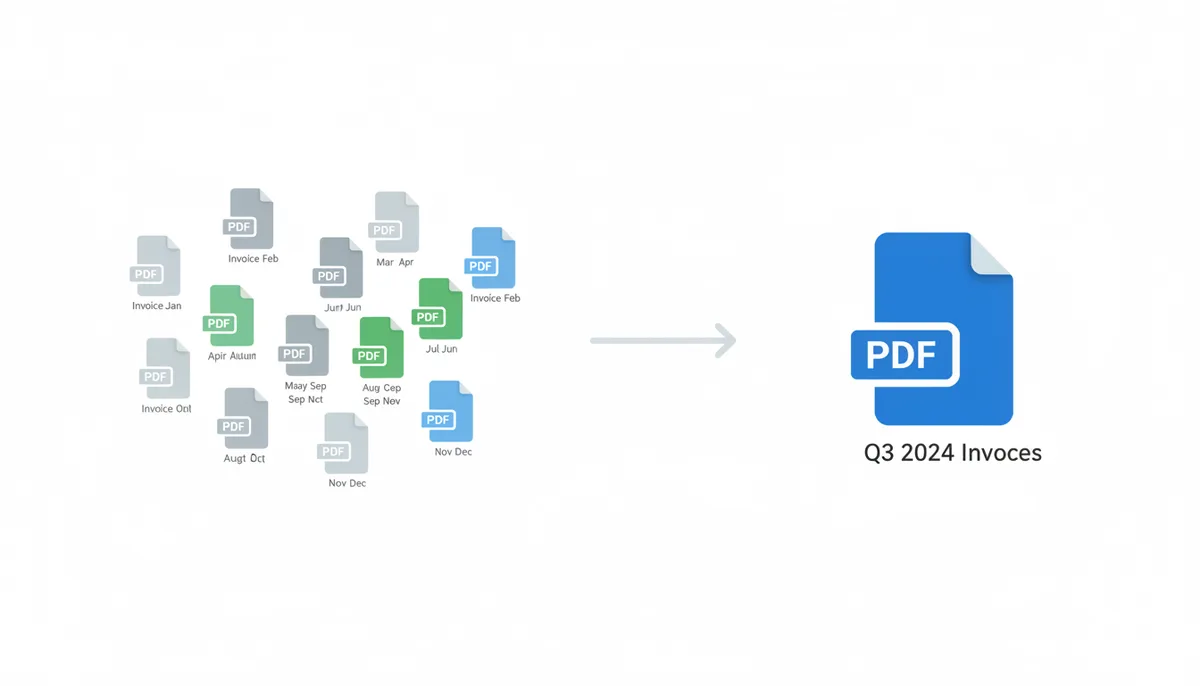
Here's when merging pays off: You're creating a single deliverable from multiple sources. Think course packets from different chapters, project documentation from various team members, or contract packages with amendments. The recipient gets one download, one print job, one document to review.
But merging has limits. That 15MB presentation plus 20MB of high-resolution diagrams creates a 35MB monster. Email servers might reject it. Browsers might struggle. Sometimes keeping files separate but organized in a clearly named folder serves everyone better.
When Does Splitting a PDF Unlock Its Value?
Your colleague needs one diagram from your 200-page technical manual. You could send the whole file with instructions to "see page 147." Or you could extract just that page and send "Network_Architecture_Diagram.pdf". Which approach wastes less of everyone's time?
Splitting shines for targeted extraction. That contract you're reviewing? Extract just the liability section for legal review while marketing examines only the branding guidelines. A 500-page industry report contains three pages about your competitor—pull those for the strategy meeting. Your scanned book has one brilliant chapter—extract it for your research without violating copyright on the rest.
Real example: A professor receives a 300-page dissertation. She needs to share Chapter 3 with a colleague who's an expert on that specific methodology. Splitting out pages 45-72 creates a focused document that's easier to email, faster to read, and simpler to annotate. The full dissertation stays intact for formal review.
Page extraction methods vary by need. Extract specific pages (5, 12, 18-22) when you know exactly what you want. Split by page range when creating logical sections. Break into individual pages when each will be processed separately—like separating a batch of scanned receipts for expense reporting.
The confidentiality angle matters too. Your financial report includes sensitive salary data in Appendix B. When sharing with external consultants, split out everything except that appendix. You maintain transparency while protecting private information. No awkward redactions, no "please ignore pages 34-38" instructions.
File size drives many splitting decisions. That beautifully scanned architectural drawing set weighs 180MB. Email it? Good luck. Split it into logical sections—site plans, floor plans, elevations—and each 20MB piece travels easily. Recipients get what they need without download frustration.
Why Is 'Keep Separate' a Powerful (and Overlooked) Strategy?
Every signed contract in your system represents a legal moment frozen in time. The signature, the date stamp, the metadata—they all matter. Merge that contract with its amendments, and you've destroyed the original's legal standing. The signature no longer validates the specific document it was meant to authenticate.
Keeping files separate isn't inaction—it's preservation. Consider version control. You have five drafts of a strategic plan, each reviewed by different stakeholders. Merging them into "StrategicPlan_AllVersions.pdf" seems organized, but now you can't tell which executive approved which changes. Those individual files, with their distinct creation dates and review notes, tell the development story.
Digital signatures demand separation. Your invoice has a digital signature certifying its authenticity. Your purchase order has another. Merge them, and both signatures become invalid—the combined document differs from what each party signed. For audit trails and legal compliance, those files must remain independent.
Smart naming replaces the urge to merge. Instead of combining all project contracts, try this: Create a folder called "Project_Phoenix_Contracts" with files named "01_Master_Agreement_2024-01-15.pdf", "02_Amendment_A_2024-02-20.pdf", "03_Amendment_B_2024-03-10.pdf". The naming system shows relationships and chronology while preserving each document's integrity.
Forms and interactive elements break when merged. That expense form with calculated fields, that survey with dropdown menus, that contract with fillable signature blocks—merging flattens these features into static text. Keep them separate to maintain functionality.
Some workflows demand separation by design. Medical records where each test result needs its own timestamp. Financial documents requiring individual encryption levels. Research data where each source must maintain its attribution. The organization happens through structure, not combination.
Your Decision Framework: Should You Merge, Split, or Leave It?
Start with one question: What are you trying to accomplish? Your goal determines your strategy. Let's walk through the decision process with real scenarios.
You're submitting documents. Ask: Does the recipient expect one file or several? Must they be read in sequence? A journal submission wanting "manuscript and figures in a single PDF" demands merging. A government portal with separate upload fields for each document type requires keeping them separate.
You're sharing information. Ask: Does everyone need everything? If you're sending a 200-page procedures manual but the new employee only handles shipping, split out just the shipping section. If you're presenting a complete project history to the board, merge those quarterly updates into one chronological narrative.
You're archiving records. Ask: What preserves the most information? Individual receipts might need separate files for accounting software that reads metadata. But those same receipts, once processed, could merge into "March_2024_Expenses.pdf" for long-term storage.
Here's your step-by-step framework:
First, identify your primary goal: submit, share, archive, or process. Second, determine if sequence matters—do these documents tell a story together? Third, check for unique properties worth preserving: signatures, form fields, security settings. Fourth, consider your audience's needs: one download or categorical access? Fifth, evaluate technical constraints: file size limits, software compatibility.
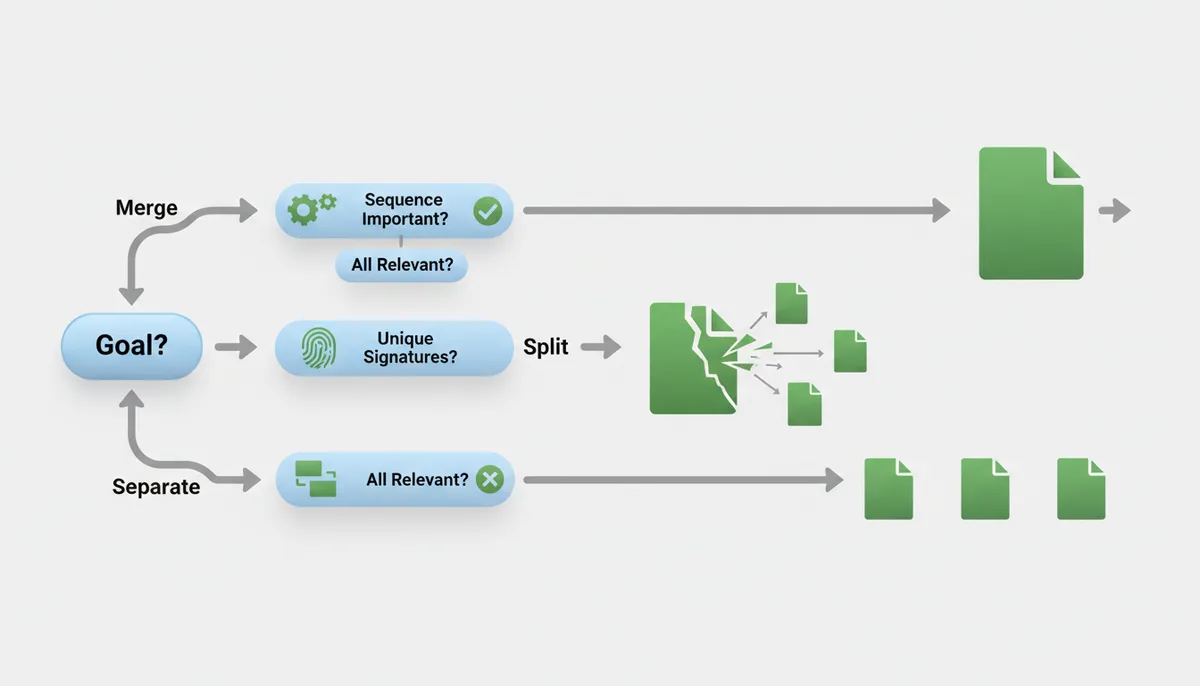
Real application: You have ten documents for a loan application. The bank wants one PDF (goal: submit). The documents must flow from application through supporting evidence (sequence matters). None have unique signatures yet (no preservation needed). One complete file serves the bank better than ten attachments (audience need). Total size is 8MB—well under email limits (no technical constraint). Decision: Merge them.
Counter-example: You have the same documents, but three are already signed by different parties. Those signatures must remain valid (preservation critical). Decision: Keep the signed documents separate, merge only the unsigned supporting materials.
How Do Technical Details Impact Your Decision?
Your PDF isn't just text and images—it's a container of complex features. Understanding what happens to these features during merging or splitting prevents nasty surprises.
Interactive elements rarely survive merging intact. You know those form fields where users type their name and the document calculates totals? Merging typically flattens them into plain text. That JavaScript that validates email addresses? Gone. Those dropdown menus for selecting options? Now just static text showing whatever was selected at merge time.
Bookmarks tell their own story. Quality PDF tools preserve bookmarks from all source documents when merging, but they'll likely need reorganization. That detailed bookmark tree in your technical manual becomes a flat list when merged with other documents. Splitting usually orphans bookmarks—that link to "Chapter 5" means nothing when Chapter 5 no longer exists in the split document.
Security layers create particular challenges. You can't simply merge a password-protected financial report with an unrestricted marketing presentation. Most tools require you to unlock protected files first, then merge into an unprotected output. You'll need to reapply security to the merged result—and now everything shares the same protection level.
| Feature | When Merged | When Split |
|---|---|---|
| Digital Signature | Invalidated—document changed | Lost if not on extracted pages |
| Form Fields | Flattened to static text | Preserved on extracted pages |
| Bookmarks | Combined but may break links | Partially preserved, links may fail |
| Encryption | Must unlock first, reapply after | Maintained on extracted portion |
| Hyperlinks | External links work, internal may break | External work, internal often break |
| Metadata | Usually from first document only | Copied to new document |
File size compounds predictably but problematically. Five 10MB scanned contracts create a 50MB merged file—too large for many email systems. But compression affects quality. Those sharp architectural drawings might blur if you compress too aggressively post-merge. Sometimes splitting into logical groups (contracts 1-3 in one file, 4-5 in another) provides the best balance.
OCR status matters for searchability. Merging three searchable text PDFs with two non-searchable scanned PDFs creates a partially searchable result. You can find text in the first three sections but not the last two. Running OCR before merging ensures consistent searchability throughout.
What Are the Most Common PDF Organization Mistakes?
The "mega-file syndrome" tops the mistake list. Someone decides to merge an entire year of receipts—500 pages of high-resolution scans creating a 400MB behemoth. It won't email. It crashes phones. It takes forever to open. The fix? Monthly consolidation instead of annual, or keeping receipts separate but organized in dated folders.
Pro tip for large files: Check size before merging. If your sources total over 25MB, consider your delivery method. Email typically handles up to 25MB. Web uploads vary but 100MB often hits limits. For anything larger, merge into logical chunks or use file-sharing services.
Context destruction happens when people split too enthusiastically. Pulling "just the conclusions" from research papers sounds efficient until someone asks about methodology. Extracting signature pages without their contracts invites confusion about what was actually signed. Always ask: Will this extracted piece make sense standalone?
Pro tip for splitting: Include a cover page noting the source document and extraction date. If you pull pages 45-67 from "Annual_Report_2024.pdf", your extracted file's first page should state this context. Future you will thank present you.
Naming negligence creates future mysteries. "Document1_merged.pdf" tells you nothing six months later. "Split_pages.pdf" could be anything. Poor names multiply confusion when you're managing dozens of files.
Pro tip for naming: Use this template: [Date]_[Project]_[Content]_[Version].pdf. Real example: "2024-03-15_QuarterlyReview_Financial_Merged.pdf". Include the action (merged/split) when relevant. Anyone can understand this file at a glance.
The "original destruction" error haunts many. Someone merges files, deletes the sources to "save space," then discovers they merged in the wrong order. Or they split a document, keep only the pieces, then need the complete version for an audit.
Pro tip for preservation: Create a "PDF_Originals" folder before any operation. Copy (don't move) files there. Work on the copies. Only delete originals after confirming the merged or split versions serve their purpose for at least a week. Storage is cheap; recreating lost documents isn't.
Version confusion multiplies with merging. You merge five contract drafts into one file. Later, someone asks which version the client approved. Without the individual files' metadata, you're guessing.
Pro tip for versions: When merging related versions, create a cover page listing each included document with its original date and version number. Or better yet, keep versions separate with clear naming: "Contract_v1_Draft.pdf", "Contract_v2_ClientReview.pdf", "Contract_v3_Final.pdf".
Real-World Workflow: Managing a Multi-Stage Project Documentation
Let me walk you through how a construction project manager handled 200+ PDFs over six months, showing exactly when each strategy paid off.
Month 1: Initial contracts arrive. Five separate documents: master agreement, scope of work, payment schedule, insurance requirements, and safety protocols. Each needs different stakeholders' signatures at different times. Decision: Keep separate. The project manager creates a folder "Phoenix_Tower_Contracts" with files named "01_Master_Agreement_unsigned.pdf", "02_SOW_unsigned.pdf" and so on. As signatures come in, she maintains parallel files: "01_Master_Agreement_SIGNED_2024-01-15.pdf".
Month 2: Permit applications. The city wants one comprehensive PDF containing application forms, site plans, architectural drawings, and environmental assessments. Total: 47 separate files. Decision: Merge strategically. She creates three merged files: "Permit_Package_1_Forms.pdf" (all filled applications), "Permit_Package_2_Plans.pdf" (all drawings), and "Permit_Package_3_Supporting.pdf" (assessments and reports). Why not one mega-file? The city's portal has a 50MB upload limit, and the architectural drawings alone total 45MB.
Month 3: Change orders start. The client requests modifications requiring updated drawings and revised budgets. The original 200-page architectural set needs updates on pages 34-45 and 89-92. Decision: Split and merge. She extracts the affected pages, works with architects on revisions, then creates "Change_Order_001_Revised_Pages.pdf" containing only the updated sections. The original file stays intact for record-keeping.
Month 4: Monthly reporting. Subcontractors submit progress reports, safety incidents, and photo documentation. Twenty-three PDFs arrive from different trades. Decision: Merge by category. She creates "Month4_Progress_All_Trades.pdf", "Month4_Safety_Reports.pdf", and "Month4_Photo_Documentation.pdf". Each merged file gets a generated table of contents page listing the included contractors and page ranges.
Month 5: Audit preparation. Inspectors need specific documents: just the safety protocols from the original contracts, environmental testing results from pages 78-92 of a larger report, and all change orders to date. Decision: Split and assemble. She extracts exactly what's needed from various sources, creating a focused "Audit_Package_Safety_Environment.pdf" that's 35 pages instead of the 500+ pages the source documents would total.
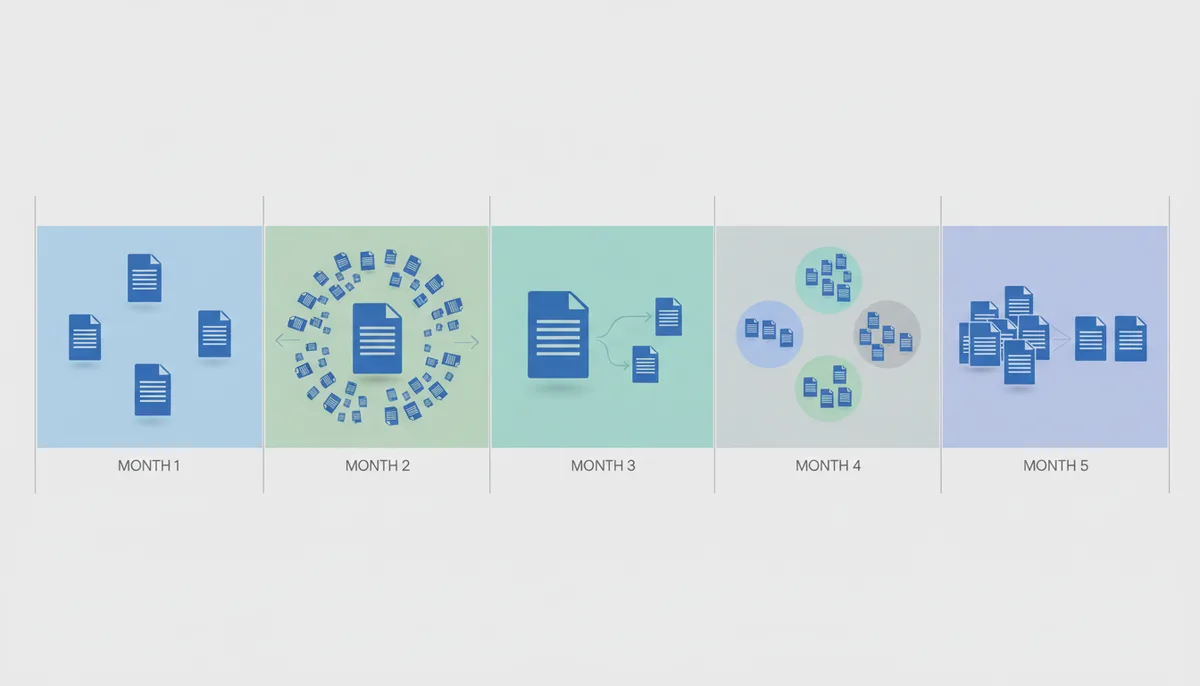
Month 6: Project closeout. Time to create the final documentation package. She needs contracts (with all amendments), permits, inspection reports, and warranties in one searchable archive. Decision: Strategic merging with structure. She creates "Phoenix_Tower_Complete_Documentation.pdf" with clear section breaks, using merge software that lets her insert title pages between sections. The 850-page result has bookmarks for navigation and a hyperlinked table of contents.
Key lessons from this workflow: Signatures always stay separate until the project ends. Time-sensitive submissions get merged just before sending. Living documents that need frequent updates get split to isolate change areas. Regular reports benefit from categorical merging. Audit responses require surgical extraction. The final archive brings everything together with careful structure.
The Hidden Costs: Time, Tools, and Technical Debt
Free online tools handle basic merging, but you're uploading files to someone else's server, waiting for processing, then downloading results. For a five-page merge, that's acceptable. For sensitive financial documents or daily workflows, you're introducing unnecessary risk and delay.
Desktop software typically runs $15-40 monthly depending on features. You get batch processing, advanced security options, and no upload delays. Here's how to calculate if paid tools make sense: track how many minutes each PDF operation takes with your current method, multiply by operations per month, then multiply by your hourly rate. If that total exceeds the software cost, upgrading pays for itself. Example: saving 10 minutes per operation, doing 20 operations monthly, at $50/hour equals $167 in time value versus a $30 tool cost.
But software costs pale against technical debt. Every time you merge files without a plan, you're creating future work. That "AllDocuments_Final_v2_REAL-FINAL.pdf" becomes a mystery file. Six months later, you need one specific contract from that merge. Now you're splitting 200 pages to find it, or worse, reconstructing from emails.
Time investment varies dramatically. Basic merging—dragging five files into a tool—takes under a minute. Strategic merging with proper ordering, naming, and quality checks takes 5-10 minutes. But consider the reconstruction scenario: when someone merges documents then deletes originals, recovering the right versions means requesting files from multiple parties, verifying nothing changed, and hoping everyone still has their copies. That recovery process can stretch into hours or days.
Quality tools versus free alternatives show clear differences in efficiency. Free tools often process one operation at a time, limit file sizes to 100MB, and strip out bookmarks. Professional tools handle batch operations—split 50 documents by bookmark in one action. They preserve all PDF features and handle gigabyte-sized files. For occasional use, free works. For business workflows, professional tools pay for themselves.
The compound effect matters most. Poor organization multiplies. One badly merged file leads to confusion, which leads to duplicate versions, which leads to wrong documents sent to clients. Good organization compounds positively. Well-named splits make finding information instant. Thoughtfully merged archives become valuable references. Time spent organizing correctly saves multiples later.
Here's a sample calculation to evaluate your workflow: If staff currently spend 45 minutes daily managing PDFs inefficiently, and better tools plus clear protocols could reduce that to 15 minutes, you'd save 10 hours monthly per person. At typical administrative rates, that time value often exceeds $400 monthly, making a $25-35 software investment clearly worthwhile. Run this calculation with your actual numbers to see if upgrading makes sense.
Advanced Scenarios: Mixed Media, Compliance, and Automation
Standard PDFs are straightforward, but real workflows throw curveballs. You've got a mix of text documents, scanned images, and born-digital forms. Some files are searchable, others aren't. Some have embedded fonts, others display incorrectly on certain systems. These complexities drive different decisions.
Mixed OCR status creates search nightmares. You merge three text-searchable reports with two scanned image PDFs. Searches only find content in the first three parts. Solution: Run OCR on all image-based PDFs before merging. Better tools offer automatic OCR during merge operations. This preprocessing step—taking 2-3 minutes per document—prevents hours of frustration later when you can't find critical information.
Regulated workflows often require preserving document integrity for audit trails, retention metadata, or version history. Healthcare teams working with patient records, financial institutions handling official statements, and government contractors managing certified documents typically need to maintain originals unchanged. Before merging or splitting any official records, check your organization's records retention policy and legal requirements. The practical approach: keep source PDFs intact, work only on copies, document any extractions with notes about what was pulled and why, and rely on folder structure and naming conventions rather than altering originals unless your compliance team explicitly permits it.
PDF/A format adds another layer. These archival-standard PDFs embed all fonts and disable certain features to ensure they'll display identically decades later. Merging PDF/A files with regular PDFs can break the archival compliance. If long-term preservation matters, convert everything to PDF/A before merging, or keep archival documents strictly separate.
Automation transforms high-volume workflows. Instead of manually splitting invoice batches, scripts can split by bookmark, extract pages containing specific text, or merge files matching naming patterns. A procurement department automated their process: vendors email combined invoice PDFs, a script splits them by invoice number found in the text, files them in vendor folders, and merges monthly summaries. What took 3 hours daily now runs unattended.
International considerations affect decisions too. Documents with different languages and text directions (like Arabic right-to-left mixed with English left-to-right) can display strangely when merged. Character encoding mismatches create garbled text. Different regional paper sizes (A4 versus Letter) create printing headaches. For international document sets, test merge a sample before processing hundreds of pages.
Edge case: portfolio PDFs. These aren't merged documents but collections that maintain individual file identity within a wrapper. Adobe Portfolio format lets you package related PDFs while keeping them technically separate—searchable as a group but extractable as originals. It's an advanced solution for when you need both unified presentation and document independence.
FAQ
Does merging or splitting PDFs reduce the quality?
Quality depends on your tool. Merging and splitting can be lossless when using tools that preserve the original page content exactly as is. However, some tools may recompress images, flatten form fields, rasterize vector graphics, or re-run OCR with different settings, which can change quality. Most professional PDF software preserves original quality, while some free online tools apply compression to reduce file size. If quality matters, test your chosen tool with a sample page first.
Can I un-merge a PDF file?
Not directly. Once merged, the file is a new single entity. You would need to use a 'Split' tool to re-extract the original pages or page ranges. This is why it's crucial to keep your original files until you're sure the merge is correct.
What happens to bookmarks and hyperlinks when I merge PDFs?
Most modern tools will preserve bookmarks from all documents, listing them sequentially. Hyperlinks that point to web pages will still work, but links that point to other pages within their original PDF may break.
Is it safe to use an online tool to merge or split sensitive documents?
Safety depends on the provider's security practices and your document sensitivity. Reputable online services use encryption during transfer and processing. For highly confidential documents, a desktop application is the most secure option since your files never leave your computer. When using any online service, check their privacy policy for details about data handling and deletion practices.
How do I handle PDFs with different page sizes when merging?
When you merge PDFs with different page sizes (e.g., A4 and Letter), the merged document will simply retain the original size for each page. The viewing software will handle the display, so you don't need to do anything special.
Can I merge password-protected PDFs?
You must know the password to open the files first. Most tools will require you to provide the password to unlock the file before it can be included in the merge. The final merged document will typically be created without a password, but you can add one afterward.
Conclusion
Your PDF organization strategy shapes how effectively you work, share, and archive information. The choice between merging, splitting, or keeping files separate isn't about following rigid rules—it's about matching your method to your goal.
Merge when you're creating a single deliverable that tells a complete story. Split when you need to share or work with specific portions while protecting the rest. Keep separate when preserving document integrity, signatures, or version history matters more than consolidation.
The technical details—form fields, signatures, file sizes—influence but shouldn't dictate your choice. Good planning prevents most issues. Clear naming conventions and folder organization often achieve what merging attempts, without the complications.
Remember: No PDF operation is irreversible if you keep your originals. Test your approach on copies first. Let the recipient's needs and the documents' purpose guide your decision. The right strategy makes your digital documents work for you, not against you.
Whether you're assembling client presentations, managing financial records, or organizing research materials, you now have a framework for choosing the most effective approach. Your PDF pile doesn't have to be a source of stress—with strategic thinking, it becomes a well-organized asset that saves time and prevents errors.
Sources
- Adobe — General best practices and use cases for merging and splitting PDFs, as Adobe created the format and its primary professional editor, Acrobat.
- ISO (International Organization for Standardization) — The technical basis for what a PDF is (ISO 32000-2:2020). This source underpins claims about how features like metadata, security, and digital signatures are part of the file's structure and can be affected by manipulation.
- ARMA International (Association of Records Managers and Administrators) — Principles of records management, document integrity, and audit trails, which are relevant to the 'Keep Separate' strategy and the discussion of when not to alter original documents.
- The PDF Association — Technical specifications and best practices for PDF/A (the archival standard), which informs the discussion on long-term storage and when merging is appropriate or inappropriate for archival purposes.