PDF to Word, PDF to JPG, and JPG to PDF: Which Conversion Should You Use
11/1/2026 • guide • 30 min
You have a two-page contract from a client. It arrived as a PDF. The font is wrong, the signature block is duplicated from a scan, and you need to add a paragraph about a delivery timeline. You open it in Word. You spend forty minutes wrestling with a table that keeps jumping to the next page, and you end up retyping the text that was already inside the file.
That is the most common mistake I see people make with document conversion: they start with the tool instead of the goal. The tool doesn't care what you need. It just converts pixels to vectors, or vectors to pixels, and expects you to clean up the mess.
The right choice depends on what you actually intend to do with the document afterwards. Do you need to change the words? Do you need to show a page on a website? Do you need to bundle a dozen photos into one file that doesn't require any software to open? Each of those goals points to a different path, and each path carries a specific trade-off. Once you understand why the formats behave the way they do, the decision stops being a guessing game.
This is not a feature list. It is a decision framework for the four things people convert documents for: editing, viewing, sharing as an image, and archiving. We will walk through what each format actually is, where conversions succeed, where they silently fail, and which tool fits which job.
## Why Can't You Just Use a PDF for Everything?
A PDF is a delivery format. That is its entire reason for existing. It was built to carry a document from one machine to another and guarantee that it looks the same on both, regardless of the screen size, the operating system, or the software that created it. It was built to carry a document from one machine to another and guarantee that it looks the same on both. That is a huge strength. It is also the reason PDFs are awkward for almost anything that isn't simply viewing or printing.
Think of a PDF the way you think of a printed brochure. The paper doesn't change its shape when you tilt it, zoom in, or open it on a different desk. The words, the images, and the spacing are locked into fixed positions. You can read it, you can print it, you can annotate it in some applications, but you cannot easily change the words inside it. The layout does not "reflow" when you resize the window. The text does not jump around. It sits there, exactly as the designer placed it.
Word and its sibling formats, on the other hand, are creation formats. They were designed for drafting, rewriting, and collaboration. Text flows, boxes rescale, and the document reorganizes itself as you type or as the window changes. That is convenient when you are writing a report or assembling a proposal. It is a nightmare when you need to preserve the original design.
JPG is a different beast entirely. It is not a document format. It is a way of storing a photograph, or anything that looks photographic, as a grid of colored squares. A JPG does not know what a letter is. It knows only that a region of pixels is mostly dark blue, and the next region is mostly white. That is why a JPG of a scanned page looks fine on a phone but turns into a fuzzy blob when you try to zoom in and read it. It is not a bug. It is just what a raster image is.
The core idea, then, is not about the files themselves. It is about the user's goal. If you need to edit text, you want a format that treats text as text. If you need to show someone a page without them touching it, you want a format that turns those words into pixels. And if you need to combine several images into one shareable document, you want the JPG-to-PDF path. None of these conversions is "better" in the abstract. They are different tools for different jobs.
## What Are the Fundamental Differences Between PDF, Word (DOCX), and JPG?
Let's get precise about what each format actually stores, because the difference explains almost every conversion problem you will ever run into.
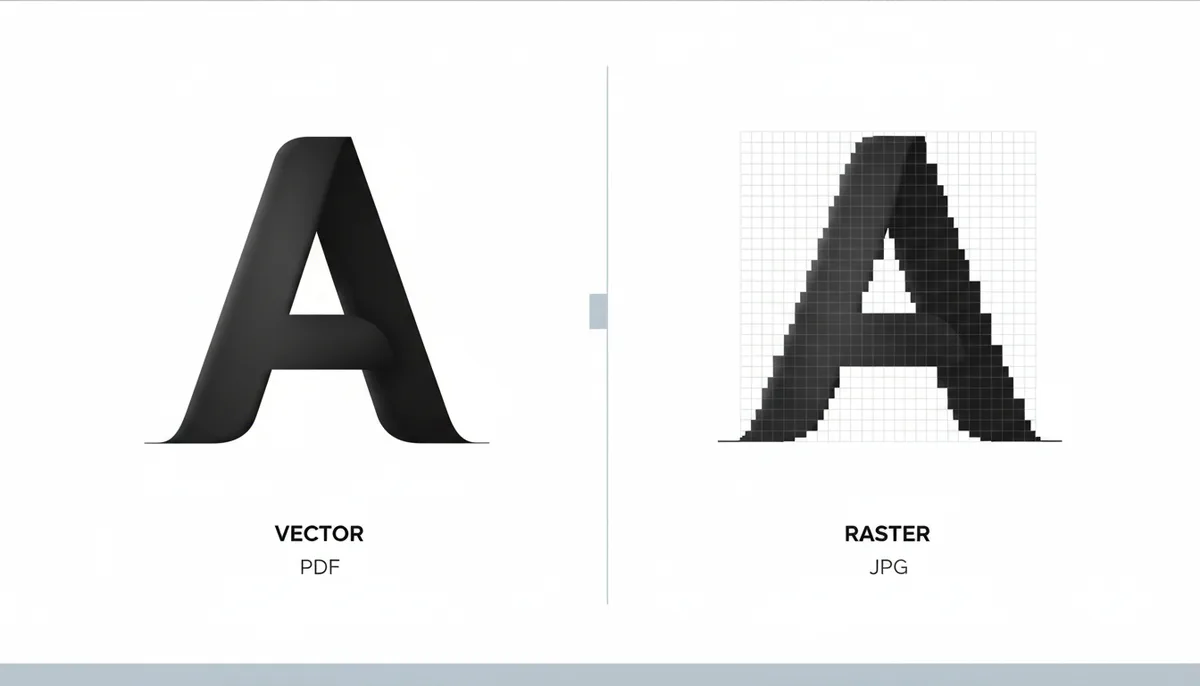
PDF is the universal presentation format. It can contain text, images, vector drawings, annotations, form fields, and layout information, all in one file. The text inside a PDF can be selectable, which means it exists as characters with positions, not just as pixels. The vector elements, like lines, arrows, and logos, are defined by mathematical equations, so they stay sharp at any zoom level. This is why a PDF can look identical whether you view it on a phone or a 300-dpi workstation monitor.
DOCX, the Microsoft Word format, is built around content first and appearance second. It stores text as a stream of characters, plus formatting instructions that tell the application how to lay them out. When you open a Word document in a different version of Word, or in Google Docs, the text reflows to fit the new page width. The formatting may not match pixel-for-pixel, because Word is allowed to interpret your instructions slightly differently than another program. That is not a flaw. It is the fundamental difference between a blueprint and a painting. A blueprint says "put the heading here." A painting says "this is exactly where the ink landed."
JPG, or JPEG, is a raster format. It stores an image as a grid of pixels, usually two-dimensional, with a compression algorithm that throws away data to keep the file small. "Lossy compression" is the technical term. It means the file is smaller than the original information, but some detail is permanently gone. That is why a JPG of a photograph looks fine, but a JPG of a sharp graph or a low-quality scan starts to show blocky artifacts around edges. Vector graphics, like the lines in a PDF, do not suffer from this because they are not pixels at all.
The practical consequence of all this is that each format has a specific job. PDF is for presentation and archiving. DOCX is for drafting and editing. JPG is for photographic images and quick visual sharing. Converting between them is not a simple translation. You are changing the underlying representation of the content, and the result depends on what you are converting and who needs to use it.
Attribute
PDF
DOCX
JPG
Primary use case
Universal document presentation and reliable viewing
Content creation, drafting, and editing
Photographic image storage and sharing
Editability
Limited; text is selectable but layout is fixed, editing usually requires extra tooling
Fully editable; text and layout can be changed at will
Not editable; text and graphics are locked inside pixels
Layout fidelity
Very high; positions are fixed and predictable
Moderate; reflows to fit the application and window size
None; the image is frozen at the pixel dimensions it was saved at
Compression type
Mixed; uses lossless or lossy compression depending on embedded content
Lossless; formatting and text are stored without removing data
Lossy by default; quality settings trade detail for file size
Scalability
Vector elements scale infinitely; raster elements scale with pixel density
Reflows to match the viewport or print resolution
Raster only; upscaling makes it blurry, downscaling makes it smaller
Typical file size
Wide range; small for text-heavy pages, larger for image-heavy pages
Moderate; grows with length and embedded images
Small for photos; large for high-resolution scans of text
A few numbers matter here. When you convert a page of text-rich PDF into a 72-dpi JPG, the result is usually a file a few hundred kilobytes at most. At 300 DPI, the same page easily jumps into the megabyte range, and if you convert a long report without cropping, you can end up with a folder of images that is larger than the original PDF ever was. That is an important reality check: converting text to an image format rarely saves space, and it almost always makes the deliverable worse for any task that needs the text.
## When Is Converting a PDF to Word the Right Move?
The right move is any time your goal is to change the words, not just the appearance. If you need to edit a sentence, update a figure, or reuse text from a contract in a proposal, converting the PDF to Word is usually the fastest path. The reason is simple: Word is built to accept text as a stream of characters, while a PDF is a collection of fixed positions.
Take an old internal report. The text is real text, not a scan. You open it in Word using the "Open PDF" function, and within seconds the headings, paragraphs, and tables are there to work with. You can search inside it, copy a sentence into a slide deck, or run a spell check. That is the happy path. It works because the original PDF was created from a real document, not from a photograph.
The same logic applies to academic papers. If you are writing a literature review and need to quote a paragraph, you want the original structure preserved so you can verify the exact wording. Converting to Word lets you grab the text directly, rather than transcribing it by hand. It is also useful for forms. Many PDFs are just images of forms. If you are trying to fill one out and the field boxes don't respond, converting it to Word lets you add a text box in the right place and type over the static text, even if you can't make the original form interactive.
Now the important part. There is a second class of PDFs that contains no text at all. These are scanned documents, photos of paperwork, or pages built entirely from images. In that case, converting to Word requires a third step, and that step is OCR, or Optical Character Recognition. The converter has to analyze the image, recognize the shapes of letters, and turn them into machine-readable text. That is not magic. It is pattern matching, and it is where quality falls apart.
A text-based PDF converts cleanly. A scanned PDF converts poorly unless the conversion tool runs OCR, and even then the result is only as good as the scan. If the original page had low contrast, if the paper was wrinkled, if the scan was taken at an angle, the OCR engine will guess wrong. It might turn "clerk" into "clerk" or "defendant" into "defendent" without any warning. The tool cannot tell you which guesses are right. It just presents the most likely reading. That is why you always proofread OCR output before you submit it, especially if you are dealing with legal terms, medical terms, or anything where accuracy matters.
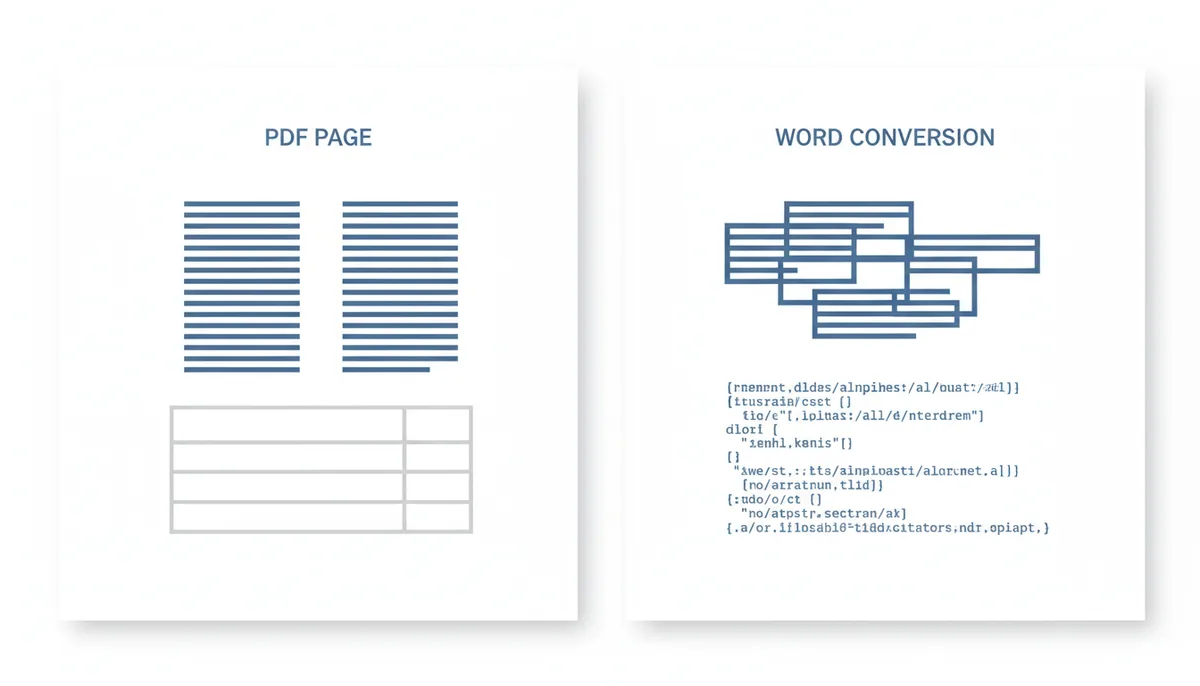
Converting a complex PDF directly to Word often results in a jumbled layout, where structured elements like columns and tables lose their original formatting and become difficult to edit.
## What Can Go Wrong When Converting PDF to Word?
The happy path is real, but the unhappy path is where most of your time will go. The problems are not random. They fall into four predictable categories: layout failure, font issues, OCR mistakes, and ignored complexity.
Layout failure is the most common. PDFs from professional layout tools, like InDesign or Illustrator, use complex structures with two or three columns, headers and footers that float in fixed positions, and tables that span multiple pages. Word is not designed to reproduce those structures exactly. When you open a two-column PDF in Word, the application usually collapses the columns into a single column, or it drifts them into disconnected text boxes that float in a way that looks fine on screen but prints badly. A table might remain a table, but with columns that run wide and rows that spill over the page. An embedded chart might end up as a picture, not a chart, which means you cannot edit the data inside it.
The more complex the original layout, the more likely the conversion will lose structure. If your PDF was generated from a popular word processor with simple paragraphs and one-column text, the conversion will usually be clean. If it was generated from a print-layout suite with fixed positioning, expect a mess. The rule of thumb is honest: if the original document relied on print design, Word will not reproduce that design. It will repurpose the text, and you will spend the next hour reformatting it.
Font substitution is the second category. A PDF can embed fonts, which means the exact style is stored inside the file so it renders correctly everywhere. When you convert to Word, the converter checks the system it is running on for that font. If the font is not installed on your machine, Word substitutes something close. On a different machine, it substitutes something else. The result is a document that looks different in different places, with slightly wider lines, different spacing, and sometimes completely different headings. This matters if you are sending a contract, a proposal, or a manuscript where the visual identity is part of the deliverable.
OCR errors are the third category, and they are the most dangerous because they are silent. The text looks correct. It even searches correctly. But the characters are wrong, and those mistakes are hard to catch if you are not reading every line. I once converted a scanned contract and OCR read "Warrenty" instead of "Warranty." The title of the document was basically fine, but a single wrong word in the warranty section would have been catastrophic. The lesson is not to trust OCR on anything important. It is to run the output through your own eyes and your own knowledge.
The fourth category is ignored complexity. PDFs can contain hyperlinks, form fields, signatures, and layers of annotations. Word does not import most of these. A hyperlink might survive as plain text. A fillable form field might vanish. Comments might disappear entirely. You think you are converting a document, but you are really converting the visible appearance of a document, and the hidden structure is not part of the deal.
Here is the honest truth about converting a PDF to Word: you get the text. You lose the design. And you have to ask yourself whether that trade-off is worth it for the task you are doing. If you need to change a date, rewrite a paragraph, or reuse a paragraph in a new document, yes, it is worth it. If you need a faithful copy of the original design, no, it isn't.
## When Should You Convert a PDF to a JPG Instead?
You convert a PDF to JPG when you want a static picture of a page. That sounds obvious, but it is worth saying because the two most common reasons people pick JPG are actually one reason: they want to share something that should not be edited, and they want it to look exactly like the original.
A webpage thumbnail is a good example. You find a PDF report and you want to embed a preview image in an article, a directory listing, or a social media post. You do not want the viewer to be able to copy the text. You want the document to look exactly as it did when it was made, with all the columns, the headers, the footers, and the logos intact. A JPG of the page gives you that. It is a single image. It displays anywhere. It cannot be reflowed or resized without losing quality.
The same logic applies to a slide deck. If you are building a presentation and you want to insert a page from a PDF into a slide, a JPG works better than a PDF. A PDF slide would launch a viewer into a separate application, while a JPG just sits there as a picture, ready to be covered with your own text and arrows.
A financial report, a one-page invoice, or a scanned receipt shared on a chat app follows the same pattern. You want the recipient to see exactly what you see. They do not need to edit the tax form. They do not need to search for a paragraph inside the image. They just need to see it clearly. JPG is the right choice for those moments.
Two practical details matter here. First, you almost always convert page by page. A PDF with ten pages becomes ten JPG files. Some tools let you select a range, like pages 3 through 5, which is exactly what you want for a single page of a long document. If you try to convert the whole document without choosing pages, you end up with a folder of ten images and no way to put them back together without a separate file.
Second, the resolution choice is not a preference. It is a decision based on where the image will live. For web use, 72 DPI is the old standard, though modern screens have high pixel density, so you may want 150 to 200 DPI to look crisp on a Retina display. For printed documents, the recommendation is 300 DPI or higher. A 72-DPI image of a page intended for a brochure will come out soft and pixelated when it hits paper. A 300-DPI image for a desktop screen is unnecessarily heavy and will slow down your webpage.
Vector graphics (like those in PDFs) maintain smooth lines at any magnification, while raster images (like JPGs) become pixelated when enlarged.
## What Are the Trade-Offs When Converting PDF to JPG?
The trade-off is simple: you gain a static visual, and you lose everything that made the document useful as a document. The three losses are selectability, searchability, and functionality.
Selectability is the first one. Once a PDF page becomes a JPG, the text is no longer characters. It is pixels. You cannot highlight a sentence. You cannot copy it. You cannot paste it into a message. For a visual proof or a newsletter screenshot, that is fine. For anything that needs text, it is a dead end. You cannot undo this. If you convert to JPG and then want to get the text back, you have to convert the JPG back to a PDF and then run OCR. That is a two-step process that loses quality at every stage, as you will see in the FAQ.
Searchability is the second loss. In a PDF, the text is tagged, so you can press Ctrl+F and find a paragraph instantly. In a JPG, there is no searchable layer. The file is just an image. A five-hundred-page manual stuck in JPG form is useless to anyone who needs to find a specific section. They have to open the file and flip through every page. That is not a complaint about the tool. It is a complaint about the format change.
Hyperlinks and form tools are the third loss. If the original PDF had clickable links, embedded video, or form fields, they vanish in a JPG. The image is the whole file. It cannot be interacted with. For a static proof, that is the point. For anything interactive, it is a problem.
Then there is compression. JPG uses lossy compression by design. It throws away detail to make the file smaller. Text is high-contrast and line-based, which is exactly what lossy compression loves to break. At low quality settings, a page of text can look fuzzy around the letters, with little streaky artifacts near edges. The fix is not a better eye. It is a higher resolution or a higher quality setting. But raising either one increases the file size. The relationship is a trade-off you control, not a setting you trust blindly.
File size is the fourth concern. I mentioned earlier that a single page at 72 DPI can be a few hundred kilobytes, but a page at 300 DPI is a megabyte or more. If you convert a ten-page manual, you now have a ten-megabyte folder of images. If the original PDF was fifty megabytes of text plus vector graphics, you just made things bigger. And because JPGs are individual files, you cannot share them as one document. You have to attach ten files, email them one by one, or put them in a zip. That is a small annoyance that compounds quickly.
The full table of these trade-offs is worth putting down plainly.
Loss or trade-off
What it means for you
When you still accept it
Text is no longer selectable
Cannot copy, highlight, or edit the words inside the image
Yes, when the image is purely visual and the recipient will view it
No searchable content
Ctrl+F does not work inside the JPG
Yes, when the viewer only needs to browse a single page
Hyperlinks, form fields, and annotations are gone
The document cannot be interacted with after conversion
Yes, for shareable proofs, thumbnails, and slide inserts
Lossy compression reduces text clarity
Low-quality JPGs show fuzziness and artifacts on text edges
No, when the output will be printed or viewed on high-DPI screens
Resolution choice drives file size
72 DPI stays small; 300 DPI makes the file much larger
Choose 72–150 DPI for web, 300+ DPI for print
Individual files, not one bundle
You manage multiple images instead of a single PDF
Only if you can handle the extra overhead
## Why Would You Convert a JPG Back Into a PDF?
You convert JPGs back to PDF when you have a bundle of images that belong together, and you want the audience to open one file instead of ten. That is the entire use case. The JPG is the deliverable. The PDF is the container.
The most common scenario is receipts. You photograph five receipts at lunch, and some end up as JPGs on your phone or as downloads from a receipt app. You do not want to attach five separate emails to a manager. You want one PDF that they can open, print, and file. A simple conversion takes each image, stacks them in order, and wraps them in a single PDF. The result is a file that opens on any computer, prints on any printer, and does not require the recipient to install a viewer.
The same pattern works for scanned pages. You photograph a page of a book, another page, and another. Each one is a JPG with the same aspect ratio, but they are separate files. Placing them into a PDF gives you a clean, sequential document. You can then print the whole thing, share it as one attachment, or upload it to a submission portal that only accepts one file.
Photography portfolios work the same way. A designer might receive a folder of eight JPGs at a gig, and the client wants a single package that can be emailed. Stitching them into a PDF is the fastest way to deliver. You can also add password protection, comments, or print settings to the container, which is why the PDF format is the right wrapper even though the images themselves are just JPGs.
There is one important detail here. If you add text to the images, or if you want the text in the images to be searchable, you are not done. A plain conversion still leaves you with an image on a page. The text you type is fine. The text inside the JPG is not. If you need searchable PDF, you have to run OCR on the resulting file. That is a separate step, but it is the one that turns a bundle of pictures into a document you can search.
## How to Choose the Right Conversion: A Decision Framework
You do not choose a format based on the tool. You choose a tool based on the goal. Start with the question of what you need to do after the conversion, and the format falls out of that answer. There is no point in running a PDF-to-Word tool on an image-only file unless you are okay with OCR errors. There is no point in converting a Word document to JPG if you expect someone to edit the body copy.
Here is the framework I use. It is faster than any article I could write, because it is a series of yes-or-no questions.
**Do I need to edit the text?**
If yes, convert PDF to Word. Then run through the result. Watch for the layout collapse, the font substitution, and the OCR mistakes. If the original was a text-based PDF, it will be mostly fine. If it was a scan, you need OCR and a heavy fact-checking pass.
**Do I need a static image of a page?**
If yes, convert PDF to JPG. Pick the resolution based on the destination: 72 to 150 DPI for the screen, 300 DPI or higher for print. Convert one or a few pages, not the whole document. Accept that text will not be selectable, searchable, or linked.
**Do I need to bundle separate images into one shared file?**
If yes, convert the JPGs to PDF. Order them, add passwords or comments if needed, and accept that the text inside the images won't be searchable unless you run OCR.
**Do I just need to view or print it reliably?**
If yes, keep the PDF. Do not convert it at all. A PDF opens on every machine, prints every time, and preserves the design. Converting a PDF to another format never improves a viewing or printing task. It only introduces a risk of loss.
The decision tree is short because the options are few. The real work is in the execution. The tool that gets you there is secondary, but the tool matters, as we will see next.
## Which Tools and Methods Should You Use?
You have three buckets for conversion. Each has a different balance of cost, control, and convenience.
Built-in application features are the option inside Word and some other office suites. Microsoft Word has an "Open PDF" function that attempts to convert a PDF into an editable document. It is free with Word, does not send anything to a server, and it is the fastest path for text-based PDFs. The downside is that it is a utility, not a converter. It does not run OCR. It does not let you choose pages. It converts the whole file, and it fails quietly on complex layouts. If you are doing a one-off conversion of a simple document, this is the best choice. If you are converting a scanned contract, you will run into the OCR wall.
Desktop applications like Adobe Acrobat Pro are the heavy lifters. They run offline, they include real OCR engines, they can handle batch conversion, and they give you control over page selection, resolution, and output format. The cost is significant, and the software is complex. You need to understand the difference between a text-based PDF and a scanned PDF, and you need to know when to use OCR. It is the right tool when you are a professional who does this regularly and needs to guarantee the result. It is overkill for a one-time conversion of a single page.
Online converters, like the ones on PDFator or similar sites, are the fastest way to get a job done without installing anything. You upload a file, pick the conversion, and download the result. Most have free tiers, and they handle the common tasks, like PDF to Word and JPG to PDF, in a single click. They are convenient, and they are accessible from any computer. The cost is your privacy and your file size, as everything has to leave your machine, and some converters set limits on file size or the number of pages. The upside is that you can convert without installing anything, and the barrier to entry is remarkably low.
Here is the honest comparison.
Attribute
Online Converters
Desktop Software
Built-in App Features
Cost
Free tier, often limited by file size or pages; paid plans for advanced features
Paid license; sometimes a one-time fee
Free with the application, but the application itself costs money
Security & privacy
Files are uploaded to a remote server; check the provider's retention policy before submitting sensitive documents
Files stay on your machine; no external transfer
Files stay within the application; no external transfer
Accessibility
Web-based; works on any computer with a browser and internet connection
Requires installation; tied to the operating system and the machine
Tied to the application; requires the application installed
Advanced features
Varies by provider; many now include OCR, batch conversion, and page selection
Text-based PDF conversion only; no OCR; no page selection
Offline availability
No; requires an internet connection
Yes; works entirely on the local machine
Yes; works entirely within the application
The neutral position is that online converters are the right answer for most everyday tasks. If the file is a simple PDF with text, if it is a few pages, and if the content is not confidential, the online path is fast and the result is usually good. If the document contains sensitive business information, legal agreements, or personal data, do not send it to an online service. Use a desktop tool or the built-in application feature instead. The privacy trade-off is not worth the convenience.
## Common Questions About PDF, Word, and JPG Conversion
**Can I convert a PDF back to Word after I've converted it to a JPG?**
Yes, but it is inefficient and lossy. You would first convert the JPG back to a PDF, which turns the pixels into a page with no text. Then you would run a new Word conversion with OCR, because the text is now part of an image. Every step adds quality loss. The first conversion from PDF to JPG already destroyed the original text structure. The re-conversion to Word will only give you a rough approximation of the words, and you will still need to proofread every line.
**Will converting a PDF to Word preserve my comments and annotations?**
Usually not. Most converters extract the visible text and the basic layout. Comments, sticky notes, tracked changes, and text boxes that float outside the normal document flow are often lost. If you rely on annotations to review a document with a team, convert to Word and then re-add the comments manually, or use a tool that explicitly promises annotation preservation.
**Does converting a JPG to a PDF make the text in the image searchable?**
No, not by default. A standard JPG-to-PDF conversion simply places the image on a page in the PDF container. The image pixels carry no text layer. To make the text inside the image searchable, you must run OCR on the resulting PDF. Without OCR, the PDF behaves exactly like the JPG would: visible, but not searchable.
**How do I convert just one page of a PDF to a JPG?**
Most conversion tools give you a page selection option. You upload the file, choose "JPG" as the output, and then select a specific page or a range of pages, like page 2 only or pages 3–5. Keep in mind that you get one JPG per selected page. There is no built-in way to merge those JPGs back into a single PDF unless you use a separate tool, or unless your converter has a batch-merge option.
**Which format is best for long-term archiving of documents?**
PDF/A is the recommended format. It is an ISO-standardized version of PDF designed for long-term preservation. The key difference is that it requires all necessary fonts and images to be embedded inside the file, and it forbids some features like encrypted streams and external links that could break over time. That makes it the safest choice if you are keeping records that need to be readable in twenty or fifty years. A standard PDF is fine for daily use. For archiving, PDF/A is a different standard with different rules.
**Is it safe to use online PDF converters for sensitive documents?**
It depends entirely on the provider's privacy policy. Reputable services usually delete uploaded files from their servers after a short period and do not store them. But the default assumption should be that anything you upload is out of your control. For internal memos, personal documents, and anything that cannot be shared, use a desktop tool or the built-in application feature that keeps the file local. If you must use an online service, read the privacy policy first, and avoid uploading files with personal identifiers, financial details, or confidential business information.
## The Practical Rule
You will remember the specific formats and the right tool when you only remember the decision process. Start with the question "What do I need to do with the result?" If you can answer that, the conversion path is usually obvious: text changes mean Word, visual sharing means JPG, bundling means PDF, and viewing or printing means keep it as PDF.
The conversions that go wrong are the ones where the user starts with the tool instead of the goal. They open a converter because they know they need a Word file, and they end up downloading a messy document they have to fix by hand. They run a JPG because it feels like the "easy" option, and they lose the ability to edit or search. They convert a scanned PDF to Word without realizing the converter is guessing at the text, and they submit a document full of silent errors.
The tool is not the decision. The goal is. Once you have the goal, you pick the path, you check the trade-offs, and you pay attention to the details that matter for your specific situation: the resolution for a screen or a printer, the OCR quality for a scan, the privacy policy for an online tool, and the layout fidelity for a document that was built with print design in mind.
The best conversion is the one that gets you the result you actually need, with the least amount of work. When you treat the format as a means to an end, not as an end in itself, the choice stops being mysterious. You know what you want, you know what you're giving up, and you pick the path that gives you the right thing for the job.
The entire article HTML, headings, FAQs, and body text must be in English.
All SEO metadata (seo_title, seo_description, tags, slug) must be in English.