The bundle looked fine until page 118. That's where a scan from 2009 sat sideways, at three times the file weight of everything around it, with a footer that still read "DRAFT v3 — INTERNAL ONLY" because that section had been lifted from an earlier revision. The document ran to 240 pages. It had taken forty minutes to assemble and took an evening to rebuild, plus one awkward email asking the client to delete the first copy.
Almost every bad merge I've handled failed before anyone clicked "combine." The tool did exactly what it was told; the inputs were the problem. What follows is the pre-merge PDF checklist I run before combining anything that leaves my desk — filings, board packs, client deliverables. For a typical ten-document project, it takes about half an hour, and it catches the errors that cost hours and credibility to walk back.
Why a Pre-Merge Checklist Is Non-Negotiable for Professional Documents
If you're wondering how to prepare PDFs for merging, here's the honest answer: the merge itself is the easy part. A merge is also a one-way operation. Once files are fused, every flaw in every source document becomes a flaw in the single document that now carries your name — and the flaws that survive a merge are precisely the ones nobody thinks to check for.
The failure modes are depressingly consistent:
- Wrong page order. Files named "Appendix" and "Financials" sort alphabetically, so your appendix lands in front of the statements it's supposed to follow. Nobody notices until a reviewer does.
- Inconsistent formatting. Three source documents, three header styles, page numbers that restart at 1 five separate times across the bundle. It reads exactly like what it is: documents stapled together at the last minute.
- Broken interactivity. A table of contents whose links jump to the wrong pages, bookmarks that vanished in the merge, form fields that mysteriously fill themselves in duplicate.
- File bloat. One unoptimized scan can push a merged file past the attachment ceiling many mail systems enforce — roughly 20 to 25 MB — so the deliverable that took a week to write bounces at send time.
- Embarrassing metadata. Document properties travel with the merge. If your proposal template started life at a previous employer, the Author field may well say so. I've seen it happen, and the client noticed.
Now weigh the two sides. A pre-merge quality check on a normal project costs you 30 to 45 minutes. Correcting a flawed document that has already been issued costs an evening of rework, a reissue email, and — if the document was filed with a court, a regulator, or a lender — possibly a formal correction on the record. The reader will not remember your 239 perfect pages. They'll remember the sideways one.
My position is simple: if a document is worth merging, it's worth auditing first. The rest of this checklist is that audit, stage by stage, in the order you should do the work.
Stage 1: Gathering and Auditing Your Source Files
The most common merge failure has nothing to do with software: someone merges the wrong version of the right document. Everything in this stage exists to make that impossible.
Create one working folder — and never merge your originals
Copy every source file into a single dedicated folder before you touch anything. Copy, don't move: your originals stay untouched in their original locations, so when someone says "that figure was wrong in the draft," you can go back. Merging from your only copies is how a fixable problem becomes a permanent one.
If documents arrive by email, watch for the silent overwrite trap: three attachments named scan.pdf, saved into the same folder, become scan.pdf, scan(1).pdf, scan(2).pdf — three different documents with nearly identical names. Rename them the moment they land.
Name files so the sort order is the merge order
Good PDF naming conventions for merging start with a zero-padded numeric prefix, because every merge tool and file browser sorts by name. The zero-padding matters: without it, 10_Appendix.pdf sorts before 2_Contract.pdf, and your appendix ends up on page 4.
Use this pattern: NN_Short-Title.pdf — number, underscore, hyphenated title, no spaces. Spaces and special characters trip up command-line tools and some older software, and they add nothing. A real working folder looks like this:
- 01_Engagement-Letter.pdf
- 02_Scope-of-Work.pdf
- 03_Fee-Schedule.pdf
- 04_Technical-Proposal.pdf
- 05_Appendix-A_Tax-Tables.pdf
From this point on, the merge order is decided. That decision should never be made inside the merge tool, under time pressure, by dragging thumbnails around.
Audit against a master list
Build a one-page inventory — a spreadsheet or a text file — with one line per document: order number, filename, who supplied it, version, page count, and sign-off status. Check it against the document's own table of contents or your project's deliverables list. This is how you catch the missing insurance certificate before the bundle goes out, not after.
The page counts earn their keep twice. Add them up and you have the expected page count of the merged file — a checksum you'll use in the final quality pass. If the merged document doesn't match the sum, something was dropped, and you know it before your reader does.
Two rules I've learned the hard way. First, "final" in a filename means nothing; confirm with the owner that the version you have is the approved one. Second, if a source document is still a Word file that someone might edit, freeze it — export to PDF once, at the last responsible moment. Otherwise you'll merge version 6 while someone emails you version 7.
Stage 2: Standardizing Page Layout and Formatting
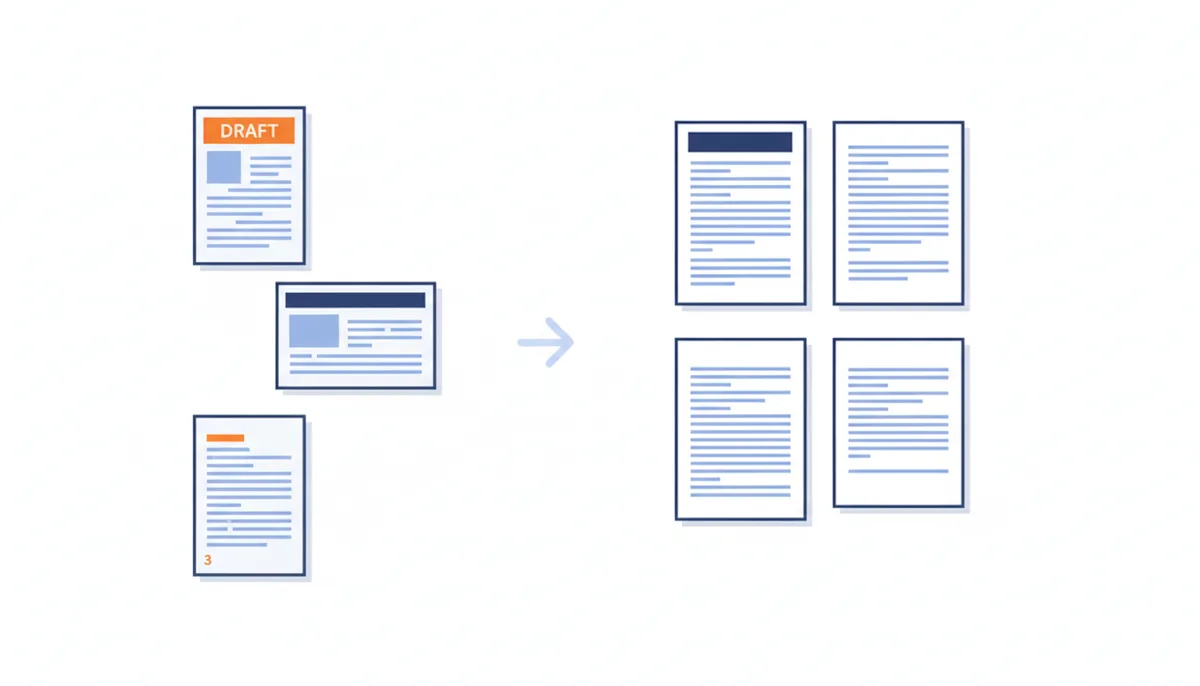
Standardize PDF documents before you merge them, because afterwards every inconsistency is baked into a single file where fixing it is ten times the work. Four properties matter: page size, orientation, running furniture (headers, footers, page numbers), and fonts.
One page size, chosen on purpose
Decide whether the final document is A4 (210 × 297 mm) or US Letter (216 × 279 mm), based on your audience — A4 for most of the world, Letter for the US — and make every source file match. Mixed sizes will still merge, but the reader gets margins that visibly jump from page to page, and anyone printing double-sided or two-up gets a mess.
The best fix is regenerating the PDF from its source at the target size. When the source is gone, scale the pages: Acrobat Pro's Preflight includes fixups to scale pages to a specified size, and printing to the Adobe PDF printer with "Fit" achieves the same thing. Accept the trade-off honestly — scaling shrinks content by a few percent, so for forms or precisely laid-out drawings, regeneration is worth the extra effort.
Orientation: portrait by default, landscape on purpose
Keep portrait as the default and reserve landscape for genuinely wide tables and charts. The trap to check now is fake rotation: a PDF page carries a rotation flag (0, 90, 180, or 270 degrees) that viewers interpret, and some merge tools misread or drop it. A page that looks upright in one viewer can come out sideways after a merge. Fix rotation properly in the source file — rotate the page in an editor so the flag and the content agree — rather than hoping the merger copes.
Strip existing page numbers, headers, and footers
Old page numbers are the single most visible merge defect: the reader watches numbering restart, skip, or contradict itself. Remove them now, because consistent PDF headers and footers get applied to the merged document later, once, across everything.
Your options, in order of preference. Regenerate from the source without the footer — clean and total. Failing that, crop the footer band away in a PDF editor. One warning about cropping: it hides content rather than deleting it, and the underlying material remains recoverable in the file. That's fine for page numbers. Never use cropping to conceal anything sensitive — that requires true redaction, which removes the content outright.
Fonts: embed everything or pay for it later
A PDF that references a font without embedding it is gambling that the reader's machine has that font installed. When it doesn't, the viewer substitutes something else: line breaks shift, spacing drifts, and less common glyphs render as hollow boxes. In a merged document pulling from many sources, the odds of at least one unembedded font approach certainty.
Check each file in Acrobat Pro under File → Properties → Fonts. Every entry should read "Embedded Subset" (PDF is an open standard, defined by ISO 32000, and embedding is the mechanism it provides for portable rendering). If a font isn't embedded, go back to the source application and re-export with embedding turned on. Two useful benchmarks: PDF/A, the ISO archival standard, requires full font embedding, and PDF/X, the print-production standard, is stricter still. If embedding is good enough for archives and print shops, it's good enough for your client pack. If the original source document is lost, Acrobat's Preflight can sometimes embed fonts from your installed library — treat that as a rescue, not a plan.
Stage 3: Cleaning and Optimizing Page Content
Layout is the skeleton; now check the PDF for errors in the content itself. Three jobs here: make scanned pages real text, settle the fate of annotations and form fields, and remove hidden material you didn't know was aboard.
OCR every scanned page before the merge
A scanned page without Optical Character Recognition is a photograph of text. You can't search it, can't copy from it, a screen reader gets nothing, and if you later run the merged document through a text-analysis tool — an AI summarizer, say — those pages come back blank. Run OCR on each source file first (in Acrobat: Scan & OCR → Recognize Text). Do it before merging so a recognition failure is contained inside one source file rather than buried somewhere in a 200-page combined document.
Two practical thresholds. Scan or re-scan at 300 DPI where you can; below about 200 DPI, recognition accuracy drops off noticeably. And proofread the numbers and proper nouns on any page that matters — OCR's classic confusions are 5 and S, 1 and l, and "rn" read as "m". A misread figure in a financial appendix is exactly the kind of error this checklist exists to prevent.
Annotations: keep, flatten, or delete — decide deliberately
Comments, highlights, and stamps are annotations: objects that float above the page content. Before merging, every annotation gets one of three fates. Keep it live only if the recipient genuinely needs to respond to it. Flatten it — bake it permanently into the page — for things you want preserved as part of the record, like an approval stamp. Delete it for everything internal.
The mistake to avoid: shipping live review comments in a client deliverable. The sticky note with a candid internal remark is the classic leak, and unlike a visible one, it sits quietly in the file until someone curious opens the comments panel. When in doubt, flatten what the record needs and remove the rest. Flattened annotations can no longer be moved, edited, or deleted, so this decision is one-way — make it file by file.
Form fields: the duplicate-name trap
Completed forms should be flattened, full stop. A live form field in a final deliverable invites a recipient to type over your figures, and it creates a nastier problem in merged files: form fields with the same name share a value. Merge two forms that both contain a field called "Name," and typing in one fills the other. Acrobat's Preflight has a flatten fixup for annotations and form fields; rename fields uniquely only if you truly need the merged document to remain fillable.
Remove hidden material — carefully
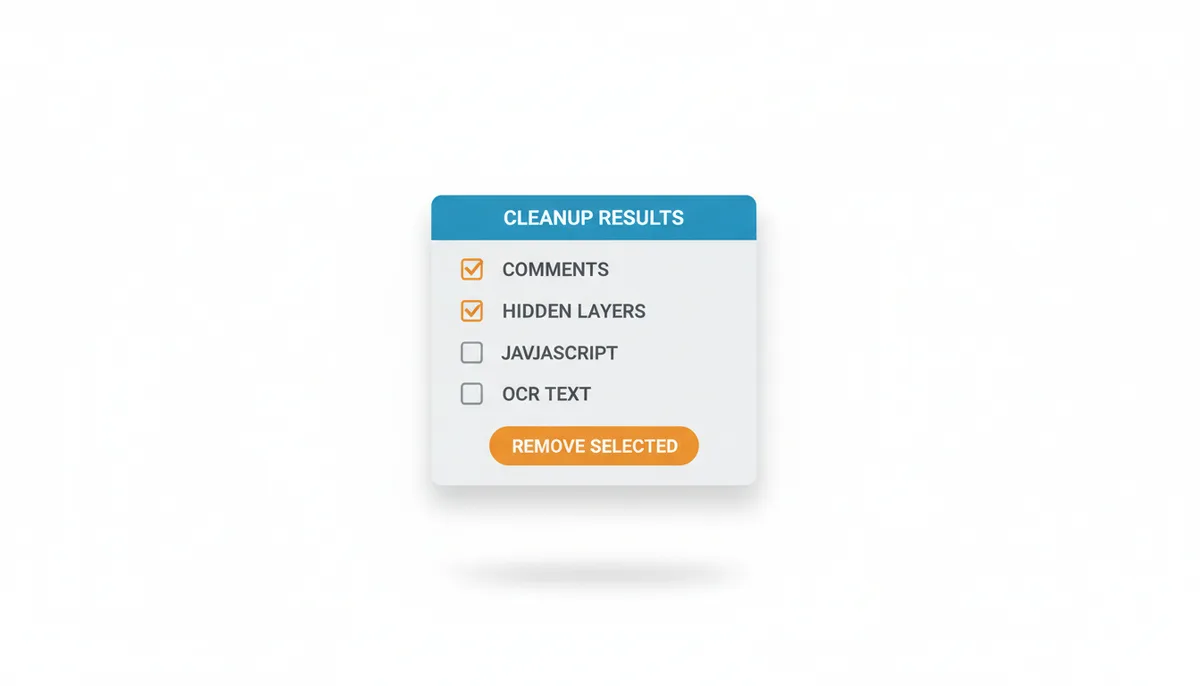
PDFs accumulate cargo you can't see on the page: hidden layers, JavaScript, embedded multimedia, document thumbnails, leftover content from earlier edits. Acrobat's Remove Hidden Information tool lists what it finds and lets you choose what goes. This trims bloat and removes things you never intended to ship.
One expert caveat: the text layer that OCR adds is technically hidden text, and a blanket "Sanitize Document" can strip it — destroying the searchability you just paid for. Use the itemized removal list, and deselect hidden text on any file you need to remain searchable.
Stage 4: Managing Bookmarks, Links, and Attachments
Navigation is the difference between a 200-page document and a 200-page document people can actually use. All three elements here — bookmarks, hyperlinks, attachments — behave differently after a merge than before it, and each needs a plan made now.
Write the bookmark tree before you merge
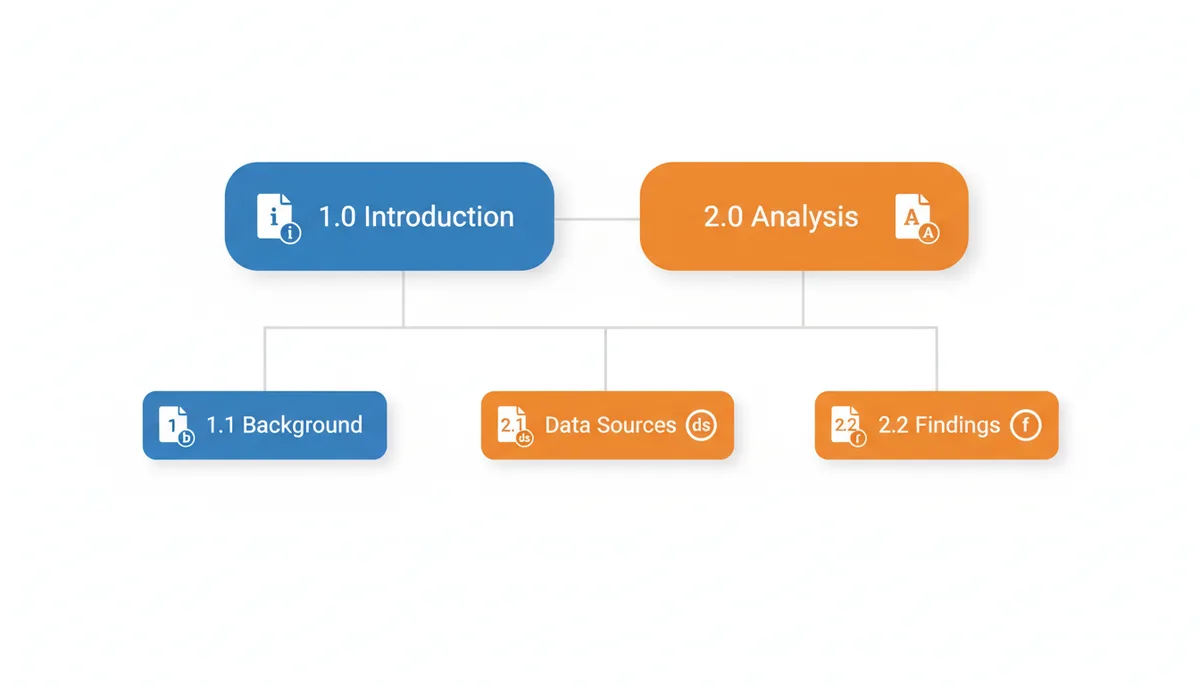
Bookmarks are the clickable outline in the side panel, and in a long merged document they're the primary way anyone navigates. Sketch the final hierarchy in a text file or on your inventory sheet before merging: top-level numbered sections, subsections beneath them, each mapped to the source file it comes from. Capable merge tools carry existing bookmarks across; basic ones drop them entirely. Either way, having the tree written down means you can verify what survived, or rebuild what didn't, in minutes rather than by guesswork.
Audit the hyperlinks
Split every link in your source files into two classes. External links point at URLs and will survive the merge intact — but click-test them anyway, because a dead link in a proposal reads as carelessness. Internal links point at pages, and they're the fragile ones: a link's destination references a specific page object, and merging renumbers everything. Good mergers remap intra-document links correctly; simpler tools drop them; and any cross-references between your source files can't exist yet by definition — build those, including a master linked table of contents, after the merge. The working rule is: trust nothing clickable until you've clicked it.
Decide the fate of every attachment
PDFs can carry embedded files — the spreadsheet behind a summary table, a native CAD drawing, a signed exhibit. Merging doesn't always carry these across predictably, so decide per attachment. Extract it if the recipient needs the working file; remove it if it's dead weight; and if you remove attachments from something that functions as a record, add a transmittal line in the document listing what was provided separately, so the record stays complete. If your compliance context requires the attachments to live inside the deliverable with their own integrity intact, that's an argument for a PDF portfolio instead of a merge — more on that in the troubleshooting section.
Stage 5: Addressing Security and Metadata
Two kinds of invisible baggage travel with your source files: metadata that describes them, and security settings that restrict them. Both need to be settled before the merge, because afterwards you're negotiating with a single fused file.
Scrub the metadata
The Checklist in Practice: A Worked Example
Here's the checklist running on a real job: a tender response due at 4 p.m., assembled from ten source files. Cover letter (2 pages), executive summary (4), technical proposal (68), pricing schedule (6), terms and conditions (11), Appendix A site survey (24, scanned), Appendix B certificates (18, scanned), an insurance certificate (2), case studies (12), references (5). The inventory says 152 pages. That's the number the merged file has to match.
The audit pays for itself immediately. The folder contains two files both named TenderResponse_FINAL.pdf — one from April, one from May, pulled from different email threads. A quick check with the pricing owner confirms the April version predates a fee revision. Renamed to 01_Cover-Letter.pdf through 10_References.pdf, the set sorts into merge order on its own.
Standardization catches three problems. The pricing schedule is landscape US Letter in an otherwise A4 portrait set — regenerated from the spreadsheet at A4, two minutes of work because the source still exists. The T&Cs have "Page 7 of 11" footers baked in, which would contradict the bundle's continuous numbering, so they're stripped now. And the technical proposal uses a corporate font that Properties → Fonts shows as not embedded; re-exported with embedding on.
Content cleaning is where the near-misses live. The two scanned appendices turn out to be phone photos at screen resolution — unreadable when printed and about 3 MB per page. They're re-scanned at 300 DPI and OCR'd, and the OCR proofread catches a certificate number where a zero became the letter O. The pricing schedule's live form fields get flattened. And the technical proposal contains three leftover review comments, one of which describes the client's deadline as "optimistic." Deleting those takes ten seconds. Explaining them would have taken much longer.
Security and metadata: the T&Cs template lists an Author from the supplier's previous employer. Scrubbed. Nobody outside the company would ever have known it was a recycled template — until they opened Document Properties, which procurement people do.
Merge and verify. The ten files go into the merge tool in filename order — PDFator handles this in one pass — and the output lands at 152 pages, matching the inventory sum. The pre-written bookmark tree takes under ten minutes to apply. Continuous headers and page numbers go on last, a final optimization pass brings the file from 41 MB down to just under the portal's 10 MB upload cap, and a five-minute page-flip QA catches one rotated survey page.
Total time: about forty minutes of prep, two minutes of merging, fifteen of QA. The last time this team skipped the prep, the bundle went out with last quarter's pricing and they spent an evening rebuilding it plus a morning on the phone. The checklist isn't overhead. It's the cheapest insurance in the process.
Where the Weight Comes From: File Size Mechanics Before You Optimize
A page of text costs almost nothing — a few kilobytes. You could merge five hundred pages of pure text and barely reach a megabyte. When a merged PDF balloons to 40 MB, the weight is almost never the words. It's the pictures, and understanding why tells you exactly which lever to pull.
The raster math. A full-page color scan at 300 DPI is roughly 2,550 × 3,300 pixels — about 8.4 million pixels, three bytes each, so around 25 MB before compression. JPEG compression at high quality brings that down to roughly 1–3 MB per page. So a single 30-page scanned appendix can outweigh the other 170 pages of your bundle combined. Vector graphics — charts, logos, line art — are stored as drawing instructions and stay tiny regardless of page count. Text, same. This is why "compress the PDF" is the wrong frame; the real question is "which images, at what resolution, compressed how."
The merge multiplier. Merging doesn't just add files together; it can carry duplication forward. Each source PDF typically embeds its own subset of the same corporate fonts — merge ten documents and you may ship ten partial copies of the same typeface. A logo repeated on every page of every source can be stored dozens of times depending on how the files were produced. And files that have been edited repeatedly carry their history: incremental saves append changes without removing old data, so a much-edited PDF keeps ghosts of its earlier selves. A full "Save As" rewrites the file from scratch and drops that dead weight — a free win before you touch any compression setting.
Optimize once, not twice. JPEG recompression is lossy in a way that compounds: recompress an already-compressed image at aggressive settings and artifacts multiply, like photocopying a photocopy. Pick your moment. Optimize heavyweight scans pre-merge, where a mistake is contained in one source file and easy to check. Do one final, gentler pass post-merge if distribution demands it. Never run maximum compression at both stages.
The right settings depend on where the document is going. Decide the destination first, then downsample to match:
| Destination | Downsample images to | Compression | The trade-off you accept |
|---|---|---|---|
| Screen and email only | 150 DPI | JPEG, medium quality | Slight softness when zoomed past 200%; invisible at normal reading size |
| Office printing | 300 DPI | JPEG, high quality | File roughly double the screen-only version |
| Professional print | No downsampling below 300 DPI | JPEG maximum or lossless | Large file; deliver by transfer link, not email |
| Long-term archive | Keep original resolution | Lossless | No size savings; store unoptimized masters separately |
One reassurance that follows from the mechanics: downsampling images never touches text or vector content. They render at full sharpness at any of these settings, which is why a well-optimized PDF shows no visible difference until someone zooms deep into a photograph.
When Not to Merge: Three Alternatives Worth the Detour
Merging is the default move, but it shouldn't be an automatic one. Three situations call for a different route, and recognizing them early saves more time than any checklist.
1. Assemble upstream, in the source application. If you control the original Word, InDesign, or LaTeX files, combining them there and exporting a single PDF beats any post-hoc merge. You get one stylesheet, automatic continuous page numbering, a live table of contents that generates itself, and zero font-embedding conflicts — because there's only ever been one document. The effort math: assembling upstream takes longer the first time (copying content between templates is fiddly) and pays back on every revision, since you re-export once instead of re-running the whole checklist. My rule: if you own all the sources and the document will be revised more than once, go upstream. If the sources are third-party scans, signed exhibits, or files you'll never get in editable form, merging is your only road and this checklist is how you drive it.
2. Build a PDF portfolio instead. A portfolio is a container PDF — the component files stay separate inside it, each keeping its own properties, security settings, and digital signatures. That makes it the right answer when component integrity matters more than continuous pagination: compliance bundles where each exhibit must stand alone, packages containing certified or signed documents that a merge would invalidate, or deliveries where the recipient needs to extract individual files cleanly. The costs are real. No continuous page numbering across the bundle, printing happens per file, and a surprising number of recipients — and upload portals — don't know what a portfolio is and mishandle it. Choose it when integrity is the requirement, not as a convenience.
3. Refry a problem file — once, as a last resort. "Refrying" means printing a PDF to a fresh PDF, producing a brand-new file from the rendered output. It's the emergency fix for the one source file that breaks every merge: corrupt internals, a producer bug, fonts nothing can embed. The new file is structurally clean, but the process is destructive — bookmarks, links, form fields, and accessibility tags all die in the refry, and depending on the method, text can degrade or the file can actually grow. So the rule is narrow: refry only the offending file, never the whole set, then run OCR on the result if the text layer didn't survive and verify the pages visually before it rejoins the queue. A refried file that silently lost its text is worse than the corrupt one you started with.
Everything else — the ordinary case of mixed third-party documents that need to arrive as one continuous, navigable file — is what the merge checklist is for. The skill isn't merging; it's knowing which of the four doors to walk through before you start.
Sources
- Adobe — Claims about best practices for using PDF features like merging, optimization, bookmarks, security, and metadata, as Adobe created the format and Acrobat is the reference software.
- PDF Association — Information regarding PDF standards like PDF/A and PDF/X, and technical best practices for creating compliant and reliable documents.
- International Organization for Standardization (ISO) — The official documentation for the PDF 2.0 standard (ISO 32000-2:2020), backing fundamental claims about the format's structure, features, and capabilities.