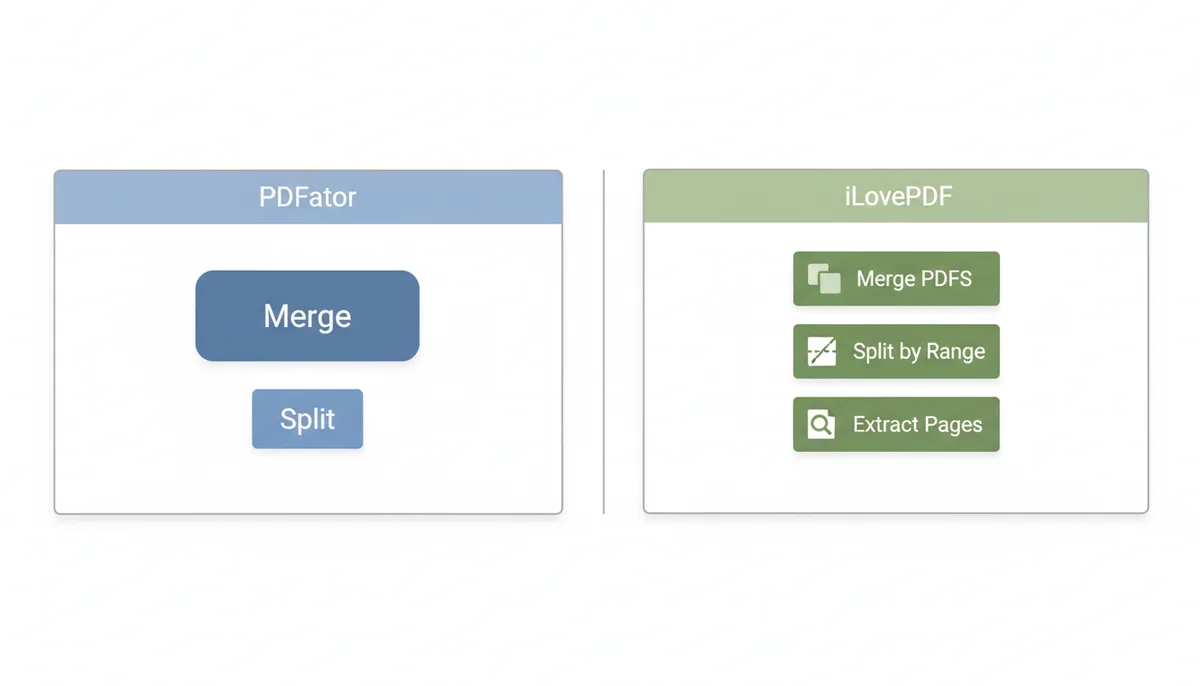
Choosing Your PDF Organizer: Why a Direct Comparison Matters
It's 4:30 on a Friday afternoon and Finance has just sent you forty-three invoice PDFs, each one page long, that need to become a single document before the board pack goes out. Or you're the researcher who only needs pages 211 to 219 of a 500-page committee report, and you need them before the citation cutoff. Both jobs take under two minutes with the right tool. Both become a fidgety half-hour with the wrong one.
Merging and splitting are the two chores that account for most day-to-day PDF work. Merging is how you compile reports, build portfolios, and assemble application packets. Splitting is how you extract a chapter, separate one client's pages from a shared scan batch, or carve a manual into digestible pieces. Neither task is glamorous, but the tool you pick determines whether it's a quick drag-and-drop or an exercise in workarounds.
PDFator and iLovePDF are two of the online options people land on first. Both run in your browser, both wrap the hard parts of the PDF format (the ISO 32000 standard, which defines how page objects and content fit together) behind a friendly front end, and both will do a straightforward job on a free plan. The differences show up in the margins: how many files you can push through in one task, how precisely you can pick out pages, how the preview behaves when you're selecting page 25 of 100, and what the paid tier actually buys you.
So this isn't a "which is best" ranking. It's a "which is best for the job you actually have" comparison. Your answer depends on batch size, how picky your splitting is, whether your documents are sensitive, and whether speed or polish matters more to you on a given Tuesday. We'll work through real scenarios rather than a feature checklist, then land on a recommendation you can act on.
At a Glance: PDFator vs. iLovePDF Feature Breakdown for Organization
Before the walkthroughs, here's the side-by-side view of the features that matter specifically for merging and splitting. A few notes on what the rows mean in practice:
- Max files per merge task — the ceiling on how many PDFs you can combine in one go. Hit it and you're merging in stages.
- Splitting modes — "by range" means typing selections like
1-3, 5, 8-10; "extract pages" means the tool pulls exactly the pages you name into a new file. - Batch processing — queueing several merge or split tasks at once instead of babysitting them one at a time.
- Automatic deletion time — how long your uploaded file sits on the provider's servers before it's erased.
| Feature | PDFator | iLovePDF |
|---|---|---|
| Max files per merge task | Not publicly stated; merge tool advertises no file size limits | Not publicly stated in reviewed materials |
| Max total file size | No file size limits advertised on merge tool page | Not publicly stated in reviewed materials |
| Splitting modes | Split by page or by range, with page previews | Split by fixed ranges, by custom ranges, or extract selected pages per reviewed feature descriptions |
| Batch processing | Single task per run on web tools | Batch options available in premium plans per pricing page references |
| Ad-free experience | Free shows ads; upgrading removes them | Free is ad-supported; premium is ad-free |
| Automatic file deletion | Not publicly stated on reviewed pages | Automatic deletion stated; specific timeframe not detailed in reviewed materials |
| What premium buys (for these tasks) | Pro plan offers unlimited access and advanced features per pricing page | Higher caps, batch processing, and desktop app per pricing page structure |
Two honest caveats. First, both companies adjust their limits and pricing. Verify current caps on the live pricing pages before a big job. Second, the free-vs-paid gap matters more here than in most comparisons: for merging and splitting, the free tier is the product most people will actually use.
The Merging Challenge: Which Tool Handles Complex Jobs Better?
The scenario that separates a decent merger from a frustrating one: ten chapters of a report, where chapters 3 and 7 are landscape tables, the appendix was scanned upside down, and the cover page must sit first. Let's walk what that job looks like on each platform.
Loading and ordering files. Both tools give you a drag-and-drop target and a visual list of thumbnails once files are uploaded. On PDFator, the flow is deliberately minimal: drop your files, drag the thumbnails into order, merge. That restraint is its appeal — there's no mode picker to second-guess. iLovePDF's merge screen offers similar thumbnail reordering, and historically it has also exposed per-page rotation inside the merge view, which matters when your appendix arrives rotated 180 degrees. If you merge mixed-orientation files often, that in-tool rotation is a genuine advantage; on PDFator you'd rotate beforehand or fix it afterwards with a separate tool.
The ordering mistake that bites everyone once. Upload order rarely equals final order, and alphabetical order misbehaves the moment you have Report.pdf, report-final.pdf, and report_final_v2.pdf. The reliable habit, whatever tool you use: rename files with numeric prefixes (01_cover.pdf, 02_ch1.pdf, ...) before uploading, then verify the thumbnail sequence. Both platforms show thumbnails, so the check takes five seconds. Skipping it costs you a second pass.
Mixed page sizes and orientations. A good merge concatenates page objects rather than re-rendering them — think of a PDF as a bundle of page "boxes" with content attached, and merging as tying those bundles together in a new order. Done properly, a landscape A4 chapter sits next to a portrait letter cover without cropping or scaling. Both PDFator and iLovePDF handle this correctly in normal use; where people get burned is running the merged file through a separate "optimize" or "compress" step afterwards, which is when scaling weirdness creeps in.
Output quality: links, bookmarks, forms. Here's a mechanism most comparisons gloss over. Inside a PDF, a bookmark or a hyperlink doesn't say "go to page 40" — it points to a page's internal identifier. Concatenate two documents and those identifiers shift. A careful merger remaps bookmarks and links so they still land on the right pages after the merge; a naive one drops them, or worse, leaves them pointing at wrong pages. Form fields (fillable boxes) survive merges more reliably because they're attached to pages themselves.
So test before you trust. Take a small file with a table of contents and bookmarks, merge it with a second document, then open the result and click the TOC entries. On our checks with ordinary reports, both tools preserved page content faithfully; bookmarks and links are the edge you should verify against your own document type, because behavior varies with how the original PDF was authored. If bookmarks matter to you — and in long reports they do — run this five-minute test once and you'll know which tool earns your workflow.
Verdict on merging. For straightforward everyday combines, PDFator's no-sign-in, no-cap-stated flow gets the job done with less friction. For tricky source material that needs rotation baked in, iLovePDF's merge view gives you more control before you commit. Neither mangles page geometry; both deserve a bookmark sanity check on high-stakes documents.
Precision Splitting: Extracting What You Need with PDFator and iLovePDF
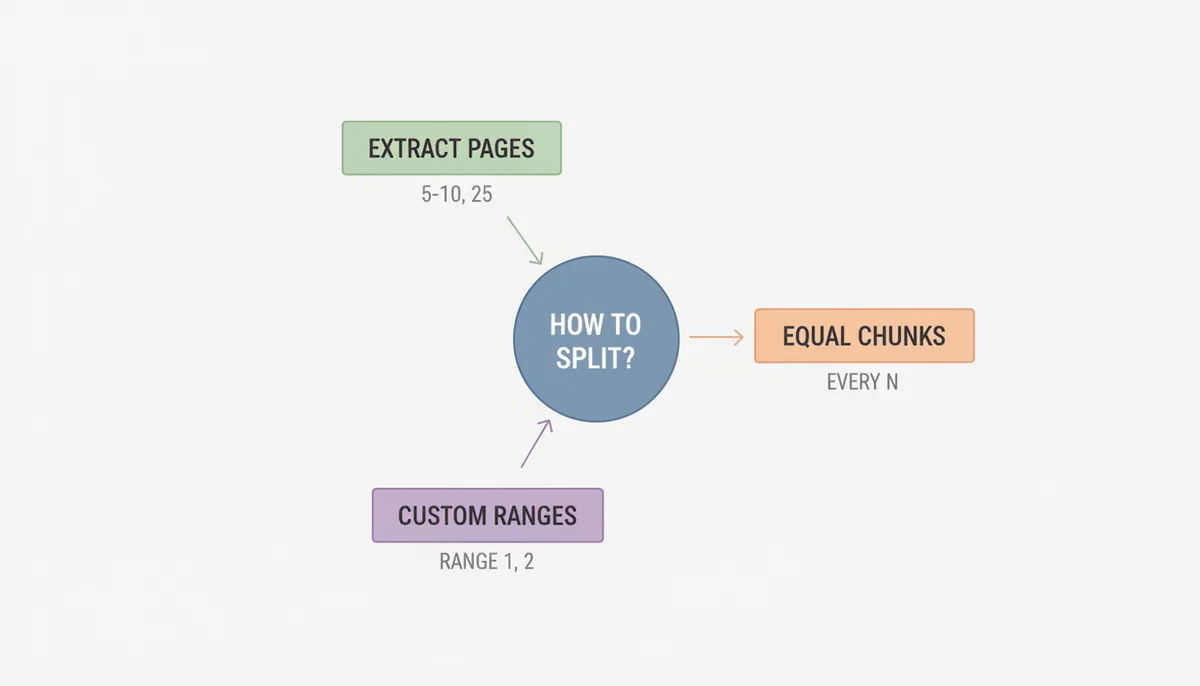
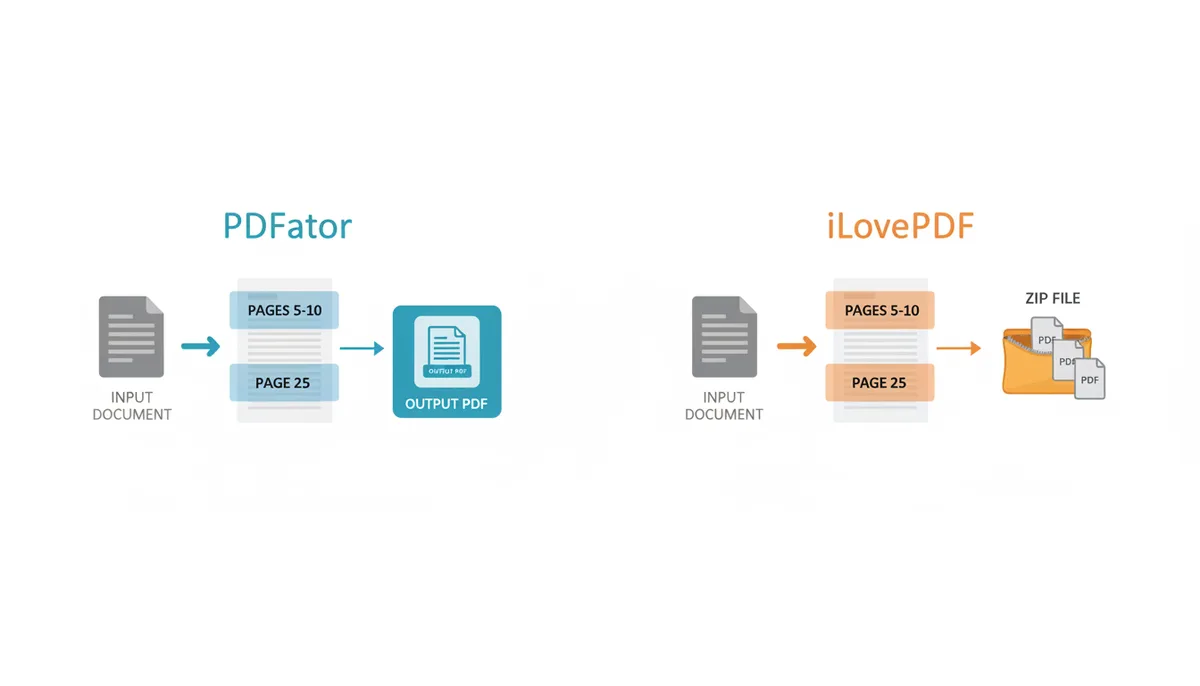
Splitting is where the feature list stops being decorative. Consider the test case: a 100-page manual, and you need pages 5-10 plus page 25, as one file. The tool either lets you express "5-10, 25" directly, or it makes you do two passes and merge the results. That difference is the whole comparison.
The modes, in plain English. iLovePDF's split screen historically separates the job into "split by range" (either fixed chunks — every N pages — or custom ranges you define) and "extract pages" (you name the pages; they come out as either one combined file or, if you extract everything, a pile of single-page PDFs zipped together). That covers every realistic splitting need. PDFator's split tool, per its own page, splits "by page or range" and shows you a preview of pages before extraction, which handles the common cases — pull these pages out, or cut this range — with fewer decisions to make.
Which matters more depends on your pattern. If your split jobs are "give me chapter 4" or "strip the first three pages," ranges are all you need and PDFator's leaner screen is fine. If your job is "burst this 300-scan batch into 300 single-page files," you want an explicit extract-all/burst mode with ZIP packaging — historically an iLovePDF strength — because otherwise you're clicking a lot.
The preview question. Before you commit to a split, you want to see what "page 25" actually is. Both platforms render page thumbnails in the selection view; the differing factor is how confidently you can identify a page at thumbnail size, especially in dense documents where pages look alike. Where either tool hesitates, the reliable workaround is simple: open the original PDF in a viewer, note the exact page numbers, then type them in. Treat thumbnails as confirmation, not discovery.
The non-consecutive extraction trap. Our scenario — 5-10, 25 — is the test. Tools that accept multi-range input in a single run save you a second pass. Historically, iLovePDF's extract mode has accepted discontinuous selections; PDFator's range input handles ranges, and for a mixed page-plus-range request you'd run it once per segment. Two runs, thirty seconds extra: not fatal, but at thirty segments a day it adds up, and it's exactly the kind of detail a side-by-side test should settle for your workflow.
Output packaging. When a split yields multiple files, check how they're delivered. Burst modes should hand you a ZIP with meaningfully numbered filenames; a folder full of document (37).pdf files is a sorting chore you didn't ask for. Whatever tool you use, rename outputs immediately with the numeric-prefix habit from the merging section — your future self will thank you when these one-pagers get merged again next quarter.
Performance Under Pressure: Speed, Limits, and Reliability
Speed on these services decomposes into three parts: your upload bandwidth, their server processing, and your download. For anything short of a giant file, upload dominates — a 20MB document on a decent connection uploads in seconds. The tool itself becomes the bottleneck only when files approach advertised limits or server capacity.
Verified limits. PDFator's merge tool page advertises no file size limits. Specific caps on the number of files per task for iLovePDF are not published in the reviewed materials; check the current iLovePDF pricing page for tier-specific ceilings. PDFator's "no limits" claim applies to its web merge tool; practical constraints may still emerge from browser memory or connection timeouts.
Failure modes. Browser-based uploads do not resume. If the connection drops at 90%, the task restarts from byte zero. For large batches, the defensive habit is sequential tasks of five to ten files rather than one massive drop, so a network hiccup costs minutes rather than half an hour.
Both platforms reject password-protected PDFs with distinct error messages. PDFator reports encryption blocks; iLovePDF prompts for unlock. Note the exact wording before refreshing, as support documentation references these specific strings. Corrupt or malformed PDFs (often from faulty scanners) fail without naming the culprit; isolate bad files by bisecting your batch.
Server load varies by time of day; a Monday morning upload may queue longer than a Saturday afternoon attempt. For a fair comparison, test identical files at identical hours.
Is Your Data Safe? A Look at Security and Privacy
Every online PDF tool follows the same architecture: your file travels to their server, the server manipulates the pages, and the result travels back. Two of those three steps happen on infrastructure you don't control, so the fair question isn't "is it encrypted" — it almost certainly is — but "what exists on their side, for how long, under what policy."
In transit. Both PDFator and iLovePDF serve over HTTPS, meaning TLS encryption between your browser and their servers. That protects the file from interception on the network. It does not protect the file once it arrives — after delivery, the operator's own policy is the only thing between your document and a retention mistake.
At rest and retention. Here's the meaningful divergence. iLovePDF has long stated that uploaded files are deleted automatically within a short window — commonly cited as around two hours — and its higher tiers add processing options like a desktop app that keeps files on your machine entirely. PDFator's public pages reviewed for this comparison emphasize encryption and security in general terms but don't publish a specific auto-deletion countdown. Operationally that means: with iLovePDF you can quote a retention figure from a stated policy; with PDFator you're asked to trust a general security claim. For routine documents, both postures are reasonable. For documents where you'd have to explain an exposure to a client or a regulator, "the policy says deletion within two hours" is the kind of sentence you want.
The honest advice on sensitive documents. No online merger or splitter — not this pair, not any pair — is the right tool for genuinely confidential material: medical records, client financials, anything covered by contractual handling rules. Use offline tools for those (the FAQ covers desktop options). For everyday business documents, the risk equation is fine, and you can shrink it further: redact account numbers before upload when feasible, delete your browser download afterwards, and prefer tools that state a deletion window over ones that don't.
Password-protected files deserve their own sentence because they collide with security expectations in a specific way: neither service can merge or split an encrypted PDF. You must unlock it first with the password. That's not a defect — it's the encryption doing its job — but plan for it when a colleague sends you a locked batch.
Free vs. Paid: Which Tool Offers Better Value?
For merge-and-split work specifically, the paid tiers sell three things: bigger limits (more files, larger files per task), batch processing (queued jobs instead of babysat ones), and an ad-free screen. Both PDFator and iLovePDF follow the freemium pattern — useful free tier, limits removed by subscription — and both bundle their organization tools with a wider set: conversions, editors, and in PDFator's case AI Summarize and AI Translate (note those two ask you to sign in; the core merge and split flow is usable without an account).
The value question only makes sense per persona:
| User persona | The PDFator value case | The iLovePDF value case |
|---|---|---|
| Casual user — a few merges or splits a month, ordinary file sizes | Pays nothing. No sign-in friction for core tools, no stated size cap on merge, clean flow. Trade-off: fewer published guarantees, and ads unless you upgrade. | Also pays nothing, but free-tier task caps are the price of its polish. Trade-off: hitting a ceiling mid-task is exactly the frustration a casual user won't troubleshoot. |
| Student / researcher — moderate use, big PDFs, discontinuous extraction (pages 5-10 plus 25) | Strong if jobs are mostly "pull this range" and big single files; the no-cap merge stance absorbs oversized dissertations. Ads on free are the annoyance to accept. | Strong if split jobs are intricate — extract/every-page modes and accepting mixed selections in one run. The free caps get felt at thesis-scale batch work, pushing toward premium. |
| Business power user — daily batches, deadline pressure, predictable workflow | Ad-free with upgrade and simple enough that new assistants need no training; less compelling on batch automation per its single-task web flow. | Premium is built for this persona: raised caps, batch options, and a desktop app that also solves the sensitive-document problem by processing locally. The subscription is the cost of that structure. |
Zoom out and the paid-plan calculus changes again, because you're rarely buying a merger alone. If your week also involves converting PDFs to Word or JPG, summarizing long documents with AI, or translating them, PDFator's bundle speaks to that broader diet. If your week involves heavy page surgery across many files with enterprise-style batch discipline, iLovePDF's premium plus its desktop route is designed for you. Buy for the whole workflow, not for the most visible feature.
The Verdict: Your Best Tool for Merging and Splitting PDFs
The honest summary: both tools do the core job correctly. Neither re-renders your pages into mush, both reorder via thumbnails, both handle ordinary merges and splits in seconds on a sane connection. They're separated by posture, not competence.
PDFator's strengths for organization tasks: a merge page that states no file size limits, core tools usable without an account, a deliberately simple flow, ads removable by upgrading, and adjacent AI Summarize/Translate tools for when the job grows past page-shuffling. Its trade-offs: fewer published specifics on retention and free-tier ceilings, a single-task web flow rather than batch automation, and less historical track record to lean on.
iLovePDF's strengths: mature splitting modes (fixed ranges, custom ranges, extract pages, burst-to-ZIP), a stated short deletion window, in-merge controls like rotation, a premium tier that targets power users with raised caps and batch/desktop options, and a long, widely documented track record. Its trade-offs: free-tier caps you can hit mid-task, an ad-supported free experience, and the need for a subscription before the power-user features actually exist for you.
The recommendation, by need:
- Choose PDFator if your everyday work is fast, uncomplicated combining and range-splitting, sometimes of very large single files, and you value a clean screen with zero account setup. It's the lower-friction daily driver for the 90% of jobs that are simple.
- Choose iLovePDF if your splitting gets surgical (non-consecutive selections, bursting hundreds of pages to individual files), if you need in-tool rotation during merges, or if you're willing to pay premium for batch discipline and a desktop fallback for sensitive material.
- For both: run the five-minute bookmark test from the merging section before you commit a client-facing document to either, and keep a desktop tool installed for the files that should never leave your machine.
Edge Cases That Break Merges: Signatures, Forms, and Scanned Pages
The failures that hurt aren't the ones with error messages. They're the ones where the merged file looks perfect in thumbnails and something invisible has broken underneath. Four of these account for nearly every "the merge ruined my document" story, and none of them are caused by PDFator or iLovePDF specifically — they're properties of the PDF format that every tool inherits.
Digital signatures don't survive surgery
A digital signature isn't a picture of a signature. It's a cryptographic hash computed over the exact bytes of the file at signing time. Merging or splitting rewrites the file's structure — pages get new internal identifiers, the byte layout changes — so the hash no longer matches. The pages look identical, but any PDF viewer will now flag the signature as invalid.
The consequence is serious if you miss it: a signed contract page merged into a board pack is no longer a signed contract. It's a copy of one. The rule is simple — never merge or split a signed PDF when the signature's validity matters. Keep the signed original intact and attach it whole, or re-sign after modification. If you only need the pages for reference, merge away, but label the output as a copy so nobody mistakes it for the executed document.
Merged forms can fight each other
PDF form fields are identified by name within the document's form dictionary. Merge three client intake forms that each have a field called "Name," and many mergers unify them into a single logical field. Type client A's name and clients B and C get overwritten with it. You discover this after the packet has gone out.
The fix is to flatten each form before merging. Flattening bakes the field values into static page content — the text becomes part of the page, like ink. Both desktop viewers (via print-to-PDF) and dedicated flatten tools do this. The trade-off: a flattened form is no longer fillable, so flatten only your copies and keep the live originals. If you're merging blank templates rather than completed forms, rename the fields in a PDF editor first instead — tedious once, safe forever.
Scanned pages: huge, silent, and unsummarizable
A scanned PDF is a stack of photographs, not a text document. Two practical consequences. First, file size is dominated by image weight, so a 200-page scan can run to tens or hundreds of megabytes — upload time and any size cap become your binding constraint, and this is where PDFator's no-stated-cap merge genuinely earns its place. Second, the merged document contains no searchable text. If your workflow includes searching, or running the result through PDFator's AI Summarize, you need an OCR pass first (optical character recognition — software that converts the page images into a hidden text layer). Neither merging nor splitting adds OCR for you; plan it as a separate step.
The good news: splitting scans is safe. Each page is a self-contained image, so extraction is clean and lossless.
The one corrupt file that kills the batch
Some PDFs — output from ancient scanners, flaky print drivers, interrupted downloads — violate the format spec just enough that a strict parser chokes. One such file fails the entire merge task, usually with a vague error that names no culprit.
Don't re-upload and hope. Bisect the batch: merge the first half, then the second, then halve whichever half fails, and within three or four rounds you've isolated the offender. To repair it, open the file in a desktop viewer and re-save it, or print it to a new PDF — both rebuild the internal structure into something standards-compliant. The re-saved copy will usually merge without complaint. One warning: print-to-PDF rebuilds strips bookmarks, links, and form fields, so repair only the broken file. Never "repair" your whole batch as a precaution, or you'll clean the metadata out of perfectly healthy documents.
Neither tool causes these failures and neither can fully prevent them. What separates a good session from a bad one is knowing which of the four you're looking at when something goes wrong — because each has a two-minute fix once it's named.
Frequently Asked Questions
Are there desktop alternatives to PDFator and iLovePDF for better security?
Yes. Desktop applications such as Adobe Acrobat, PDF-XChange Editor, or Preview on macOS merge and split PDFs entirely offline. Because the files never leave your computer, that's the safer route for sensitive documents — and once you know you can do it locally, the threshold for "this one stays offline" should get lower.
Can PDFator or iLovePDF merge password-protected PDFs?
No. You have to remove the password first, using a PDF unlocking tool or the original password in a viewer. Neither service can process encrypted files — that's the encryption working as designed, not a missing feature.
Does merging multiple PDFs reduce the file quality?
Generally, no. A proper merge copies page content as-is: vector text stays vector, and images keep their original compression. The exception is tools that re-compress images during a separate "optimize" step to shrink file size, which can slightly soften image quality. If fidelity matters, merge first and compress only if you must — and compare an image before and after.
What happens to my bookmarks and hyperlinks when I merge files?
It varies by tool, because links and bookmarks point to internal page identifiers that shift when documents are concatenated. Better mergers remap them to the right pages; simpler ones strip them. Test once with a sample file containing a table of contents, click the links in the merged output, and you'll know exactly what your chosen tool preserves.
Can I edit the text in my PDF after I merge it with these tools?
Not within the merge and split tools — they organize pages, not content. For changing text or images, use a dedicated PDF editor; both platforms offer editing as a separate tool, and desktop editors handle it too. The workflow order matters: fix content first, organize pages second, or you'll be re-merging.
Can I use PDFator or iLovePDF on my phone?
Yes. Both are web-based services with mobile-responsive sites, so you can upload, merge, split, and download from a phone browser without installing anything. The practical caveat: thumbnail reordering and page-range typing are fiddlier on a small screen, so complex jobs still deserve a laptop.
Which tool is faster for large files?
For large files, your upload bandwidth usually decides the timeline before either service's servers do — most real-world jobs finish in seconds to a couple of minutes on both. The functional difference is that PDFator's merge page advertises no size limits, so very large single files are less likely to be rejected at the door, while iLovePDF's premium structure handles disciplined batches well. Benchmark them at the same hour, same connection, with your representative file, and take the winner on your evidence rather than anyone's marketing page.
Sources
- iLovePDF — Claims about iLovePDF's features, pricing tiers, file limits, and its official privacy policy regarding file retention.
- Adobe — General information about the Portable Document Format (PDF), including how signatures and internal structures function, which we reference when discussing signatures, bookmarks, and form behavior.
- International Organization for Standardization (ISO) — The fact that PDF is an open standard maintained by ISO (ISO 32000), which adds authority to discussions of the format itself.
- Electronic Frontier Foundation (EFF) — General principles and best practices for digital privacy and security, which can be cited in the section on data safety and when advising caution with sensitive documents.