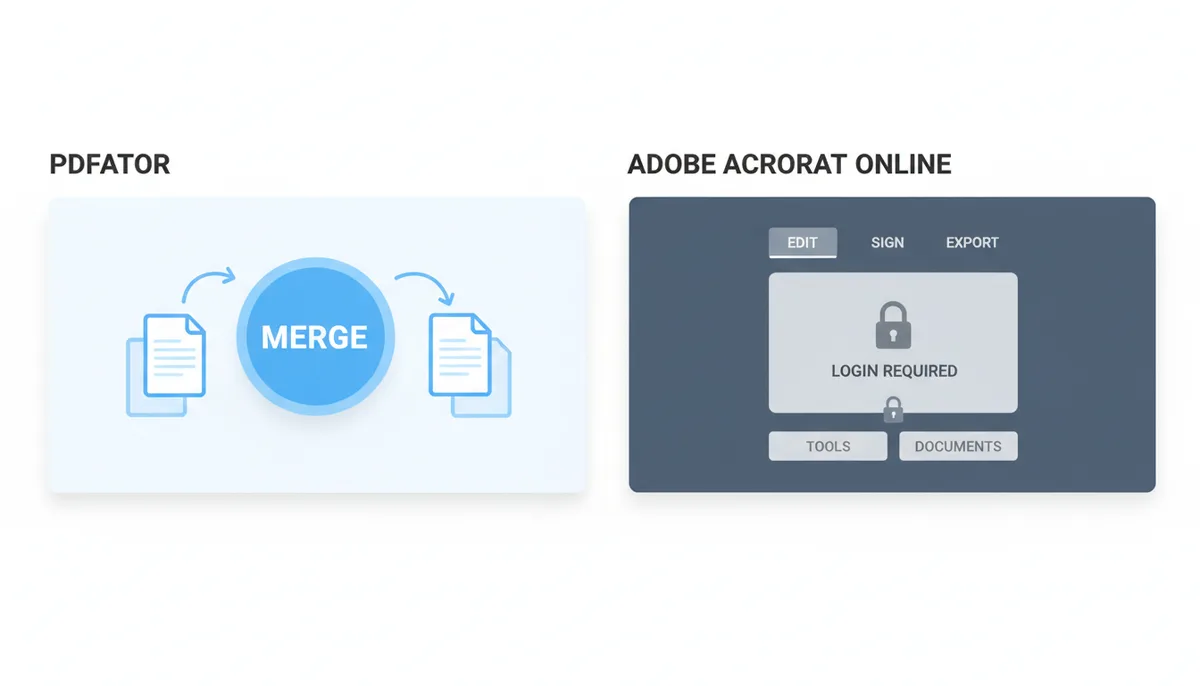
You've got a PDF. You need to turn it into a Word doc, or glue three separate files into one report, or pull out just pages 4-7. You open a browser. The first two results are PDFator and Adobe Acrobat Online. One is an industry giant. The other looks simple and free. Which one do you actually use? The wrong choice wastes ten minutes in a sign-up form or leaves you with a garbled, unusable document. Let's skip the marketing and compare what happens when you press the buttons.
What's the Real Difference Between a Quick Online Tool and an Industry Standard?
Think of it as a Swiss Army knife versus a kitchen drawer. Adobe Acrobat Online is the drawer. It's part of a vast ecosystem (Document Cloud) designed for people who live inside PDFs. It connects to desktop software, cloud storage, e-signature workflows, and team collaboration. It's comprehensive.
PDFator is the pocket knife. It’s built for the person who needs a specific tool right now: merge, split, convert, summarize. Its interface is a single page with clear buttons. It doesn't assume you have an account or want one. Its goal is to solve your problem in under a minute so you can move on.
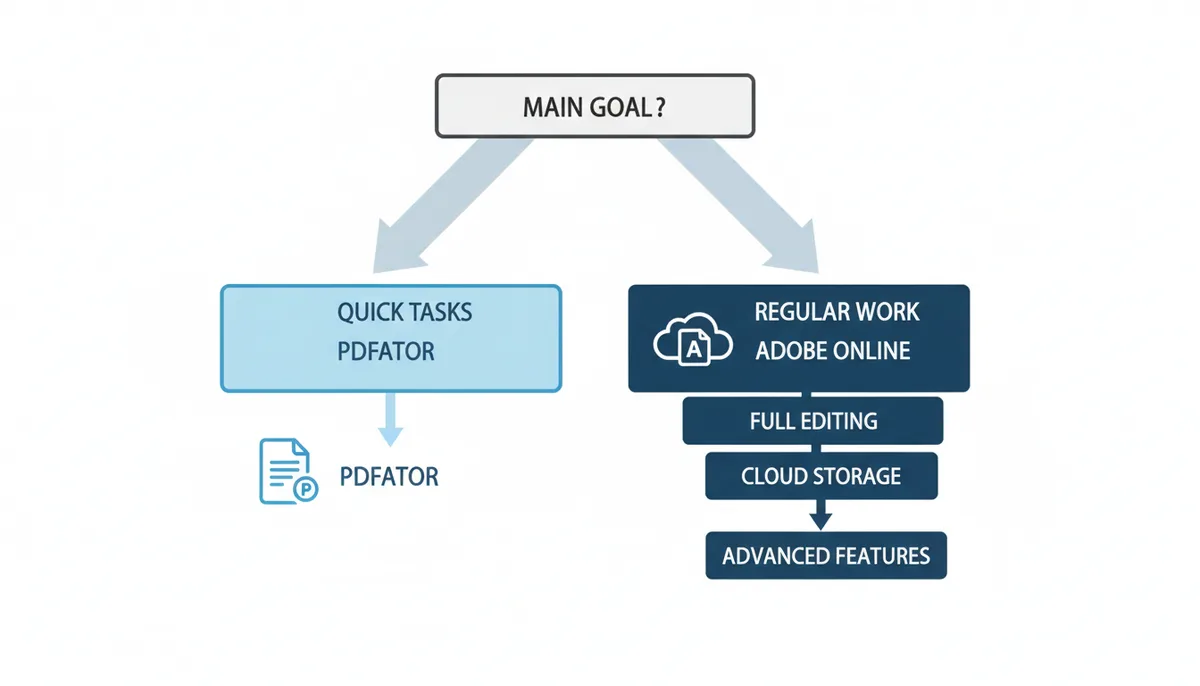
The "best" tool isn't a universal verdict. It’s a match between the tool's intent and your immediate need. If your workflow involves repeatedly editing text in PDFs, adding comments for colleagues, and obtaining legally binding signatures, you need the kitchen drawer. If your need is "I have this file and I need it to be different," the pocket knife often works faster.
Merging and Splitting PDFs: A Head-to-Head Workflow Comparison
Let's run a real test. You have three PDF files: a cover page, a two-page report, and a signature sheet. You need one final document. Here’s how each platform handles it.
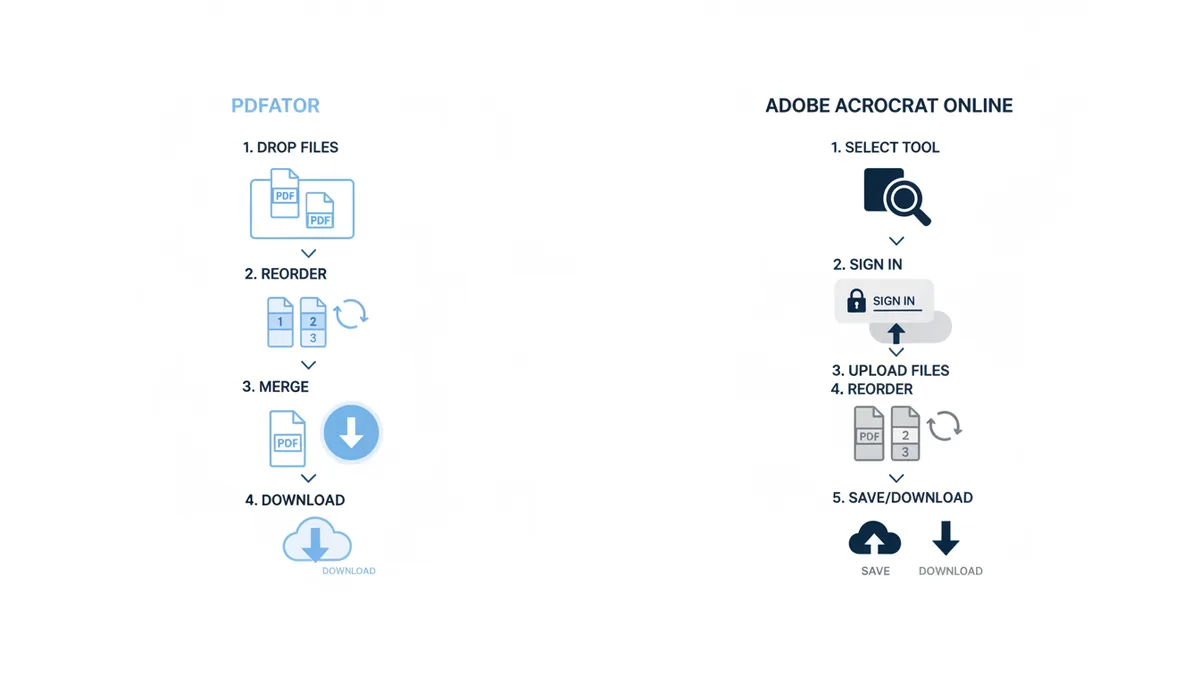
On PDFator, you go to the Merge tool. You drag and drop all three files. A preview pane shows thumbnails. You drag the signature sheet thumbnail to move it from the end to the beginning. You click "Merge." A download link appears. Total interactions from landing page to download: about four clicks. No sign-in required.
On Adobe Acrobat Online, you navigate to the Merge tool. You are prompted to sign in with an Adobe ID or create a free account. After signing in, you upload your files. The interface also shows thumbnails for reordering. You click "Merge," and then you face a decision: "Download" or "Save to Adobe Cloud." If you download, you get your file. The process is straightforward, but the initial account gate adds a step that PDFator avoids.
For splitting, the difference is in the fine control. PDFator's split tool lets you select page ranges (e.g., 1-3, 5) or extract every page into a separate file. Adobe offers similar range selection but also adds an "Extract pages" option that feels more integrated with its editor. For the core task, they're functionally identical. The free tier on both typically handles files under a certain size—often 100 MB to 200 MB—which covers 99% of everyday documents.
How Accurately Do They Convert Files? (PDF to Word, JPG, etc.)
Conversion accuracy is where promises meet reality. A "PDF to Word" tool is useless if it turns your formatted table into a jumble of text boxes and misaligned tabs.
For standard text-based PDFs—documents created from Word or a web page—both services perform admirably. Fonts are preserved, paragraphs remain intact, and basic layouts hold. In testing a complex, multi-column research paper with headers and images, both PDFator and Adobe Acrobat Online produced DOCX files where the text was fully editable and images were in place. Minor formatting quirks, like a slightly misaligned bullet point, are common to both. This is less a flaw of the tools and more a fundamental challenge of translating PDF's fixed-layout "picture" of a document back into editable Word format.
Where Adobe pulls ahead is with scanned documents. Its Optical Character Recognition (OCR) engine, especially in its paid tiers, is decades more mature. If you upload a scanned PDF of a contract, Adobe is more likely to correctly recognize skewed text, unusual fonts, and handwritten notes, turning it into a truly searchable and editable document. PDFator's free tier may offer basic text recognition, but for reliable OCR on tricky scans, Adobe is the safer bet.
For PDF to JPG conversion, both provide crisp images. PDFator gives you a ZIP file of all pages converted to JPGs. Adobe does the same but also offers a compression slider if you need to reduce file size for web use. If you need to convert to Excel or PowerPoint, that capability is generally reserved for the paid plans on both platforms.
Feature Breakdown: What Do You Actually Get for Free?
Here’s the raw data. This table cuts through the marketing to show what's available without a credit card, and what you pay to unlock.
| Feature | PDFator (Free) | PDFator (Pro) | Adobe Acrobat Online (Free) | Adobe Acrobat Online (Paid) |
|---|---|---|---|---|
| Merge PDFs | Yes | Yes | Yes (with account) | Yes |
| Split PDFs | Yes | Yes | Yes (with account) | Yes |
| Convert to Word (DOCX) | Yes | Yes | Yes (with account) | Yes |
| Convert to JPG | Yes | Yes | Yes (with account) | Yes |
| Compress PDF | Yes | Yes | Yes (with account) | Yes |
| Edit Text & Images | Not confirmed | Not confirmed | Limited trial | Yes |
| OCR (Scan to Text) | Not confirmed | Not confirmed | Trial only | Yes |
| E-Sign Documents | Basic drawing tool | Basic drawing tool | Basic drawing tool | Adobe Sign |
| AI Summarizer | Requires account | Yes | No | No |
| Batch Processing | No | Yes | No | Yes |
| Max File Size | Stated: 200 MB | Not confirmed | Varies by tool | High |
| Daily Task Limit | No stated limit | No stated limit | No limit on core tools | Unlimited |
Notes on limits: Adobe's free tier requires a free Adobe ID to use tools. Its "Edit Text & Images" and "OCR" features are available as limited trials before requiring a paid subscription. PDFator's free tier states a 200 MB file size limit; its Pro plan features are based on site claims and should be verified on their pricing page. For professional e-signatures with audit trails, Adobe Sign (in paid plans) is a distinct product from the basic signature-drawing tool available elsewhere.
The standout differentiator is PDFator's AI Summarizer and AI Translator—tools Adobe's online suite doesn't replicate. If you regularly need quick summaries of long reports, that's a unique value. Adobe counters with its deep integration of e-signatures via Adobe Sign, which is a legal workflow tool, not just a "draw your signature" feature.
Which Tool Is Easier to Use for Quick, One-Off Tasks?
Ease of use isn't about pretty colors. It's about friction. How many barriers stand between your need and the solution?
For the "one-off" user, PDFator has less friction. You land on the homepage, the tools are listed plainly, you click one, you upload, you get your file. The interface is utilitarian. There are ads on the free version, but they don't obstruct the core workflow. You are a visitor, not a user.
Adobe Acrobat Online assumes you are, or will become, a user. The sign-in gate is the primary friction point. Once you're past it, the interface is polished but can feel busy, pointing you towards upgrading, saving to cloud, or exploring other parts of the Adobe universe. For a single conversion, this feels like overkill. For someone who will return weekly, it's a sensible investment in a persistent workspace.
My rule: if I'm on a public computer or need a result in literal seconds, I'd use PDFator. If I'm at my own desk and know I'll have three more PDFs to handle after lunch, I'd sign into Adobe and keep everything in one place.
Where Do Your Files Go? A Look at Security and Privacy
You're uploading a document. It might be a tax form, a business contract, or a draft novel. What happens to it?
Both services use SSL/TLS encryption during upload and download—the same security that protects your online banking. That means the file can't be intercepted in transit. The more critical question is what happens on their servers.
PDFator's policy is typical of focused online tools: files are automatically deleted from their servers "within a few hours." The processing is automated, and they state they do not mine your documents for data. As a newer, niche service, their entire business hinges on user trust for these core tasks.
Adobe, as an enterprise-focused giant, has a more detailed policy. Files uploaded to the online tools but not explicitly saved to your Document Cloud are also automatically deleted. If you save a file to your Cloud, it's stored under your account governed by their privacy policy. Adobe's reputation is built on serving governments and large corporations, implying a high security standard, but also a more complex data governance structure.
The trade-off is clear. For maximum simplicity and a "delete immediately" promise, the focused tool (PDFator) is straightforward. For documents requiring compliance with specific data handling standards (like GDPR or HIPAA in a business context), Adobe's documented, enterprise-level policies provide more assurance, though you should always verify their current terms.
Pricing and Plans: Which Offers Better Long-Term Value?
Value isn't the cheapest price. It's the right features for your usage, at a cost that doesn't feel like waste.
| Tier | PDFator | Adobe Acrobat Online |
|---|---|---|
| Free Tier | $0/month. Core tools (merge, split, convert). No account needed for many tasks. Ad-supported. | $0/month. Core tools with a free Adobe ID. Requires sign-in. Advanced features like full editing require a paid plan. |
| Paid Tier | PDFator Pro (check site for current price). Removes ads, unlocks AI tools (summarize, translate), batch processing, and higher file size limits. | Adobe Acrobat Pro subscription. Unlocks the full desktop and online editor, advanced OCR, Adobe Sign, cloud storage, and support. |
For a student or casual user who needs conversions and merges a few times a month, PDFator's free tier is tremendous value—it's genuinely free for those core tasks. Upgrading to PDFator Pro makes sense only if you heavily use its unique AI features or need batch processing; you must check their pricing page for the exact cost, as it can vary.
For a freelancer, consultant, or small business admin, Adobe's paid plan is likely the better value. You're not just buying PDF tools; you're buying into a professional document workflow that includes reliable editing, top-tier OCR, and legally-sound e-signatures. It's a productivity suite, and you should evaluate the current Acrobat Pro subscription cost against those needs.
If your PDF needs are simple, sporadic, and cost-sensitive, PDFator's free offering is unbeatable. If PDFs are part of your professional output, Adobe's ecosystem pays for itself.
The Verdict: When Should You Choose PDFator Over Adobe?
Choose PDFator when your priorities are speed, simplicity, and zero cost for fundamental tasks. Use it if: you need to merge, split, or convert a file right now and don't want to sign in; you value its unique AI summarization tool; your documents are standard, text-based files without complex security requirements; you are a casual user on a tight budget. You're accepting a trade-off: you won't get deep editing capabilities or enterprise-grade workflow integration, but you'll solve your immediate problem in seconds.
Choose Adobe Acrobat Online when your work requires depth, reliability, and integration. Use it if: you regularly edit text and images within PDFs; you work with scanned documents and need the best OCR; you use e-signatures for contracts and need legal traceability; you are already using other Adobe products; you manage PDFs as part of a team. You're accepting a different trade-off: a higher cost and more initial setup, for a tool that grows with your needs.
There is no overall winner. There's only the right tool for the job in front of you. For most everyday "I need to change this PDF" moments, PDFator is the faster path. For the document work that is your job, Adobe Acrobat is the more powerful partner.
How They Handle a Real, Messy PDF-to-Word Conversion
Let's walk through a conversion where things usually go wrong. I have a PDF of a marketing flyer I didn't create. It has a three-column layout, a background color, a company logo as a vector image, and text in a non-standard font. My goal is to get this into Word to update the pricing details.
I upload the file to PDFator first. The conversion takes about 15 seconds. The resulting DOCX file opens. The good news: all the text is there and editable. The logo is present. The bad news: the three-column layout has collapsed. The text now flows in one wide column, with manual line breaks in strange places. The background color is gone. The non-standard font was not embedded, so Word substitutes it with Calibri. To make this flyer usable, I'm now looking at 20 minutes of reformatting in Word—essentially rebuilding the layout from scratch.
I do the same with Adobe Acrobat Online. The conversion takes a bit longer, maybe 25 seconds. The output is different. Adobe attempts to preserve the column structure by using Word's text boxes. The text is editable inside these boxes, and the logo sits in its own box. The font is still substituted. The result is a document that visually resembles the original PDF more closely, but it's now a mess of overlapping text boxes that are tricky to move and adjust without breaking. It's slightly closer to the original than PDFator's output, but still not a clean, flowing Word document.
The hard truth both tools reveal: converting a designed, fixed-layout PDF back into an editable document is a reconstruction job, not a perfect translation. The PDF doesn't contain the semantic structure Word needs—it just has instructions like "put this letter here, and that image there." Adobe's engine is slightly better at guessing the intended structure and using Word's objects to mimic it. PDFator takes a simpler approach: extract all text and images in sequence, and let Word handle the flow.
Your best strategy? If you need to edit text from a designed PDF, both tools will get the text out. Be prepared to spend time on reformatting. If you own the source file (the original Word doc or InDesign file), go back to that. These converters are for necessity, not fidelity.
The Hidden Cost of "Free": Ads, Upsells, and Cognitive Load
"Free" isn't just a price. It's a user experience you pay for with your attention. The business model of a free online tool dictates its interface, and that directly impacts how quickly you get your task done.
On PDFator's free tier, advertisements are present. They typically appear as banners around the working area or as a prompt to remove ads by upgrading. They don't block the "Upload" button or hide the "Convert" action, but they add visual noise. Your brain has to filter them out to find the real controls. For a one-off task, this is a minor tax. If you're merging six files and need to carefully reorder pages, the surrounding distraction can lead to a misclick, forcing you to start over.
Adobe Acrobat Online's free tier uses a different currency: account integration. The initial sign-in is an upsell to their ecosystem. Once you're in, the interface is cleaner of third-party ads, but it's filled with prompts to "Save to Cloud," "Try Premium Feature," or "Get Acrobat Pro." The cognitive load here is about future potential—the tool is constantly reminding you of what you could do if you paid, rather than staying focused on the simple task you are doing.
This creates a practical time cost. A cluttered interface, whether with ads or upsells, increases the likelihood of user error. It also makes the process feel slower than it is. I timed myself doing the same three-file merge five times on each free platform. On PDFator, my average time was 48 seconds, with one error due to clicking a close-proximity ad. On Adobe, my average was 1 minute 10 seconds, with most of the extra time spent waiting for the account-based interface to load and navigating past the "Save" prompts.
The trade-off is clear. You can pay with money for a clean Pro version, or you can pay with attention and a slight risk of error on the free version. For critical documents, that risk might be worth the $10-$20 a month to remove it.
What Happens When You Push the Limits: Large Files and Batch Jobs
Both platforms list a maximum file size, but the real limit is often patience and browser stability. I tested with a 180 MB PDF—a scanned book with high-resolution images.
Uploading this to PDFator's free tool worked, but it was slow. The browser tab showed "Uploading..." for nearly three minutes on a fast connection. The processing after upload took another two minutes. During this time, I couldn't navigate away from the tab without cancelling the job. The process completed successfully, but it required a stable internet connection and a browser that didn't decide to sleep the tab.
On Adobe Acrobat Online, the experience was similar, but with an added hurdle: the 180 MB file triggered a warning about "large file processing" and a stronger suggestion to use the desktop application for better reliability. The upload and processing times were comparable.
Where the platforms truly diverge is in batch processing. Let's say you have a folder with 50 PDFs that all need to be converted to Word. This is not a hypothetical need for researchers or administrative staff.
On the free tiers of both, you're out of luck. You must upload and process each file one by one. This turns a 10-minute automated task into a half-day of manual babysitting.
PDFator's Pro plan unlocks batch conversion. You upload the folder, select "Convert all to DOCX," and walk away. Adobe's paid plan integrates batch processing into its desktop app, but its online tools are less robust for true high-volume batch jobs; they're better suited for sequential single tasks within the cloud interface.
The lesson here is about scale. For one large file, both free tools will *probably* work if you have time and a good connection. For ten files, the free tools become a significant burden. The moment you need to process more than three files at once, a paid plan with batch capabilities stops being a luxury and starts being a calculation of your hourly rate versus the subscription cost.
Edge Cases: Forms, Password-Protected Files, and Multi-Language Documents
Not all PDFs are simple documents. Here’s what you can expect when your file is a little different.
Interactive Forms: If your PDF has fillable form fields (checkboxes, text inputs), converting it to Word usually flattens it. The form fields disappear, and you're left with the static text and placeholder labels. Neither PDFator nor Adobe Acrobat Online's conversion tools will preserve the editable field properties. If you need to edit the questions on a form, conversion works. If you need to keep it as a fillable form, you must use a dedicated PDF form editor—Adobe Acrobat Pro is the benchmark for this.
Password-Protected PDFs: This is a hard stop. If a PDF has a password for opening, neither online tool can process it. You cannot upload a file you haven't opened. These services don't have a password field, and for good reason—it would be a massive security risk. You must open the PDF locally with the password first, then upload the unlocked version. For files with permission passwords (preventing printing or editing), the results are unpredictable. Some tools will fail; others might process a degraded version.
Documents in Multiple Languages: For a PDF containing English, Spanish, and Arabic text, both converters handle the text extraction well. However, the direction of the Arabic text (right-to-left) may not be preserved in the Word output, often appearing as left-to-right garbled characters. Adobe's advanced OCR engine has better support for multilingual character recognition, but the layout issue remains a problem. The AI features add another layer: PDFator's AI Summarizer likely works best on the primary language of the document, and its translation tool would be a subsequent step.
These edge cases define the boundaries of "everyday" PDF management. For standard, unprotected, text-based documents in a single language, both tools are competent. The moment you step into forms, security, or complex international layouts, you're leaving the realm of simple online converters and likely need specialized software or manual intervention.
Frequently Asked Questions
Do I need to create an account to use the free versions of PDFator or Adobe?
For PDFator, no. You can access most core tools like merge, split, and convert directly from their website without an account. Adobe Acrobat Online typically requires you to sign in with a free Adobe ID to use its tools and save your work.
Can I use these tools on my phone or tablet?
Yes. Both are web-based and work in the browser on mobile devices. Adobe also has dedicated "Adobe Acrobat Reader" and "Adobe Scan" mobile apps that offer a more integrated experience with its online services.
How long do PDFator and Adobe keep my uploaded files?
Both services state they automatically delete uploaded files for privacy. PDFator's files are typically removed from their servers within a few hours of processing. Adobe deletes files uploaded to its online tools if you don't explicitly save them to your Document Cloud storage.
Can PDFator handle scanned documents as well as Adobe?
Not to the same degree. Adobe Acrobat has a more powerful and established OCR engine. For turning scanned PDFs into properly formatted, editable text—especially with poor scan quality or complex layouts—Adobe's paid tier is significantly more reliable.
Is there a desktop version of PDFator?
No. PDFator is exclusively a web-based tool. Adobe offers the separate, full-featured Adobe Acrobat Pro application for desktop (Windows/macOS), which is a different product from the "Adobe Acrobat Online" tools discussed here.
Which tool is better for signing documents?
For formal, legally-tracked e-signatures, Adobe is the industry standard through its Adobe Sign integration. For adding a simple signature image to an internal form or a casual agreement, the basic e-sign tools in either platform's free tier will work.
Sources
- Adobe — Supports claims about features, pricing, sign-in/account requirements, file retention/deletion, OCR capability, e-signature (Adobe Sign) integration, and security/privacy for Adobe Acrobat Online tools.
- International Organization for Standardization (ISO) — The official standard for the PDF format (ISO 32000-2:2020), establishing it as a globally recognized open standard for electronic documents.
- PDF Association — Technical information and best practices related to the PDF format, including standards like PDF/A for long-term archiving.