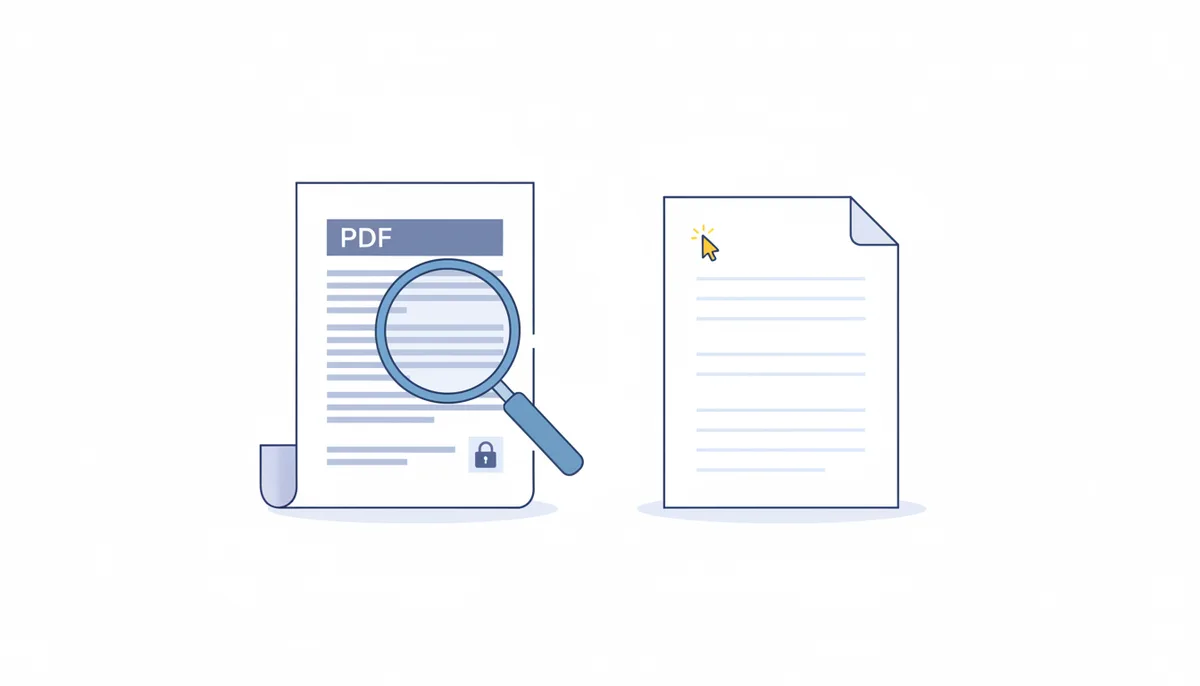
You just received a contract as a PDF, and it needs three changes. You open it in Microsoft Word, click on a paragraph, and the words refuse to behave. Try to select a sentence and you grab half a paragraph plus an image. Click elsewhere and nothing selects at all. This is the exact moment you discover the difference between a PDF and a document — and it's not the PDF's fault.
The PDF format, governed by the ISO 32000 standard, was built to do one thing very well: present content identically on every screen and printer, no matter what device opens it. That's why your PDF looks the same on a 27-inch monitor, a phone, or a colleague's laptop. The format achieves this by treating every element as a fixed object with a precise position on the page. Text isn't stored as flowing words; it's stored as shaped glyphs pinned to coordinates. The format captures the result of a document, not the document itself.
A .docx file is built for movement. Text is stored as actual characters, words, and paragraphs, and the layout is a suggestion rather than a law. Word can reflow text when you widen a margin, add a paragraph, or swap a font. That flexibility is what makes Word the right tool for writing and editing — and the wrong tool for distributing a finished document to people you don't trust with a layout editor.
Microsoft understands this, which is why Word doesn't pretend to open PDFs like native documents. Every modern version of Word will open a PDF — Word 2013 and later have this built in — but the software immediately warns you that the result might not match the original. What Word does is an act of reconstruction, not conversion.
Dedicated PDF editors exist, of course. Adobe Acrobat Pro is the reference point; it can edit text, images, even entire layouts inside a PDF. But it's professional software with a subscription price, and for most people the learning curve is steeper than the problem is worth. You don't want to master PDF editing for a single contract. You want to get back to Word, make your changes, and get on with life. That's what conversion tools are for.
But before you click any "Convert" button, you need to understand what you're asking the tool to do. The most common reason conversions fail — and the reason so many people give up and retype the entire document — is that they didn't know what kind of PDF they were starting with.
What Happens When a PDF Becomes a Word Document?
Every PDF you own is one of two species, and the difference decides everything downstream.
A native PDF was created by a program — Word, InDesign, Excel — that exported the file. The text in a native PDF is real text, encoded as character strings with font data. That's why you can select, search, and copy text from it. When you convert a native PDF to Word, the converter reads those strings and reproduces them. The hard part isn't extracting the text; it's preserving the layout around it.
A scanned PDF is a different animal. It's created by a scanner or a phone camera, and it's nothing but an image — or a stack of images — wrapped in a PDF shell. The text in a scanned PDF isn't text; it's pixels that happen to look like text. That's why you can't select a word, can't search the document, and can't copy an email address out of it. To convert a scanned PDF into editable text, the tool passes the images through an Optical Character Recognition (OCR) engine.
OCR is pattern matching. The software looks at the shapes of the pixels and guesses which characters they represent. The technology has improved dramatically, but it's still a guess. A crisp, high-resolution scan of a clean document with uniform fonts and minimal skew will yield near-perfect results. A blurry photo of a crumpled receipt will be worse — sometimes embarrassingly worse. The letter m gets read as rn when the image is noisy. A comma becomes a period. Lowercase l becomes an uppercase I.
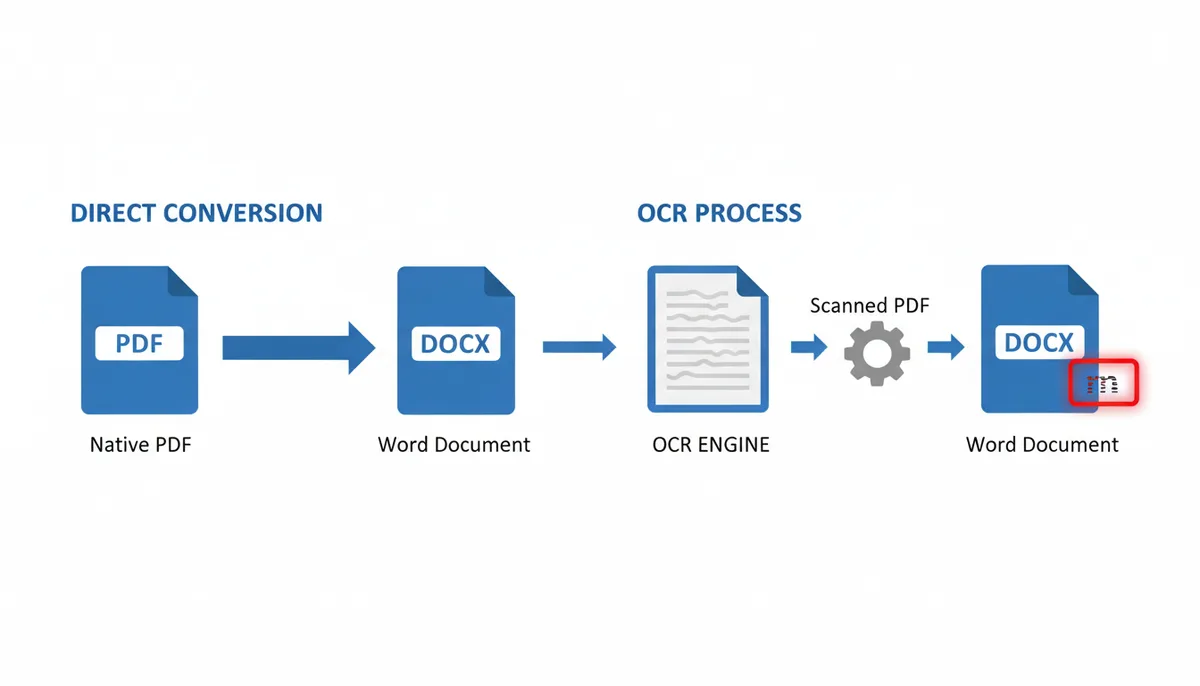
Here's the part most people don't realize: conversion is reconstruction, not translation. You're not switching file formats — you're telling a program to inspect the PDF, infer the logical structure of the content (headings, paragraphs, tables, lists), and rebuild that structure in a .docx file. The converter has to guess whether something is a heading or a paragraph, whether elements belong to a table or are just aligned text. Those guesses are where formatting breaks.
That's why a converted document often has missing page breaks, columns that spread across the page, images floating where they shouldn't be, and fonts that look like a ransom note. The converter preserved the content — the words are all there — but the layout is a reconstruction. Understanding this before you convert saves you a lot of frustration after.
Three Main Methods for Converting Your PDF
You have three plausible routes from PDF to Word. Each has a different cost, a different quality ceiling, and a different privacy profile.
Method 1: Online converters
Services like PDFator, Smallpdf, and iLovePDF are the fastest path. You upload a file, choose your output format, and download a converted .docx a minute later. No installation, no sign-up (for the basic tier), no learning curve. Most run in the browser and work fine on phones.
Online converters handle the majority of simple, text-based PDFs very well. Stick to a one- or two-page document with basic formatting — a resume, a one-page form, a short letter — and you'll get a decent Word file back. The tool is also handy when you're on someone else's machine and don't have Office installed.
The trade-off is privacy. You're uploading your document to a third-party server. That's acceptable for casual documents and a real problem if your PDF contains personal data, trade secrets, or attorney-client material. Check the service's privacy policy before uploading anything sensitive. Reputable services like PDFator advertise secure HTTPS connections and automatic file deletion after processing, but you should verify that for yourself rather than take a homepage's word for it.
Method 2: Desktop software (Adobe Acrobat Pro)
Adobe Acrobat Pro is the heavyweight. It handles PDFs natively — same company that invented the format — and its conversion engine is generally the most accurate available, especially for complex layouts and OCR-heavy tasks. Acrobat Pro's OCR is unusually good at preserving multi-column layouts, captions, headers, and footers. It also offers batch conversion, so you can convert an entire folder of PDFs in one pass.
The cost is the obstacle. Acrobat Pro is a subscription priced for professional use, not a casual utility. If you're converting a document once a month, that's overkill. If you're processing fifty scans a week for work, it's the right tool.
Method 3: Microsoft Word's built-in converter
If you already pay for Word, you might not need any extra tool at all. Word can open a PDF file directly via File → Open, and it will attempt a conversion. The advantages are convenience and cost — no new tool, no upload, no learning a separate interface.
The quality, though, is variable. Word's PDF import handles simple documents cleanly. Complex layouts — multi-column articles, documents with floating images, anything using a non-embedded font — will break in ways that are sometimes worse than the output from a dedicated converter. Word also has no real OCR of its own. A scanned PDF will come in as an unselectable image, not editable text.
Here's a truth to remember: the quality gap between these methods shrinks as document complexity grows. For a one-page letter, all three work fine. For a 200-page report with charts, footnotes, and a table of contents, all three will struggle, and you'll be repairing the output regardless of which one you chose.
| Conversion Method | Cost | Best For | Security | OCR Quality | Ease of Use |
|---|---|---|---|---|---|
| Online converter (PDFator, Smallpdf) | Free or freemium | Quick one-off tasks; simple documents | Files uploaded to third-party servers; check privacy policy | Varies by service; adequate for basic scans | Very high — browser-based, works on phones |
| Desktop software (Adobe Acrobat Pro) | Paid subscription | Professional workflows; complex layouts; batch conversion | Fully offline — files never leave your machine | High — handles multi-column layouts well | Moderate — real learning curve |
| Microsoft Word's built-in converter | Free (with Word) | Simple documents; convenience when you already have Word | Fully offline — no upload | None — requires the PDF to already have text | High — just open the file |
Step-by-Step: Convert a PDF with a Free Online Converter
For most people, the online route is the right one. Here's the full procedure, using PDFator as the reference — the steps are nearly identical on any modern converter.
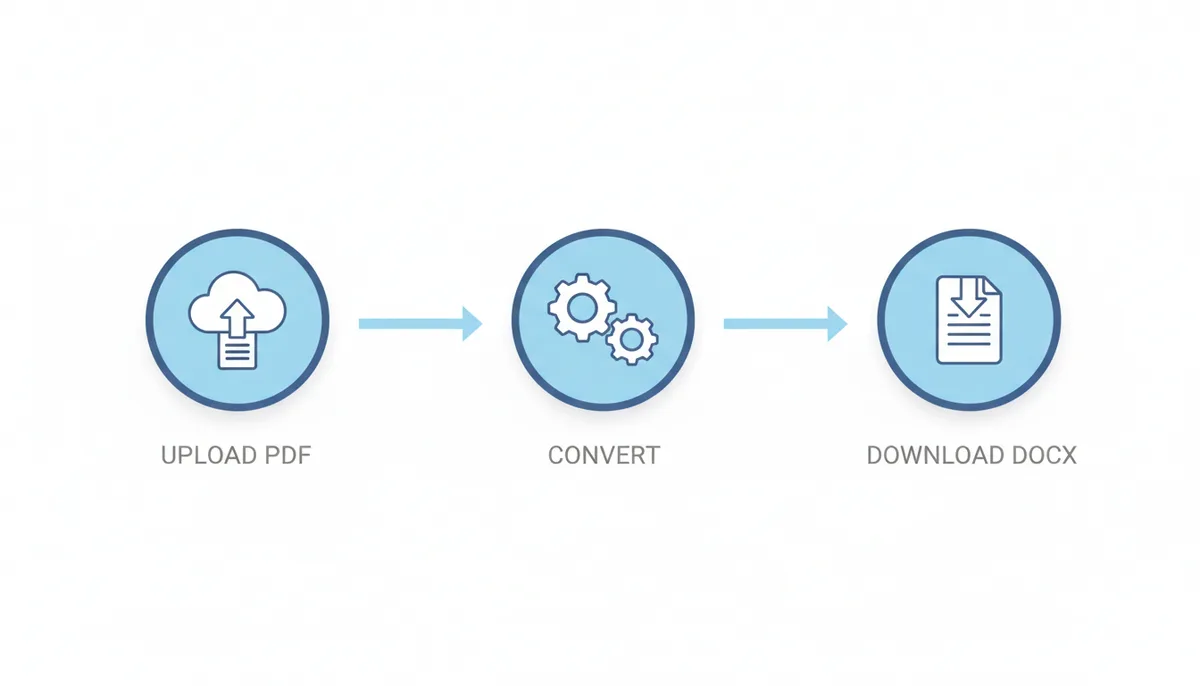
- Open the converter in your browser. Go to pdfator.com and find the "PDF to Word" tool. It's on the homepage; if you can't find it, look for a "Convert" section in the navigation.
- Upload your PDF. You can usually drag and drop the file onto the page or click to browse your files. Some tools also take a file from Google Drive or Dropbox, but local upload is the most reliable.
- Check the options. If your PDF is scanned (image-based), look for an OCR toggle or a "with OCR" option. Turn it on. If your PDF already has selectable text, leave it off — OCR on a text-based PDF can actually mangle things.
- Run the conversion. Click the Convert button. For a small file, this takes seconds. A large scanned PDF with OCR can take a minute or two.
- Download the .docx. The tool will show a download button when it's done. Save the file somewhere sensible — not your desktop, where it will get lost.
Now the part most guides skip: after you download the file, do not start editing immediately. Open the .docx in Word and spend five minutes checking it.
Look at three things first. One: are the headings in the right place, or did they merge with body text? Two: do the page breaks fall where they should, or did Chapter 2 start in the middle of a page? Three: are the tables intact, or did columns shift? These three checks catch 90% of conversion problems before you've invested hours editing.
Then save a new version. Word's default is to save the converted file in its original location, sometimes overwriting — or nearly overwriting — the source PDF's name. Rename it immediately. Something like contract_EDIT.docx. Keep the original PDF untouched so you always have a reference when a conversion issue appears later.
One more piece of advice: don't convert a scanned PDF on a free online tool if you need reliable output. The OCR on free services is usually fine for short documents but degrades badly on long, complex scans. If the file is more than twenty pages or has multi-column layouts, pay for a premium tier or get desktop software involved.
How to Fix the Most Common Formatting Problems
Even the best conversion produces a .docx that needs some surgery. Here's the troubleshooting framework I use, in order.
The layout collapsed into one long block
This is the most common failure. The converter lost the column structure or the page divisions, and text that used to sit side by side now runs together.
Fix it with Word's built-in tools rather than by hand. Select the affected block, hit Ctrl+A to select everything, then press Ctrl+Q to strip paragraph formatting and Ctrl+Space to clear direct character formatting. This is the nuclear option — it removes all manual formatting, but it also removes the junk the converter left behind. Then reapply your styles: select headings and apply the Heading 1, Heading 2 styles from the ribbon; select paragraphs and apply Normal.
If your document uses columns, insert a continuous section break where you need two columns, then use Word's Layout → Columns menu to set them. It's faster than manually dragging text into position.
Fonts look wrong, or spacing is inconsistent
The converter often substitutes fonts it doesn't recognize — or worse, it maps one font to another because the original font name was lost. If the whole document needs a font reset, select everything and set the font to your preferred family (Calibri, Arial, or the original font if you have it installed).
Character spacing errors are harder to spot. Sometimes the converter introduces strange space widths, especially between punctuation and the next word. Use Word's Find and Replace (Ctrl+H) to fix patterns. Search for a space followed by a period (space + ".") and replace with just the period, for instance. If there are random double spaces, replace two spaces with one, repeatedly, until Word tells you zero replacements remain.
Images are floating or in the wrong place
Converted images come in with a variety of text-wrapping settings, often In Line with Text when they should be Top and Bottom or Square. Click each image, go to the Picture Format tab, and set the wrapping to match the original layout. If images are wildly out of place, delete them and re-insert from the original PDF.
Tables fell apart
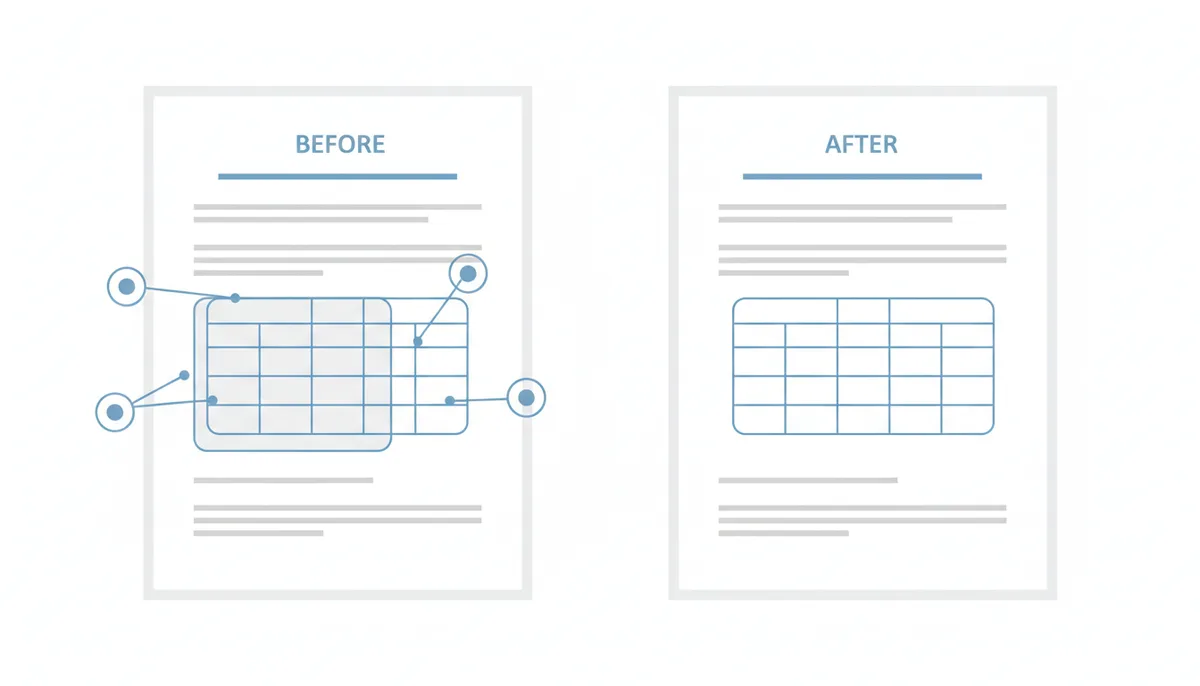
The worst conversion casualty. Tables in PDFs are stored as positioned text with thin lines; interpreting them as a table requires the converter to figure out cell boundaries from coordinates. When that fails, you get gibberish.
If the table text survived but the structure is gone, select the text and go to Insert → Table → Convert Text to Table. Choose the delimiter that matches your data (tab or comma), and Word will rebuild the table structure. If the text itself is jumbled across cells, your best bet is to delete the table entirely and recreate it — a bad table is faster to rebuild than to repair.
Headings lost their numbering
Numbered headings in PDFs often arrive as plain text — "3.2 Methodology" becomes just "Methodology" with a stray "3.2" somewhere. Check the headings, then reapply numbering via Home → Multilevel List. If the document uses many numbered headings, this is worth doing properly — set up a multilevel list style once, and Word will handle all future numbering automatically.
How to Choose the Right Converter for Your Task
You don't need the best converter on the market for every job. You need the right converter for the specific document sitting in front of you. Here's how I think about it, scenario by scenario.
For a simple, non-sensitive text document — a resume, a one-page cover letter, a two-page report — use a free online converter. The output will be good enough, and the time you save is worth more than the imperfections you'll tidy up. Just don't upload anything that contains personal data you'd be embarrassed to see public.
For a scanned document, especially one with tables or multiple columns, you need high-quality OCR. That means either the paid tier of an online service or desktop software. The added cost is justified because the alternative — manually retyping a 30-page scanned report — costs more in time and errors.
For a confidential document — a legal contract, a financial statement, a personnel file — use desktop software. Period. The convenience of an online converter isn't worth the risk of a document with your signature and salary information sitting on someone else's server. Even reputable services that delete files automatically are another party in your data flow. If the document is that sensitive, keep it offline.
| Your Situation | Recommended Tool Type | Key Feature Needed | Cost Expectation |
|---|---|---|---|
| I need to edit a simple one-page resume | Online free converter (e.g., PDFator) | Basic conversion | Free |
| I need to convert a 200-page scanned book with tables | Desktop software or premium online tier | Advanced OCR with layout preservation | Mid-tier to expensive subscription |
| I need to convert a sensitive legal contract with personal data | Desktop software (offline) | Offline security — no files leave your machine | Paid subscription |
Advanced Conversions: Scanned, Secured, and Complex PDFs
Three special cases are worth addressing separately because they trip up even experienced converters.
Scanned PDFs and the importance of scan quality
OCR quality is directly proportional to the quality of the image you feed it. A scan at 300 DPI (dots per inch) of a clean, flat page gives the OCR engine a much better chance than a 150 DPI scan of a page with wrinkles or shadows. If you control the scanning process, use 300 DPI as your baseline. Higher is rarely necessary and just makes file sizes enormous.
Also, if the pages are rotated even slightly — not perfectly aligned with the scan bed — the OCR engine will struggle. Most good OCR software has a "deskew" or "straighten" feature. Use it before converting.
Password-protected PDFs: user password vs. owner password
PDF security works at two levels, and people confuse them constantly.
A user password (also called a "document open password") is required to open and read the file. Without it, the content is encrypted and unreadable. You cannot convert a PDF with a user password unless you supply the password to the conversion tool.
An owner password (also called a "permissions password") restricts what a reader can do with the file — printing, editing, extracting text. It's less of a security measure and more of a settings lock. The content inside is not encrypted in a way that prevents text extraction, so most conversion tools can process a PDF with an owner password without knowing the password at all.
If your PDF asks for a password to open it, you'll need to provide it before conversion. If it only restricts editing or printing, try converting — most tools will handle it.
Graphically rich documents: set honest expectations
Brochures, magazines, catalogs — these are designed documents, and converting them to editable Word files is a genuinely hard problem. The goal of conversion is to extract the text and images so you can rebuild the layout. If you expect a pixel-perfect Word file that matches your brochure, you will be disappointed.
The right approach for these files is to convert anyway, accept that the structure will be lost, and treat the .docx as a starting point. Extract the text. Extract the images. Then rebuild the design in Word, or better, in InDesign or Canva where layout tools exist. The conversion saved you the effort of typing and sourcing graphics; it didn't save you the effort of design.
Frequently Asked Questions
Will the converted Word document look exactly like the original PDF?
No, almost never perfectly. Conversion is a reconstruction process, not a format swap. The converter reads the PDF's visual layout and makes its best guess about the underlying structure — headings, tables, lists. Expect minor to significant formatting differences, especially with complex layouts, multi-column text, tables, and uncommon fonts. A simple text document will convert closely; a designed brochure will not.
Is it safe to upload confidential documents to an online converter?
For highly sensitive information, use offline desktop software. That's the only way to guarantee your file never leaves your machine. For less sensitive files, reputable online services use HTTPS encryption during upload and state that they delete files automatically after processing. But "reputable" is something you verify — check the privacy policy and terms of service before uploading anything with personal data, trade secrets, or legal content.
Why is the text in my converted document garbled or full of typos?
This almost always means your PDF is scanned — an image of text, not actual text. The conversion tool used OCR to extract characters from those images, and OCR is imperfect. A blurry scan yields errors: m becomes rn, commas become periods, lowercase l becomes I. The fix is a higher-quality scan (300 DPI minimum, flat pages, good lighting) and a better OCR engine — paid services and desktop software outperform free tools on this.
Can I convert a PDF to Word on my phone?
Yes. Most online converters, including PDFator, are mobile-friendly and work through your phone's web browser. If your file is on your phone, upload it directly from there. Some converters also have dedicated mobile apps, and Adobe Acrobat Pro has a mobile companion that includes PDF-to-Word conversion. Just be aware that on-screen verification of the output is harder on a small display — check the converted document thoroughly before trusting it.
Can I convert the Word document back to a PDF after I'm done editing?
Yes, and this is the right workflow for most people. Microsoft Word has a built-in "Save as PDF" or "Export to PDF" function that creates a clean PDF from your edited document. The new PDF will have better font embedding and page breaks than most converted files. You should always work in Word, then export to PDF for sharing — never edit a PDF directly if you can avoid it.
What if my PDF is password-protected?
If the PDF requires a password to open, you must provide that password before conversion — the converter can't read the encrypted content without it. If the PDF only has permission restrictions (no editing, no printing) but opens without a password, most converters can still process it. The permissions are a request, not a lock, at that level.
Sources
- Adobe — The claim that PDF is a format designed for final-form document exchange and preserving fidelity across platforms.
- Microsoft Support — The procedure and capabilities of Microsoft Word's built-in feature for opening and converting PDF files into editable Word documents.
- ISO (International Organization for Standardization) — The fact that PDF is an open standard, formally defined as ISO 32000, which underpins its universal nature.