A 40-page lease goes through a PDF-to-Word converter and comes back looking like a ransom note. Three words to a line, the heading blown up to 28-point, a page number wedged into the middle of clause four. You try the same converter on a different PDF — a report a colleague exported from Word — and the result is flawless. Same tool. Same .pdf on the end of the filename. Completely different outcome.
The tool didn't get worse between attempts. Your second file was a text-based PDF; the first was mostly an image-based one. That single difference decides almost everything about what any converter, at any price, can do with the file.
I've watched people spend an afternoon re-uploading the same scanned contract to four different websites, convinced that one of them has the "good" converter. None of them will work, because the problem isn't the converter. The page is a photograph of a page. Nothing in the file knows what a letter is.
The two categories behave so differently that they're almost separate formats wearing the same extension. Once you can tell them apart on sight — and it takes about ten seconds — you can predict what a conversion will produce before you run it, and you'll know which of two very different paths to take. That's what this covers: what's inside each kind of file, why the results diverge, and how to get an editable document out of either one.
What Is a Text-Based ("Native") PDF Made Of?
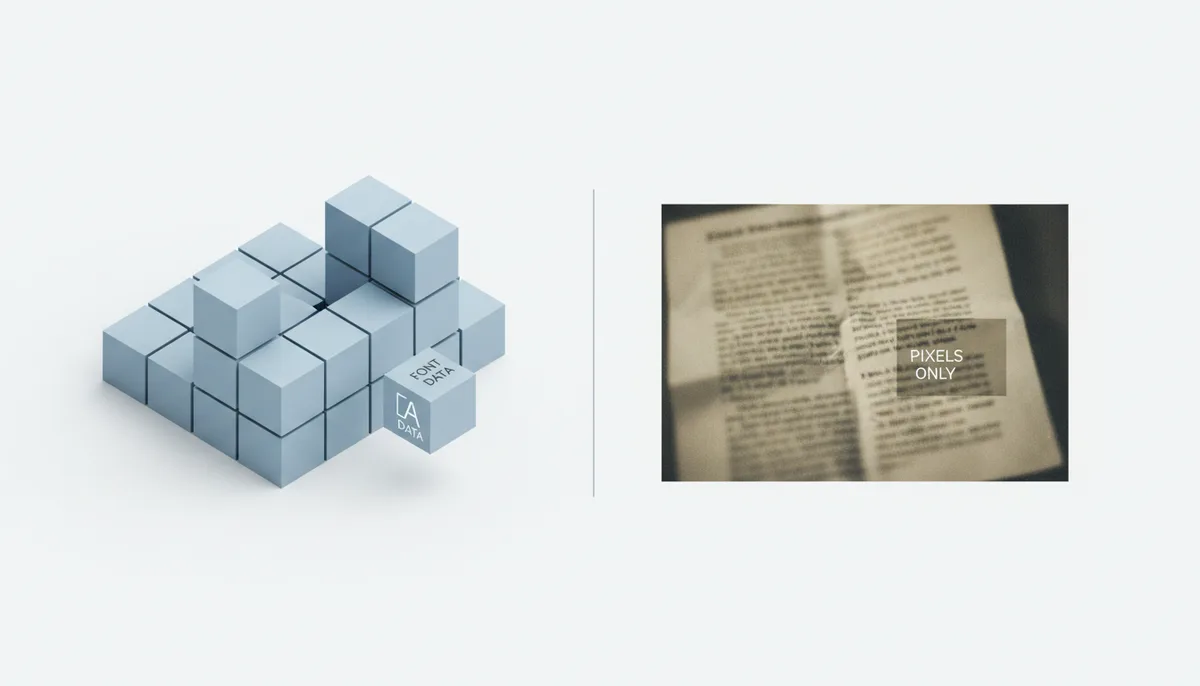
A text-based PDF, sometimes called a native or "true" PDF, is a set of drawing instructions. Not a picture of a page — instructions for drawing one.
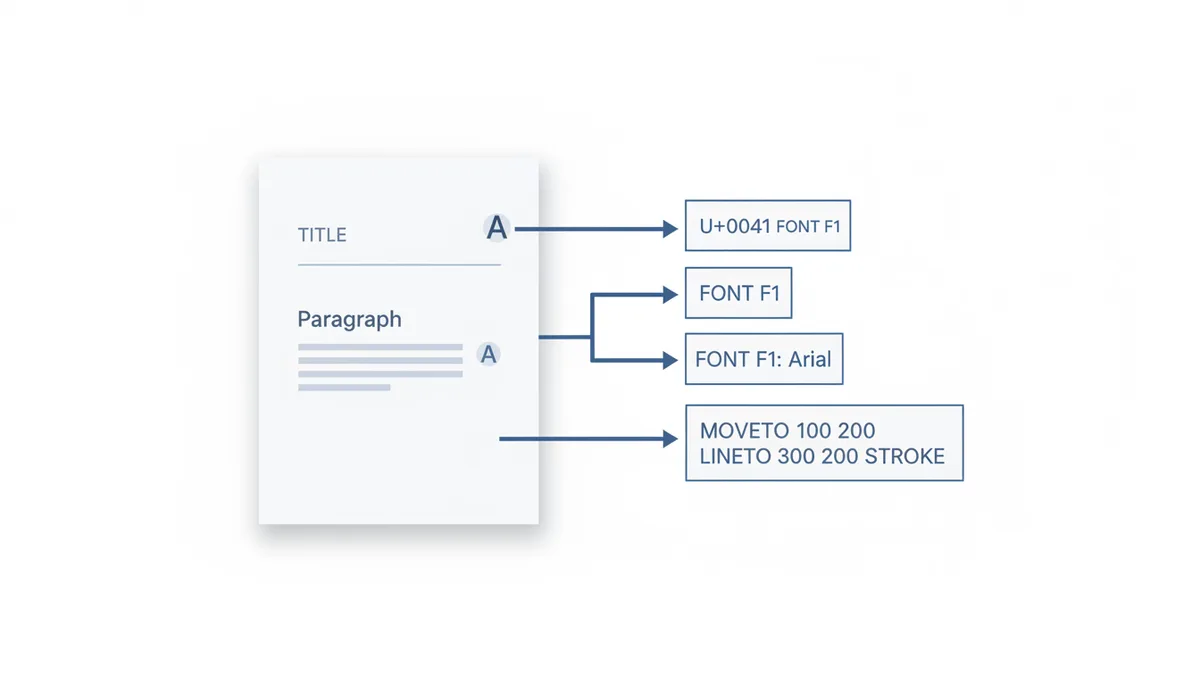
The distinction matters. If a scanned PDF is a photograph of a printed page, a native PDF is closer to stage directions: put this glyph at these coordinates, in this font, at this size, filled with this colour, and then draw a line from here to there. The file is built from objects arranged according to a published specification (ISO 32000 covers PDF 1.7 and 2.0), and for our purposes three kinds of object do all the meaningful work:
- Character data. Text is stored as numeric codes, and the font decides what those codes mean. In a simple font, a code might map directly to a character according to a named encoding. In the more common modern case, the codes are glyph indices — positions in the font's internal list of drawn shapes — and the file carries a lookup table, usually called ToUnicode, that says which character each index stands for. That table is the single most important thing in the file for anyone converting it.
- Font programs. The glyph outlines themselves. Designers and exporters usually embed a subset: the outlines for just the characters used, named as TrueType or OpenType data. That's why the PDF looks identical on a machine that has never had that typeface installed. A file can also reference a font without embedding it, trusting the reader to have it — which works right up until it doesn't.
- Vector drawing instructions. Lines, rectangles, curves, fills. A table's borders are usually a run of "move to this point, stroke a line to that one" commands. A logo is a cluster of curves and fills. All of it is resolution-independent: the shapes are described mathematically, so at 400% zoom the rendering engine simply redraws them sharper.
Because every part of it is numbers and codes, software can read it. Drag your cursor across a paragraph and the viewer hands back actual characters. Press Ctrl+F and the app builds an index over the codes and finds the word, even if it's on page 300. Copy a sentence into Notepad and the sentence arrives.
Now the part almost nobody tells you: there is no such thing as a paragraph in a PDF. There is no heading object, no column object, no table cell. A heading is text set in a large font. A table is lines and text placed at coordinates that happen to line up. A two-column layout is two sets of text runs that happen to sit side by side on the same horizontal band.
Everything a converter does with a text-based PDF is inference from position, size and font — and that's the root of every formatting problem you'll ever see, including in files that convert "perfectly."
What Defines an Image-Based ("Scanned") PDF?
An image-based PDF is a container holding a picture of each page. Usually one raster image per page — a rectangular grid of pixels — wrapped up inside the PDF structure. The image might be JPEG, JPEG 2000, a fax-style compression scheme, or raw pixel data squeezed with a general-purpose compressor. What it isn't is text.
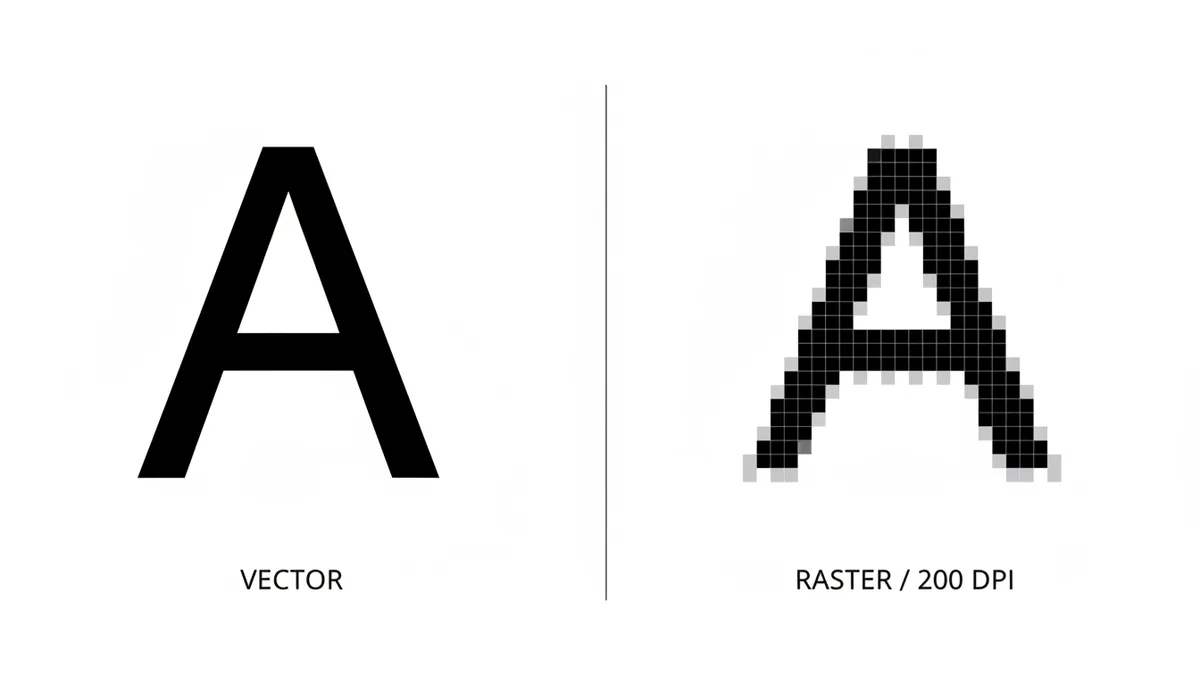
Two consequences follow immediately. First, there's nothing to select. When you drag across the page, the viewer can draw a selection rectangle or do nothing at all — it has no characters to highlight. Second, there's no resolution-independent data. A US Letter page scanned at 300 DPI is 2550 by 3300 pixels. That is the entire quantity of detail that exists. Zoom to 800% and you are looking at those same pixels, enlarged, with every soft edge turned into a staircase.
"Scanned" is a slightly misleading label, because the scanner is optional. Image-only PDFs come from phone scanning apps, fax servers, office copiers with a "scan to PDF" button, and document management systems that flatten forms so nobody can edit them. A page of crisp digital text that someone printed, re-scanned and emailed to you is now an image, even though it was born as text an hour earlier. The category is about how the marks got into the file, not about paper.
There's a third case worth knowing about because it breaks the simple test. Some design tools and some PDF exporters convert text to outlines when saving. The letters become vector paths — the same kind of curves a logo is made of. Zoom in and they stay perfectly sharp, so the page passes the zoom test. Search for a word and you get nothing, because there are no character codes. It looks native and behaves like a scan, and only OCR will get text out of it.
How Do Converters Process Text-Based PDFs?
Converting a native PDF is a translation job, not a guessing game. A decent converter runs roughly this sequence:
- Walk the page's content streams and collect every text-showing operation along with the position, font, size and colour it was drawn with.
- Map each code back to a character, using the font's encoding and its ToUnicode table.
- Group glyphs into lines by shared baseline, then lines into paragraphs by vertical spacing, then blocks into columns by detecting a consistent gutter.
- Infer structure: which runs of text are headings (font size relative to the document's body text), which are bold or italic, where tables are (ruling lines, or columns that line up across several rows), where lists are.
- Write the target file: paragraph styles, character runs, tables. In DOCX terms, real Word paragraphs rather than a pile of positioned text boxes.
When all five steps work, the output is a document you can actually edit. When they don't, the failures cluster in predictable places.
Space characters often don't exist. Plenty of PDFs don't write a space glyph between words; they just move the next word to the right. The converter infers a space from the horizontal gap. Set that threshold too tight and "in the agreement" becomes "intheagreement". Too loose and words split in odd places.
Missing Unicode mappings turn text into soup. If a subset font has no ToUnicode table, the converter sees codes that mean nothing outside that font and has to guess from glyph names or from the shapes themselves. This is where the "pdf to word not editable" complaint usually comes from — not a Word problem at all, but a file that never carried enough information to reconstruct its own characters. The classic symptoms are curly quotes becoming boxes, "fi" ligatures disappearing, em dashes turning into hyphens, and accented names coming out as strings of symbols.
Reading order collapses in multi-column layouts. Two columns of text at the same vertical position look, to a naive algorithm, like one line of text with a giant gap in the middle. The tell is a converted document where a sentence from the left column is completed by a sentence from the right column before the left column's next line appears.
Word rewards flow, not fidelity. A PDF is a fixed-layout format: every glyph has a coordinate. DOCX is a flow-layout format: text runs and reflows as you type. Those two models don't map onto each other, so the converter has to choose between fidelity and editability. Many tools hedge by wrapping each line in a fixed frame or a one-row table so the page looks right — and you end up with a document that's technically editable and miserable to work in. Given the choice, take the flow-layout option. It'll shift a few line breaks, but you can type in it.
How Do Converters Decipher Image-Based PDFs? The Role of OCR
There's no text to translate, so the converter has to look at the picture and work out what the shapes are. That's Optical Character Recognition, and it's a completely different kind of process from the one above — it's pattern recognition, which means it's probabilistic. It can be excellent. It is never guaranteed.
A modern OCR pipeline runs roughly like this:
- Pre-processing. Convert the page to a clean black-and-white or greyscale image, estimate and correct skew, remove speckle noise and scanner borders, and normalise contrast. A scan with a grey background and a few toner flecks can often be cleaned up enough that recognition improves materially before any actual recognition happens — a smudged edge that would have been read as a stray character stops being ambiguous once the noise is gone.
- Layout analysis. Find the text regions, the images, the columns, the tables and their reading order. Get this wrong and every later step operates on scrambled input.
- Segmentation. Separate the page into lines, then lines into characters or connected shapes. This is where touching letters and broken strokes cause trouble.
- Recognition. Match the shapes against a trained model. Most current engines use sequence models that read a whole line at a time rather than classifying one character in isolation, which handles ligatures and joined scripts far better than the old approach.
- Post-correction. Run a language model or dictionary over the output to fix obvious impossibilities — "teh" to "the", "l987" to "1987" — using context.
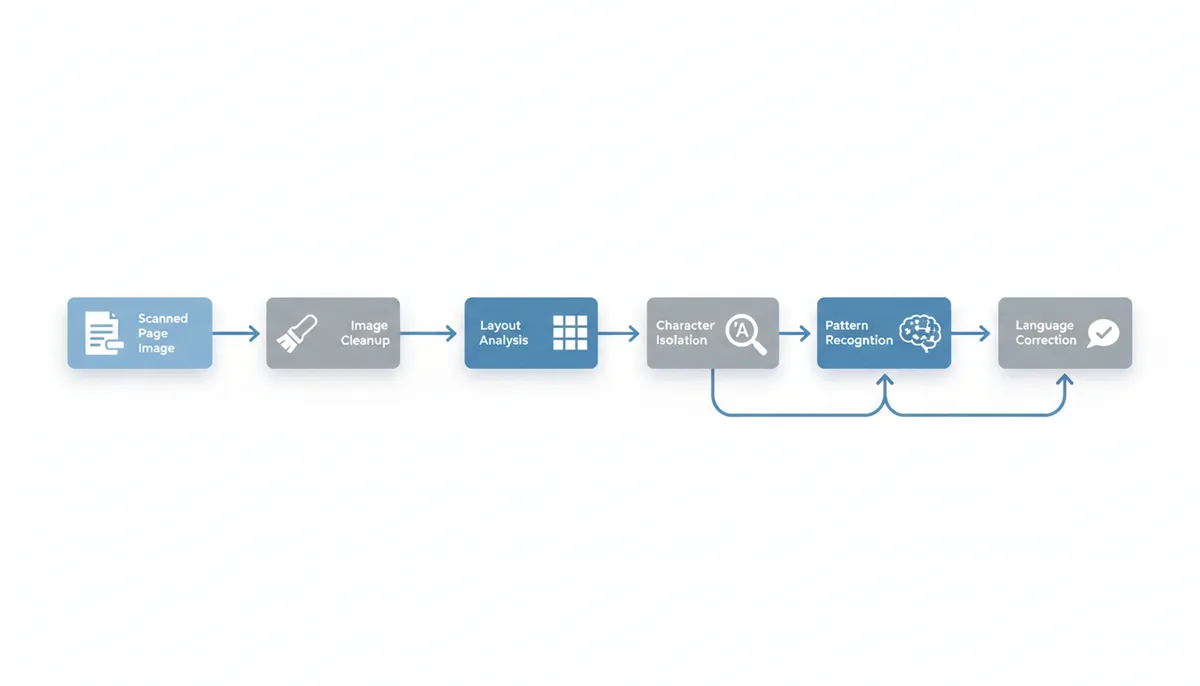
Step five is why OCR results can look great in prose and terrible in numbers. A dictionary will happily fix a misspelled word; it has no idea whether an invoice total was 1,050.00 or 1,050,00. Digits are the most dangerous output of any OCR run, because decimal points vanish, 3s turn into 8s and a stray speck becomes a second comma. If you OCR an invoice, a bank statement or a table of measurements, check every number against the original image. Not a sample. Every one.
Two more limits worth stating plainly. Handwriting is still a coin flip. Printed block capitals on a clean form sometimes work. Cursive on a 1990s fax does not, and no free tool will change that this year. And degraded source material has a ceiling: if two letters touch on the page, no amount of processing invents the gap between them.
On engine choice: Tesseract is the open-source workhorse inside a great many free tools. ABBYY FineReader is the long-standing commercial option. For clean, modern, printed business documents, the gap between free and paid engines has narrowed a lot over the past decade and a free tool will often match a paid one. For dense tables, old faxes, unusual type, mixed-language pages and anything scanned badly, the paid engines still earn their money — mostly in layout analysis rather than raw character recognition.
What Factors Determine the Quality of a Conversion?
For a text-based PDF, quality is mostly decided before you touch a converter. Was the file exported from a word processor (good), generated by a print driver (fine), or produced by a publishing tool with custom encodings and no Unicode tables (variable to bad)? Are the fonts embedded? Is the layout a single stream of text, or five floating columns with sidebars and pull quotes?
For an image-based PDF, two things dominate: the resolution and clarity of the source image, and the quality of the OCR engine and its layout analysis. Resolution first. The usual scanning recommendation is 300 DPI, and it's a good default — it gives an OCR engine roughly thirty pixels of height for an eight-point character, which is enough to separate strokes. Below about 200 DPI, small type starts falling apart. Above 600 DPI you mostly pay in processing time and file size; the OCR gain is marginal unless you're dealing with six-point footnotes or very fine table rules. If a page is already 200 DPI, rescanning at 600 won't help — you can't add detail that was never captured.
| What goes wrong | Text-based PDF | Image-based PDF |
|---|---|---|
| Fonts | Font not embedded, so the converter substitutes a lookalike and every line rewraps | No fonts at all; the typeface survives as pixels, but there is no structure to preserve |
| Small type | Codes are exact at any size; a 6-point footnote extracts as cleanly as a headline | Below roughly 200 DPI, strokes in 8-point text merge into blobs and the recognition rate drops |
| Character accuracy | Subset fonts with no Unicode table return wrong characters; accents, ligatures and maths symbols go first | Shape confusions: rn becomes m, l becomes 1, O becomes 0, S becomes 5 |
| Layout | Multi-column pages interleave; borderless tables collapse into a stack of paragraphs | A degree or two of skew breaks line and column detection across the whole page |
| Embedded images | Photos keep their original compression; re-saving as JPEG adds generation loss on top | JPEG ringing around letters reads as noise and comes out as stray punctuation |
| Typical worst case | A readable Word file where every paragraph sits in its own text frame — editable in theory, painful in practice | One giant picture pasted into Word with no text layer at all |
How Can You Tell Which Type of PDF You Have?
Four tests, in order of speed. You can run all of them in under a minute on any file.
Try to select a sentence. Click at the start of a line and drag to the end. If individual characters highlight in reading order, you have text. If nothing highlights, or you get a rectangular marquee that behaves like a picture crop, you don't.
Zoom to 400% or more. Text-based pages stay sharp, because the renderer is redrawing outlines at the new scale. Image pages go soft and blocky.
Search for a word you can see with your own eyes. Ctrl+F on Windows, Cmd+F on a Mac. Search for something ordinary — "the", or the company name in the header. Zero results on a page you can read is conclusive.
Check the file size per page. A page of digital text usually lands in the tens of kilobytes. A 300 DPI colour scan is typically a few hundred kilobytes and can run past a couple of megabytes. A 12-page contract that's 40 MB is a scanned contract.
| Test | Text-based PDF | Image-based PDF | Searchable PDF |
|---|---|---|---|
| Click-drag across a sentence | Highlights character by character in reading order | Nothing highlights, or you get a rubber-band box | Highlights, but the highlight often sits a few pixels off the visible words |
| Zoom to 400% | Edges stay sharp at any zoom | Letters turn blocky and blurry | Letters blur — the visible layer is still an image |
| Ctrl+F for a visible word | Jumps to every match | Zero results, even though you can read the word | Jumps to matches; the highlight is slightly misplaced |
| Paste into a plain text editor | Text arrives; formatting doesn't | Clipboard stays empty or gets a blank line | Text arrives, complete with any OCR typos |
| File size per page | Usually tens of kilobytes | Typically hundreds of kilobytes to a few megabytes | Same as the image, plus a few kilobytes of text |
If you want the definitive answer rather than a quick one, open the file's document properties. Acrobat's Properties dialog has a Fonts tab that lists every font in the file; a page with no fonts at all on it is a page of pictures. If you're comfortable with a terminal, the free poppler utilities give you the same information directly: pdffonts lists fonts, pdfimages -list lists embedded images and their resolutions. One look tells you what you're dealing with.
Remember the outline caveat from earlier: a page can pass the zoom test and fail the selection test, and that means text converted to curves. Treat it as a scan and send it to OCR.
What Is a "Searchable PDF" and How Does It Convert?
A searchable PDF — sometimes called a hybrid PDF — is an image-based page with an invisible text layer laid on top. The original scan is what you see. Underneath each word sits an OCR-generated word, drawn in a mode that renders it transparent.
This is usually the best of both worlds and the right output format for archives. You keep the exact appearance of the original document — signatures, stamps, handwriting, a slightly crooked letterhead — and you gain search, copy-paste and screen-reader support. The text layer costs a few kilobytes per page, because text is compact and you're storing the words twice.
The giveaway that you're looking at one is the selection highlight. Because the invisible words were positioned by the OCR engine rather than by a typesetter, the highlight usually drifts a pixel or two from the visible letters, and sometimes selects a whole line in the wrong order.
Converting one is where things get interesting, because a converter has two options and they don't give the same result. It can read the invisible text layer that's already there — fast, cheap, and only as accurate as whoever ran the original OCR. Or it can ignore the layer and OCR the image itself, which may be better or worse depending on the engine and the image. The visible symptom of the first path is text that inherits every mistake of an old OCR run; the symptom of the second is a document that disagrees with itself between two conversions of the same file.
My rule: if the existing text layer was produced recently at a decent resolution, keep it. Re-OCRing a page you've already OCR'd usually costs quality, because you're working from the same image with a possibly weaker model. If the layer is visibly bad — common on decade-old scans that were run through cheap software — strip it and start again from the image.
For long-term archiving, the combination people reach for is a searchable PDF that also conforms to PDF/A, the ISO archival subset that requires fonts to be embedded and forbids anything the document depends on from outside itself. A scanned PDF/A with an OCR text layer will still be readable and searchable in twenty years, which is more than most file formats can promise.
How Does PDF Type Affect Conversion to Other Formats (Like JPG)?
Converting a text-based PDF to JPG is a rendering operation. There's no picture to extract, so the software draws the page — the same way a printer driver or a screen would — onto a pixel grid. Because the source is vector and text data, that grid can be any size you like, and the output is genuinely sharp at whatever resolution you choose.
You pick the DPI, and the choice matters. For a screenshot or a slide, 150 DPI is plenty. For anything that might be printed, 300. For a US Letter page at 300 DPI you get 2550 by 3300 pixels, which is a sensible target for a one-page image. The trade-off is that text becomes permanent pixels. Once a document is a JPG, it will never be searchable, selectable or editable again without OCR, so keep the PDF.
Converting an image-based PDF to JPG is the opposite kind of operation: there's nothing to draw, so the software extracts the image already inside the file and re-saves it. It's fast, it's cheap, and it can't add detail. If the scan inside is 1700 by 2200 pixels — a Letter page at 200 DPI — asking for a 600 DPI JPG gives you a 5100 by 6600 file that is four times larger, blurrier at the pixel level and contains exactly the same information as the original. You get a huge file with the same softness.
That single mechanism explains a question people ask constantly: why does the same export look crisp from one PDF and terrible from another? Because the first file had instructions to redraw and the second had 200 DPI worth of pixels. Rendering doesn't restore detail; it only replays what's there.
Where you need to pick a format rather than a DPI, pick correctly. JPEG uses lossy compression, which is fine for photographs and mildly unkind to text — sharp black letters on white are exactly the sort of high-contrast detail JPEG smears, and each re-save smears it further. PNG is lossless and keeps letter edges clean, at the cost of a much larger file for photographic pages. For a scanned text page I'd use PNG when file size isn't a constraint and a high-quality JPEG when it is; for a brochure or a photograph, JPEG every time.
This is also where mixed documents get awkward. A 60-page report with twelve scanned signature pages will defeat any single setting. Split it, run the scanned pages through OCR, then merge everything back together in the right order — which is what splitting and merging tools are actually for, beyond housekeeping.
A Two-Minute Triage Before You Convert Anything
Run this every time and you'll stop burning afternoons on tools that were never going to help.
- Search for a word you can see. Ten seconds, one keystroke, and it separates the two paths.
- Copy a line and paste it into a scratch file. If it pastes, look at it closely. Correct characters mean you have a clean native PDF. Gibberish means a text-based PDF with a broken encoding — the text is there but the mapping isn't.
- Zoom hard. A page that stays sharp through 400% but won't select has had its text converted to outlines. Send it to OCR.
- Check the page count against the file size. A very large size per page often means scanned images, but treat it as a clue rather than proof. Photo-heavy native PDFs can be just as big, and well-compressed scans can come in smaller than you'd expect. Confirm with the search, selection and zoom tests before you commit to a path.
- Pick your path. Native and clean: convert straight to DOCX with flow layout, then fix the headings and tables by hand — that's faster than fighting a "preserve exact layout" version. Scanned or outlined: OCR first, review the text, and only then convert to Word. Converting a scan to Word without OCR is what produces the single giant picture that people mistake for a broken converter.
- Split mixed documents. Native pages and scanned pages need different treatment, so separate them before converting rather than after.
- Never convert the converted file. Work from the original every time. Every round trip through DOCX, JPG or a re-OCR pass throws away information you can't get back.
If you only take one thing from this, take the last one. The most common way people make a conversion worse is by running a bad output through another tool in the hope that a second pass will clean it up. It won't. Go back to the source file, decide which kind of PDF it is, and use the matching method.
Frequently Asked Questions
Can a PDF be both text-based and image-based at the same time?
Yes, and it's common. These are mixed-content PDFs: real text and vector elements sitting alongside embedded raster images. Think of a Word document with photographs in it, exported to PDF — the paragraphs are character codes, the photographs are pixels, and the page contains both. A native PDF with a scanned signature page bolted to the end is the same idea.
Mixed documents are why blanket advice fails. The right handling depends on the page, not the file. The scanned signature page has no text to extract and needs OCR; the other fifty-nine pages convert fine. The practical move is to split the document at the boundary and treat each part accordingly.
Why did my converted Word document turn into one big, uneditable image?
Because the original was an image-based PDF and the tool you used had no OCR step — it extracted the only thing in the file, which was the picture of the page, and dropped that into the Word document. It's not a corrupted file. It's a faithful conversion of a document that contained no text.
Some tools make this worse by silently doing it without warning. If you get back a Word file where the "words" can't be selected and the page shifts as a single block when you press Enter, stop and check the source. Run it through an OCR-enabled converter and you'll get something usable.
How do I make my scanned PDF editable?
You need OCR — an engine that looks at the picture and produces characters. The workflow is: get the best image you can (rescan at 300 DPI greyscale if the original is poor), run OCR, review the output against the page image, then convert the recognised text to DOCX and fix the layout.
The reviewing step isn't optional. A three-page letter you can skim in a minute; a 200-page report you should spot-check by page ranges, starting with anything containing numbers, names or tables. OCR errors cluster around digits, proper nouns and small type, and a wrong number in a financial document is worse than no conversion at all.
Does using OCR to convert a PDF reduce the file size?
It depends entirely on what you save. Converting to plain text or DOCX drops the file size dramatically, because text is far more compact than images — a scanned 300 DPI page that occupied a megabyte can become a few kilobytes of characters.
Creating a searchable PDF barely changes the size, because you're keeping the original image and adding a thin text layer on top. Expect a small increase, not a saving. The image is still the bulk of the file.
Will I always lose some formatting when I convert a PDF?
Usually, yes — but "lose formatting" covers two very different things. Losing exact line breaks and page margins is normal and mostly harmless: DOCX reflows, and you'd have to re-edit it anyway. Losing table structure, list numbering and heading levels is more serious, and it happens because a PDF stores those things as decoration rather than structure. The converter has to infer that a horizontal line above a block of text means "heading", and it sometimes guesses wrong.
The complexity of the source layout is the biggest factor. Single-column prose with clear headings usually comes through cleanly. Sidebars, pull quotes, text wrapped around images and borderless tables are where it falls apart.
Is a "searchable PDF" the same as a text-based PDF?
No, and the difference is worth keeping straight. A text-based PDF has text as its primary data — the characters are the content and fonts draw them. A searchable PDF is an image file with an invisible text layer added by OCR. The visible content is still a photograph of a page.
This is why searchable PDFs blur the line. They behave like text files for search and copy-paste, and behave like scans when you zoom in or try to reflow the text. They're the best of both worlds for reading and archiving; they're not a substitute for a genuine digital document.
Why can't I copy and paste text from my PDF correctly?
Two different causes, with two different fixes. If nothing copies at all, the page is an image and needs OCR. If characters copy but come out wrong — accents mangled, ligatures missing, symbols replacing letters — the text is there, but the font's mapping from glyph codes back to Unicode is missing or broken, which happens with poorly generated files and with text converted to outlines.
There's a third, subtler version: the text copies correctly but in the wrong order, because the PDF's internal drawing order doesn't match the visual reading order. Two-column pages produced by some publishing tools do this. Copy-paste is the only place it shows up, and no converter fully fixes it.
The lease that came back as a ransom note wasn't a bad file, and it wasn't a bad converter either. It was a scan of a page pretending, thanks to a .pdf extension, to be a document — and no amount of re-uploading was going to change that. Ten seconds of testing before you convert would have told you to reach for OCR instead.
That's the useful habit: stop asking which converter is best and start asking which of the two files you're holding. Almost every disappointing conversion I've seen was correctly diagnosed too late.
Sources
- ISO (International Organization for Standardization) — Claims about the PDF format being a defined standard (ISO 32000), which governs how text, fonts, and graphics are structured within the file.
- Adobe Developer Resources — Information on the fundamental structure of PDF documents, as Adobe originated the format and their documentation is authoritative on its components.
- The PDF Association — Best practices and technical explanations regarding different PDF types, including native, scanned, and PDF/A formats.
- Google AI / Tesseract OCR — The technical basis for how an open-source OCR engine works, including its methods for line finding, character recognition, and language modeling.
- W3C (World Wide Web Consortium) — The definition and principles of vector graphics (like SVG), which can be used to explain the difference between scalable vector shapes in native PDFs and fixed-pixel raster images.