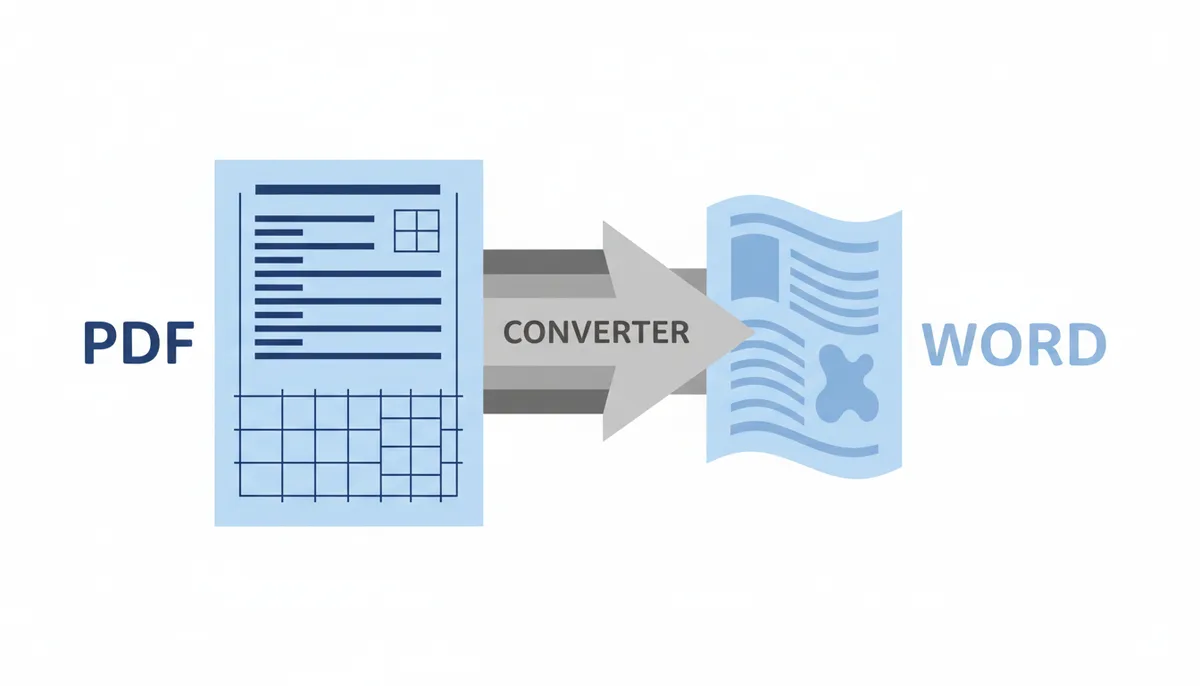
Imagine this: you've spent hours perfecting a PDF document, only to find that when you convert it to Word, everything is a mess. The fonts are different, the spacing is off, and your tables are broken. It's frustrating, but it's a common issue. The reason? PDF and Word are fundamentally different file types, and converting between them is more like translation than a simple format swap.
In this article, we'll demystify PDF to Word conversion by exploring the core problem areas: fonts, layout/spacing, and complex elements like tables and images. By understanding why these issues arise, you can better tackle them and find solutions that work for you.
Why Does My Word Document Look So Different from the Original PDF?
Most of us have been there: you open your newly converted Word document, and it's a jumbled, unrecognizable mess compared to your original PDF. This frustration is universal, but it's not just a quirk of the conversion tools. The root cause lies in the fundamental differences between PDF and Word file types.
PDF (Portable Document Format) and DOCX (Word's file format) serve different purposes. PDFs are designed to ensure that the document looks the same on any device, making them ideal for final presentations. DOCX, on the other hand, is built for dynamic editing, allowing you to easily modify and reformat your content. These differences make a perfect translation a complex engineering challenge, not a simple "save as" operation.
In this article, we'll dive into the key areas where PDF to Word conversion often goes wrong: fonts, layout and spacing, and complex elements like tables and images. By understanding these challenges, you can better manage your expectations and find solutions to common issues.
The Core Difference: A Digital Blueprint vs. a Flowing Manuscript
To understand why PDF to Word conversion is so tricky, we need to look at the fundamental design principles of each format.
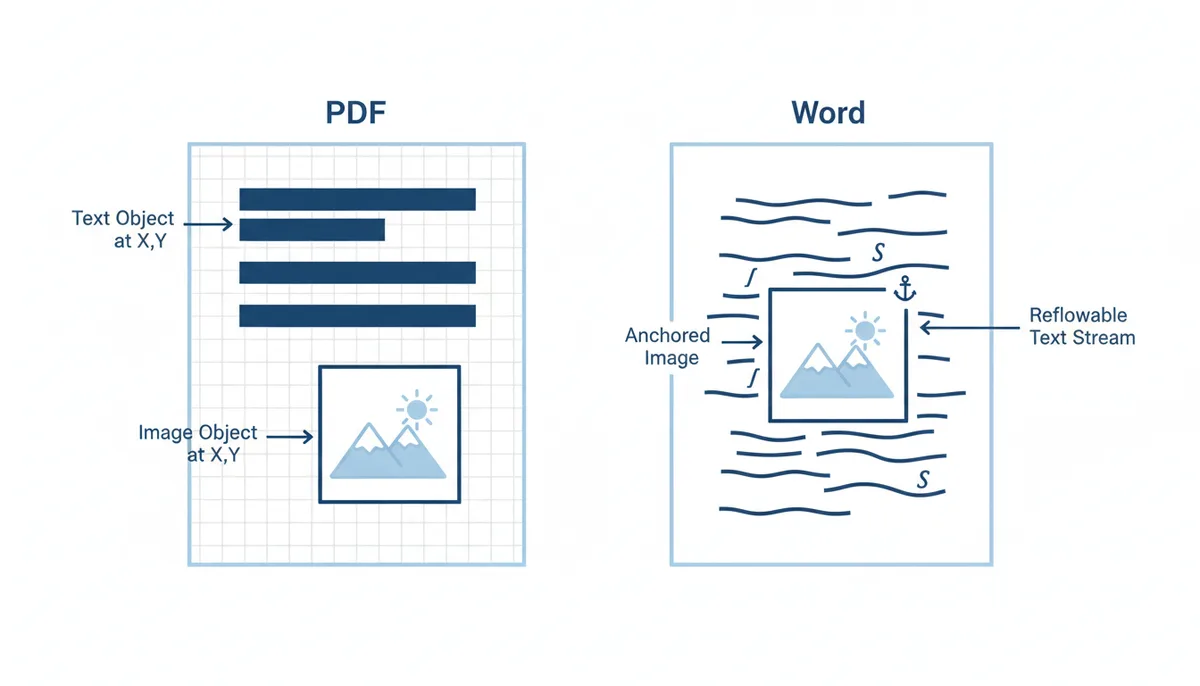
PDF as a Fixed-Layout Format: Think of a PDF as a digital blueprint. Every element—text, images, and graphics—has a precise X and Y coordinate on the page. This fixed layout ensures that the document looks the same on any device, making PDFs ideal for final presentations. However, this rigidity also means that each element is treated as a static object.
Word (DOCX) as a Reflowable Content Format: In contrast, Word is designed for dynamic editing. Text flows dynamically within margins based on font size, page size, and paragraph settings. This flexibility allows you to easily modify and reformat your content, but it also means that the converter has to guess the intended structure from the fixed layout of the PDF.
This conceptual mismatch is the root cause of nearly all conversion problems. The converter has to interpret the fixed layout of the PDF and convert it into a reflowable format, which is not always a straightforward process.
How Do Converters Actually 'Read' a PDF?
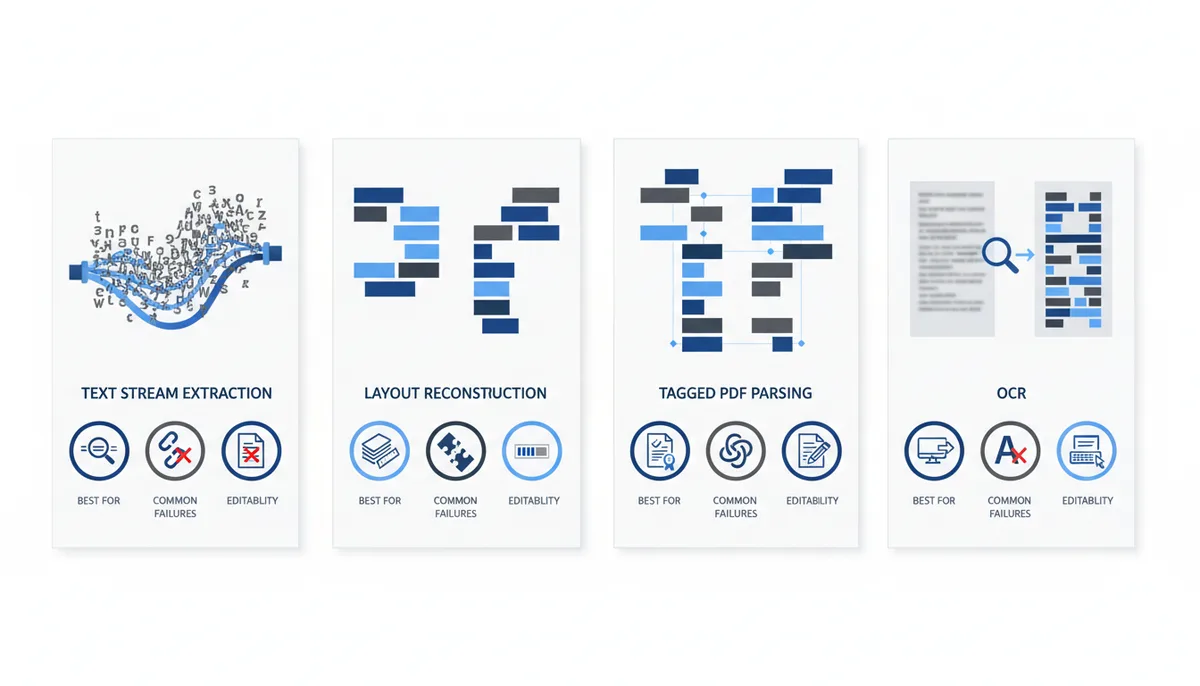
To convert a PDF to Word, the converter needs to interpret the PDF's fixed layout and translate it into a reflowable format. This process involves several primary techniques:
- Simple Text Stream Extraction: This method is the fastest but often loses all layout information. The converter extracts the text as a continuous stream, which can lead to a jumbled and unformatted document.
- Layout Reconstruction: This technique involves analyzing the positions of elements (text, images, etc.) to guess the structure of paragraphs and columns. While more accurate than simple extraction, it can still introduce errors and make the document difficult to edit.
- Parsing Tagged PDFs: Tagged PDFs provide structural clues that help the converter understand the document's organization. This method is the most accurate, but tagged PDFs are not common.
- Optical Character Recognition (OCR): OCR is used for scanned or image-based PDFs, where the text is not selectable. The accuracy of OCR depends on the quality of the image, and it can introduce errors like garbled text or misinterpreted characters.
The chosen method determines the quality of the final Word document, especially its editability. A converter that uses layout reconstruction or parses tagged PDFs is more likely to produce a document that is both visually accurate and easy to edit.
What Happens to Your Fonts During Conversion?
Fonts are a critical part of any document, and PDF to Word conversion often introduces font-related issues. This is because PDFs and Word handle fonts differently:
- Font Embedding in PDFs: PDFs can embed font data directly into the file, ensuring that the document looks the same on any device. This embedding can be full (all characters) or partial (only the characters used in the document).
- Word's Reliance on System Fonts: When you open a PDF in Word, the converter looks for the same fonts on your computer. If the font is not available, Word substitutes it with a similar one, which can break the original layout and spacing.
The result of these differences can be one of three outcomes:
- Perfect Match: If the font is embedded in the PDF and installed on your computer, the conversion will be seamless.
- Font Substitution: If the font is not available, Word will choose a similar font, which may not have the same spacing or style, leading to layout issues.
- Garbled Text: In some cases, especially with subsetted fonts or encoding issues, the text can become unreadable or display as symbols.
Font licensing restrictions are another common reason why fonts may not be fully embedded in a PDF, leading to substitution issues. To avoid these problems, use fonts that are commonly available or ensure that the PDF is fully embedded.
Why Does Spacing, Alignment, and Layout Break?
PDFs achieve spacing and alignment with precise character positioning (kerning) and invisible coordinates. In contrast, Word uses tabs, paragraphs, and margins to format text. This difference in approach often leads to layout issues during conversion:
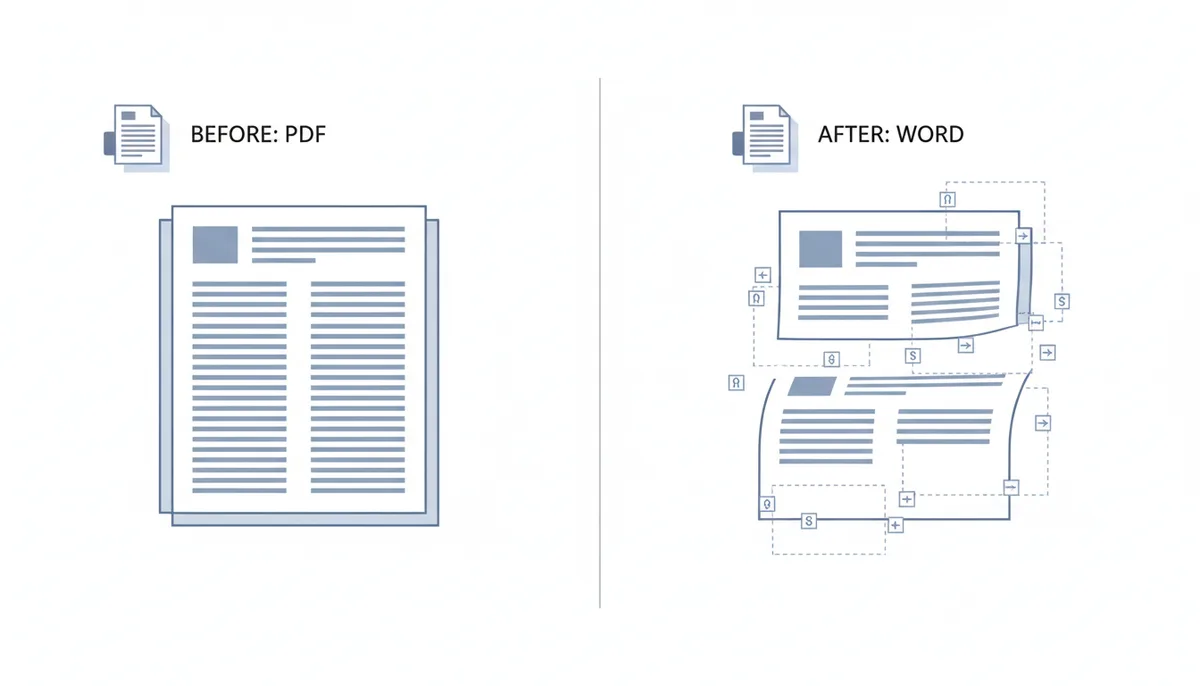
- Precise Character Positioning: PDFs use invisible coordinates to position each character, ensuring that the text looks exactly as intended. When converted to Word, the converter often has to insert numerous text boxes or manual line breaks to mimic this layout.
- Invisible Coordinates: PDFs use invisible coordinates to align elements, which can be lost in the conversion process. This can result in misaligned text and graphics in the Word document.
While the converted document might look visually similar to the original PDF, it is often difficult to edit because a single sentence can be split across multiple text boxes. This makes it hard to make simple changes without disrupting the entire layout.
The Special Problem with Tables and Images
Tables and images are among the most challenging elements to convert from PDF to Word. Here's why:
- Tables: Most PDFs don't contain a true 'table' object but rather a collection of separate lines and text elements placed to look like a table. The converter must reverse-engineer this visual arrangement into a functional Word table, which can fail with issues like:
- Borderless tables inferred from whitespace
- Merged cells that lose their structure
- Wrapped text inside cells that doesn't reflow correctly
- Repeated headers that are not recognized as such
- Ruled lines that are separate drawing objects rather than table borders
- Numbers aligned by coordinates rather than true columns
- Images: PDFs can contain both raster images (like JPEG or PNG) and vector graphics (using drawing commands like lines and shapes). During conversion, these elements must be reinserted as editable or anchored objects in Word. This can lead to issues such as:
- Quality loss for detailed raster images
- Incorrect positioning of images due to the difference between PDF's absolute coordinates and Word's text wrapping models
- Vector graphics that are not recognized and appear as static images
Understanding these challenges can help you anticipate and address issues when converting complex documents. For example, you might need to recreate tables in Word rather than trying to repair the converted version.
How Can You Get a Better Conversion?
While perfect PDF to Word conversion is often elusive, there are steps you can take to improve the process:
- Start with a High-Quality PDF: Ensure that the original PDF is text-based and not a scanned document. Scanned PDFs require OCR, which can introduce errors. A high-quality, text-based PDF is more likely to convert accurately.
- Use Tagged PDFs: Tagged PDFs provide structural clues that help the converter understand the document's organization. Many programs, like InDesign and Word, can create tagged PDFs. If you have control over the PDF creation process, opt for tagged PDFs to improve conversion accuracy.
- Check Converter Settings: Most converters offer settings that affect the output. For example, you can choose between a 'flowing' layout (more editable) or an 'exact' layout (more visual fidelity, less editable). Select the option that best fits your needs.
- Select the Correct OCR Language: If you're converting a scanned PDF, ensure that the converter uses the correct OCR language. This can significantly improve the accuracy of the text recognition.
By following these tips, you can minimize common conversion issues and produce a Word document that is both visually accurate and easy to edit.
Choosing the Right Tool for the Job
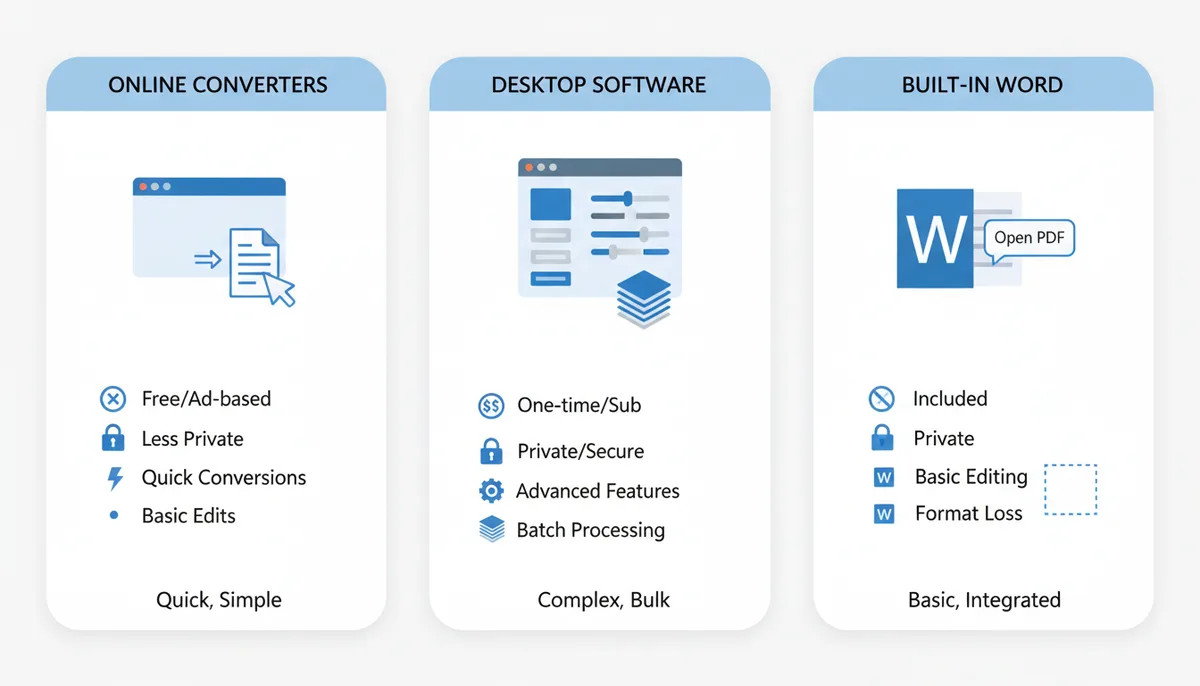
There are several tools available for PDF to Word conversion, each with its own strengths and weaknesses. Here’s a comparison to help you choose the right one:
- Free Online Converters: Tools like PDFator are convenient and accessible, but they may not handle complex documents as well as professional software. They are best for simple, one-off conversions.
- Professional Desktop Software: Programs like Adobe Acrobat Pro offer advanced features like batch processing and high-quality OCR. They are more expensive but suitable for frequent or complex conversions.
- Built-in Application Features: Word's built-in 'Open PDF' function is a quick option for simple documents. However, it may not handle complex layouts as well as dedicated conversion tools.
When choosing a tool, consider the complexity of your documents, the frequency of your conversions, and your budget. A free online converter might be sufficient for occasional use, while a professional tool is better for regular, high-stakes conversions.
The Deeper Mechanism: How PDF and Word Render Content
To truly understand why PDF to Word conversion is so challenging, we need to delve into the deeper mechanisms of how each format renders content. This understanding will help you anticipate and mitigate common issues during the conversion process.
PDF Rendering: PDFs use a rendering engine based on PostScript, a page description language that defines how text and graphics should be placed on a page. The PDF format, defined by the ISO 32000 standard, ensures that the document looks the same on any device. PDFs achieve this by using precise coordinates for every element, including text, images, and vector graphics. This fixed layout is ideal for final presentations but makes editing more difficult.
Word Rendering: Word, on the other hand, uses a different rendering model. It relies on a reflowable content model, where text flows dynamically within margins based on font size, page size, and paragraph settings. Word's layout is designed for flexibility and ease of editing, allowing you to easily modify and reformat your content. This reflowable nature is what makes Word so versatile for creating and editing documents.
The primary difference lies in how each format handles text and layout:
- Text in PDFs: PDFs use kerning and leading to control the spacing between characters and lines. Text is placed at specific coordinates, which can make it difficult to reformat. PDFs can also use font subsetting, where only the characters used in the document are included, leading to issues if the full font is not available on the target system.
- Text in Word: Word uses tabs, paragraphs, and margins to control text placement. Text flows dynamically, which means that changes to one part of the document can affect the entire layout. Word relies on system fonts, which can lead to font substitution issues if the exact font is not available.
These differences in rendering engines are the root cause of many conversion issues. For example, a PDF might use a specific font and kerning settings that are not replicated exactly in Word, leading to misaligned text and layout issues. Understanding these mechanisms can help you make informed decisions when converting PDFs to Word, such as choosing the right converter and adjusting settings to minimize errors.
A Real Worked Example: Converting a Complex PDF to Word
To illustrate the challenges and solutions in PDF to Word conversion, let's walk through a typical scenario using a common document type. We'll use a simple document with multiple columns, tables, and images to demonstrate the issues that arise and how to address them.
Step 1: Prepare the PDF
First, ensure that the PDF is text-based and not a scanned document. For this example, we'll use a PDF that includes tagged content and embedded fonts to give us the best starting point for conversion.
Document: Sample_Report.pdf
- Content: The PDF contains a cover page, a table of contents, multiple sections with text and images, and a few tables with complex formatting.
- Properties: The document is tagged, and all fonts are embedded.
Step 2: Choose a Converter
For this example, we'll use a free online converter that offers advanced features like layout reconstruction and OCR. We'll focus on the conversion process and the issues that arise.
Converter: Free Online Converter
- Settings: Choose the 'Exact Layout' option to preserve the visual fidelity of the document. Enable OCR if the document includes any scanned pages.
Step 3: Convert the PDF to Word
Upload the PDF to the chosen converter and start the conversion process. Once the conversion is complete, download the resulting DOCX file and open it in Microsoft Word.
File: Sample_Report.docx
- Results: The cover page and table of contents are preserved, but the text in the body of the document is split across multiple text boxes. Tables are converted but require manual adjustments for column alignment and cell padding. Images are generally well-placed but may need resizing.
Step 4: Manual Adjustments
After the initial conversion, you'll need to make some manual adjustments to fix the issues:
- Text Boxes: Select the text in each text box and copy it. Then, paste the text into a normal paragraph outside the text box. Repeat this process for all text boxes to merge them into a single, continuous paragraph.
- Tables: Recreate any broken or misaligned tables. Use the 'Insert Table' feature in Word to create a new table, and then copy the content from the broken table into the new one. Adjust the column widths and cell padding as needed.
- Images: Resize and reposition images as needed. Use the 'Text Wrapping' options to control how text flows around the images. Ensure that the images are anchored properly to the correct paragraphs.
File: Sample_Report_Final.docx
After making the adjustments, the final Word document should be visually similar to the original PDF and fully editable.
What Goes Wrong in Practice: Common Conversion Issues and Solutions
Despite the best efforts, PDF to Word conversion often introduces various issues. Understanding these common problems and their solutions can help you minimize frustration and produce better results.
1. Font Substitution and Garbled Text
Issue: The converted document uses different fonts or displays garbled text.
Solution:
- Check Font Availability: Ensure that the fonts used in the PDF are installed on your system. If the fonts are not available, Word will substitute them with similar ones, which can lead to layout issues.
- Use Built-in Fonts: Stick to commonly available fonts like Arial, Times New Roman, and Calibri to minimize substitution issues.
- Manual Adjustments: If garbled text appears, try re-copying the text from the PDF and pasting it into a new Word document.
2. Misaligned Text and Layout Issues
Issue: The text in the Word document is misaligned, and the layout is disrupted.
Solution:
- Merge Text Boxes: If the converter splits the text into multiple text boxes, merge them into a single paragraph. Use the 'Select All' feature to quickly highlight and merge multiple text boxes.
- Adjust Paragraph Settings: Use the 'Paragraph' settings in Word to control line spacing, indentation, and alignment. This can help you align the text more accurately.
- Recreate Layout: If the layout is severely disrupted, consider recreating the document in Word using the original PDF as a reference.
3. Broken Tables and Images
Issue: Tables and images are broken or misaligned in the converted document.
Solution:
- Recreate Tables: Recreate any broken tables in Word by using the 'Insert Table' feature and copying the content from the PDF. This ensures that the table is functional and easy to edit.
- Adjust Image Settings: Resize and reposition images as needed. Use the 'Text Wrapping' options to control how text flows around the images.
- Use Vector Graphics: If possible, use vector graphics (like SVG) in the original PDF to avoid quality loss during conversion.
4. OCR Errors in Scanned PDFs
Issue: The text in a scanned PDF is not recognized correctly, leading to garbled or missing content.
Solution:
- Use High-Quality OCR: Choose a converter that offers high-quality OCR and select the correct language for the document. This can significantly improve the accuracy of text recognition.
- Manual Corrections: After conversion, manually correct any errors in the text. Use spell-check and proofreading tools to ensure accuracy.
- Rescan the Document: If the quality of the scanned PDF is poor, consider rescanning the document at a higher resolution to improve OCR accuracy.
5. Security and Privacy Concerns
Issue: Converting a password-protected PDF or using online converters can raise security and privacy concerns.
Solution:
- Remove Password Protection: If the PDF is password-protected, remove the password before converting. Use a secure tool to unlock the document while maintaining its integrity.
- Use Desktop Software: For sensitive documents, use professional desktop software like Adobe Acrobat Pro, which offers advanced security features and does not require uploading the document to an online server.
- Check Converter Security: If you must use an online converter, ensure that the tool has strong security measures in place, such as file encryption and automatic file deletion after conversion.
Comparing PDF to Word with Other Formats: HTML and Markdown
While PDF to Word conversion is a common task, it's worth considering other formats that might be more suitable for certain use cases. Two popular alternatives are HTML and Markdown. Let's compare PDF to Word with these formats to understand their strengths and limitations.
HTML: A Web-Friendly Format
Strengths: HTML (Hypertext Markup Language) is a web-friendly format that allows you to create interactive and responsive content. It is widely supported and can be easily viewed on any device with a web browser.
Limitations: HTML does not preserve the exact layout and formatting of the original document, making it less suitable for final presentations. It also requires some technical knowledge to create and edit, especially for complex documents.
Use Case: HTML is ideal for web content, such as articles, blog posts, and online documentation. It is also useful for creating interactive forms and web applications.
Markdown: A Minimalist Format
Strengths: Markdown is a lightweight markup language that is easy to read and write. It focuses on simplicity and readability, making it a popular choice for writers and developers. Markdown files are plain text, which means they can be easily edited and version-controlled.
Limitations: Markdown is not as feature-rich as HTML or Word, and it does not support advanced formatting options like tables, images, and complex layouts. It is also not suitable for creating final, printable documents.
Use Case: Markdown is ideal for writing blog posts, documentation, and notes. It is also widely used in version control systems like Git for writing README files and documentation.
Comparison with PDF to Word: While PDF to Word conversion is focused on preserving the visual fidelity and editability of the document, HTML and Markdown offer different strengths. HTML is better for web content and interactivity, while Markdown is ideal for simple, readable documents that don't require complex formatting.
Understanding these alternatives can help you choose the right format for your specific needs. For example, if you need to create a responsive web page, HTML might be a better choice. If you need a simple, readable format for writing documentation, Markdown could be the way to go. For final, printable documents that require precise formatting, PDF to Word conversion remains a valuable tool.
Frequently Asked Questions
Is a 100% perfect PDF to Word conversion even possible?
For very simple, single-column text documents, a 100% perfect conversion is nearly achievable. However, for complex layouts with tables, multiple columns, and graphics, a 100% perfect, fully editable conversion is extremely rare due to the fundamental differences between the formats.
Why is the text in my converted Word file just one big image?
This happens when the original PDF was a scanned document. The converter treated the page as a picture. A good converter with Optical Character Recognition (OCR) is needed to turn the image of the text into actual, editable text.
Does converting from Word to PDF have the same problems?
No, converting from Word to PDF is much more reliable. You are going from a flexible, editable format (Word) to a fixed, 'printed' format (PDF), so the layout is 'frozen' exactly as you see it. The process works well in that direction.
What's the best way to fix a table that got messed up in conversion?
Often, the fastest solution is to create a new, blank table in Word and then copy and paste the text content from the broken, converted table into the new one. Repairing the converted table piece by piece is usually more difficult.
Will a password-protected PDF convert correctly?
If the PDF has a password that restricts copying or editing, the converter will likely fail or produce a blank document. You must be able to provide the password to unlock the document's permissions for the conversion to work.
Conclusion
PDF to Word conversion is a complex process that often introduces formatting issues due to the fundamental differences between the two file types. By understanding the core challenges—fonts, layout, and complex elements like tables and images—you can better manage your expectations and find solutions that work for you. Whether you use a free online converter, professional software, or built-in application features, the key is to choose the right tool for your specific needs and follow best practices to improve the conversion process.
Sources
- Adobe — The foundational concepts of the PDF format, its origins as a digital paper format, and its design for preserving document fidelity across platforms.
- ISO (International Organization for Standardization) — The claim that PDF (specifically PDF 2.0) is a formal international standard (ISO 32000-2:2020), defining its technical specifications for document representation.
- PDF Association — Best practices and technical information regarding Tagged PDFs, explaining how these structural tags are crucial for accessibility and reliable document conversion.